Workspace settings
A Yekar.AI organization is structured by domains - groups of agents, flows, and connected accounts with their own members and access settings. Teams own their own domains: Customer Support's agents, accounts, and members are separate from Finance's.
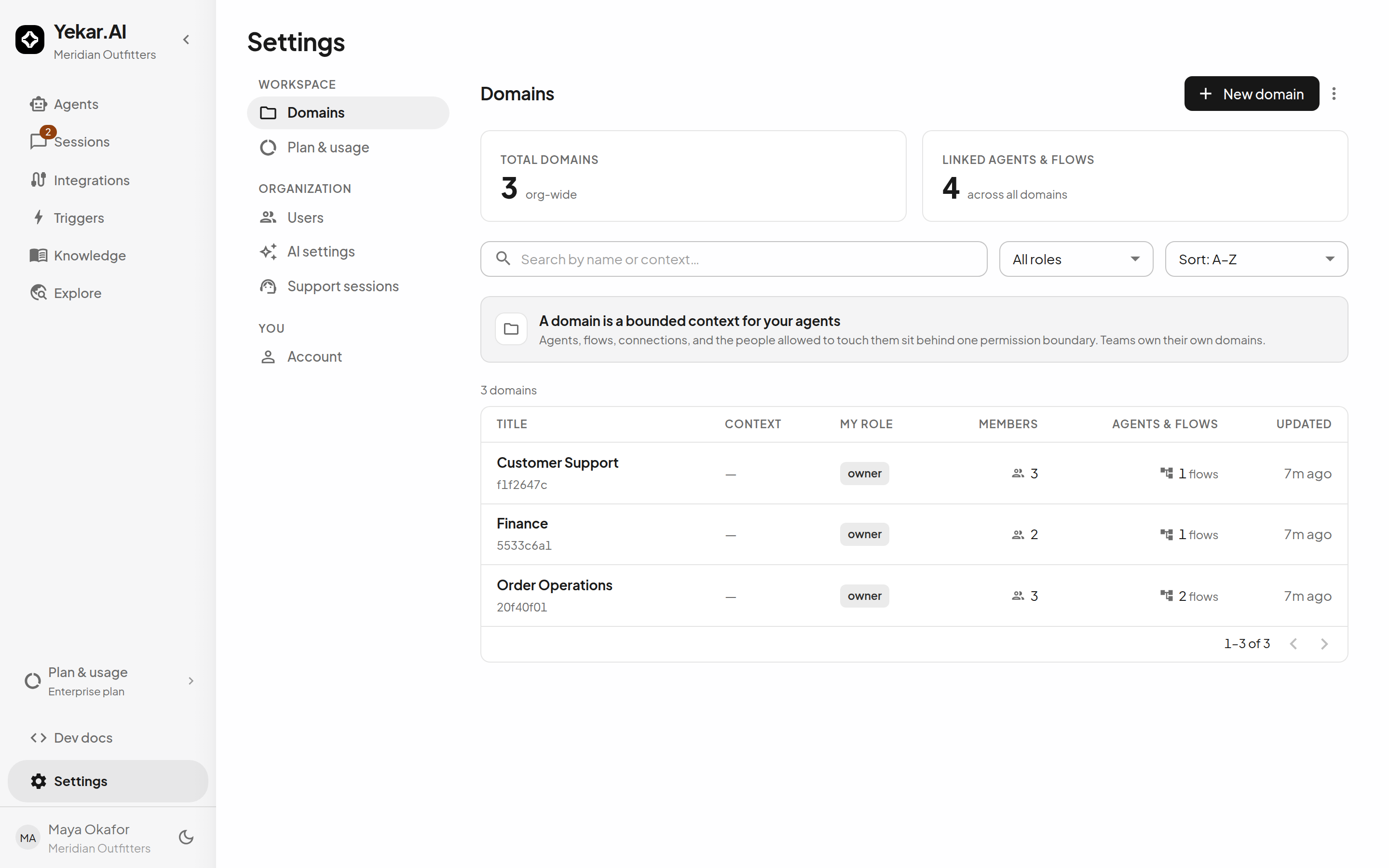
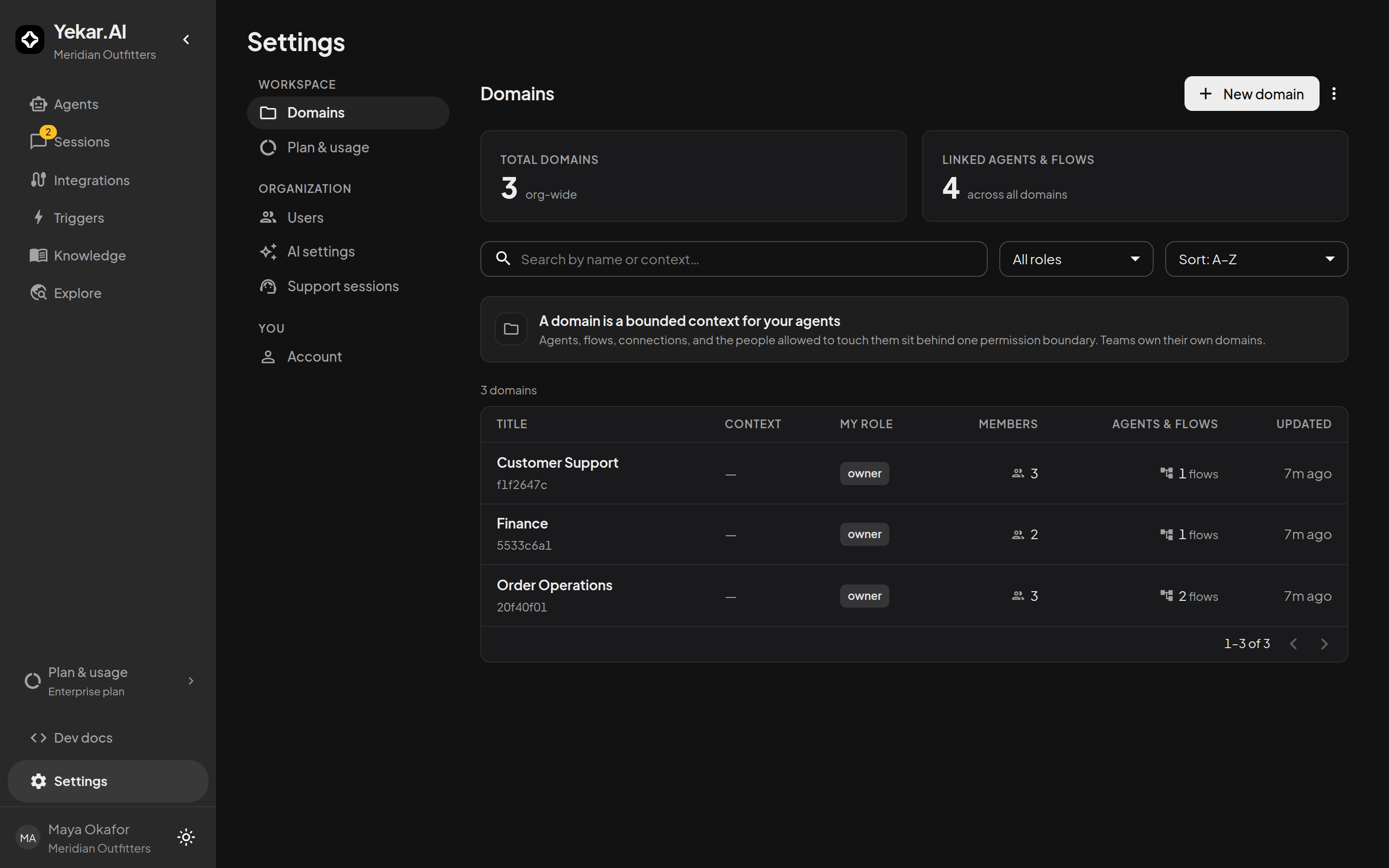
Domains
Open Settings → Domains. Each domain lists its members, its agents and flows, and your role in it. Select New domain to create one; open a domain to manage its members, its team-account connections, its approval policy, and any per-domain budget cap.
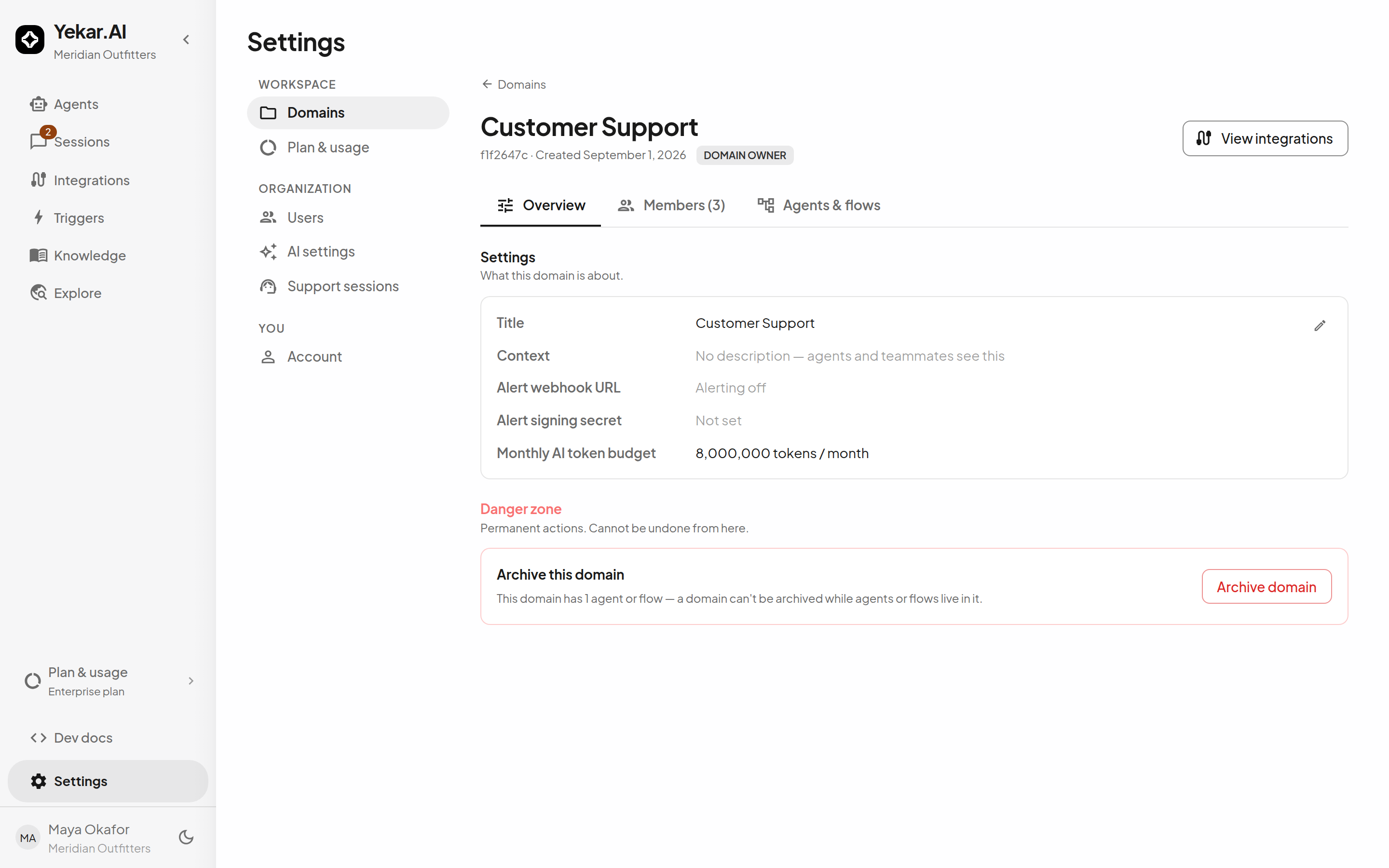
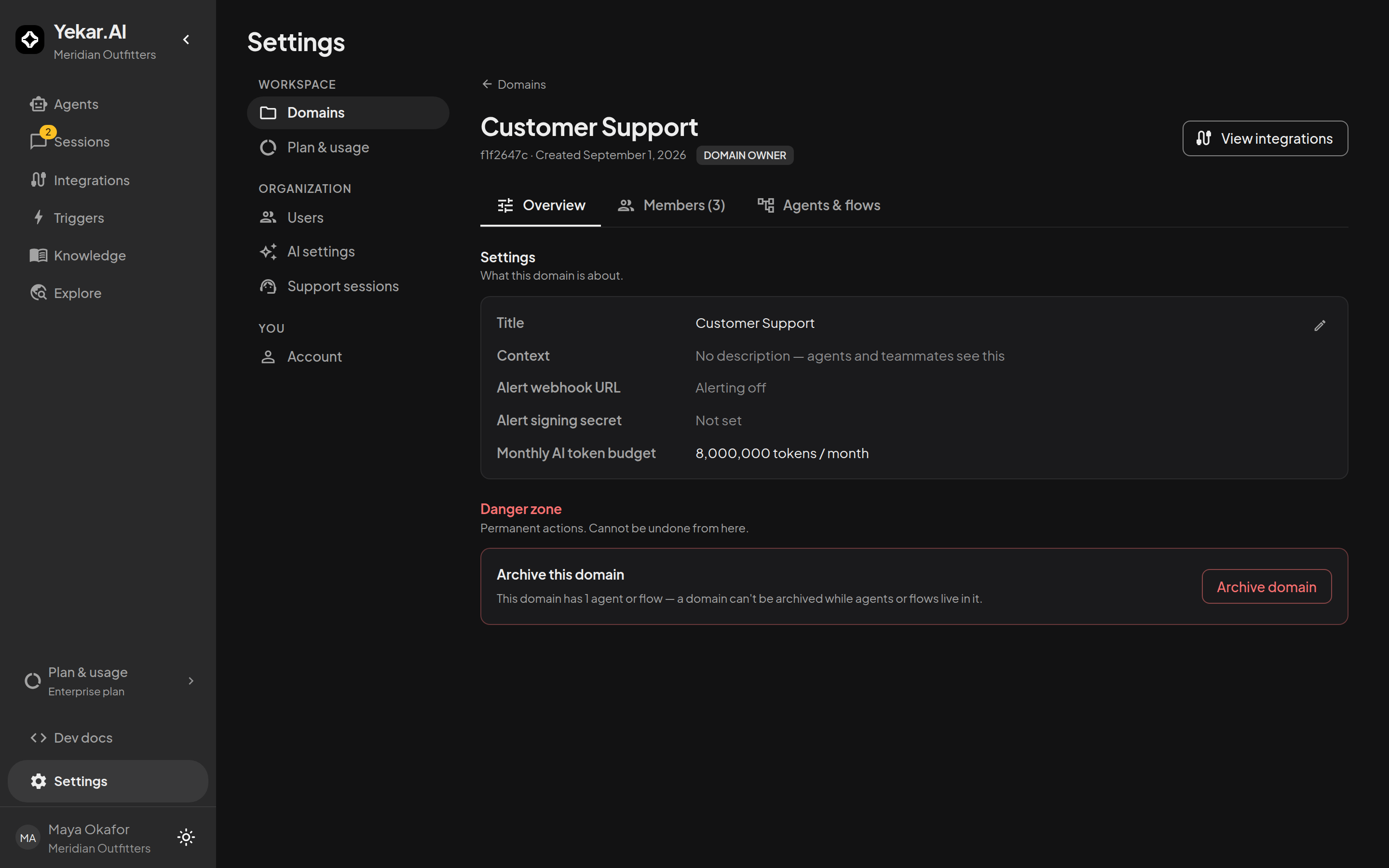
What lives in a domain:
- Agents & flows - every Agent and Flow belongs to exactly one domain.
- Team accounts - the domain's service connections, which agents and flows set to Team account act through.
- Members - the people whose domain role decides what they may do there.
- Approval policy - Who approves here: a minimum domain role, or a named list of domain members. Every member can see who qualifies; a domain Owner changes it with Edit approvers. See How approvals are layered.
Domain roles
The four roles are Viewer (domain member), Operator, Editor and Owner. All can inspect configuration and run published agents and flows. Operators add collaboration in teammates' sessions, trigger and webhook management, and approval eligibility. Editors add authoring, publishing, Builder, knowledge management and evaluations. Owners add shared connections, membership and domain settings.
See Roles and permissions for the complete organization and domain matrices, session ownership rules, and approval-policy exceptions. Organization roles and domain roles are independent.
Permissions
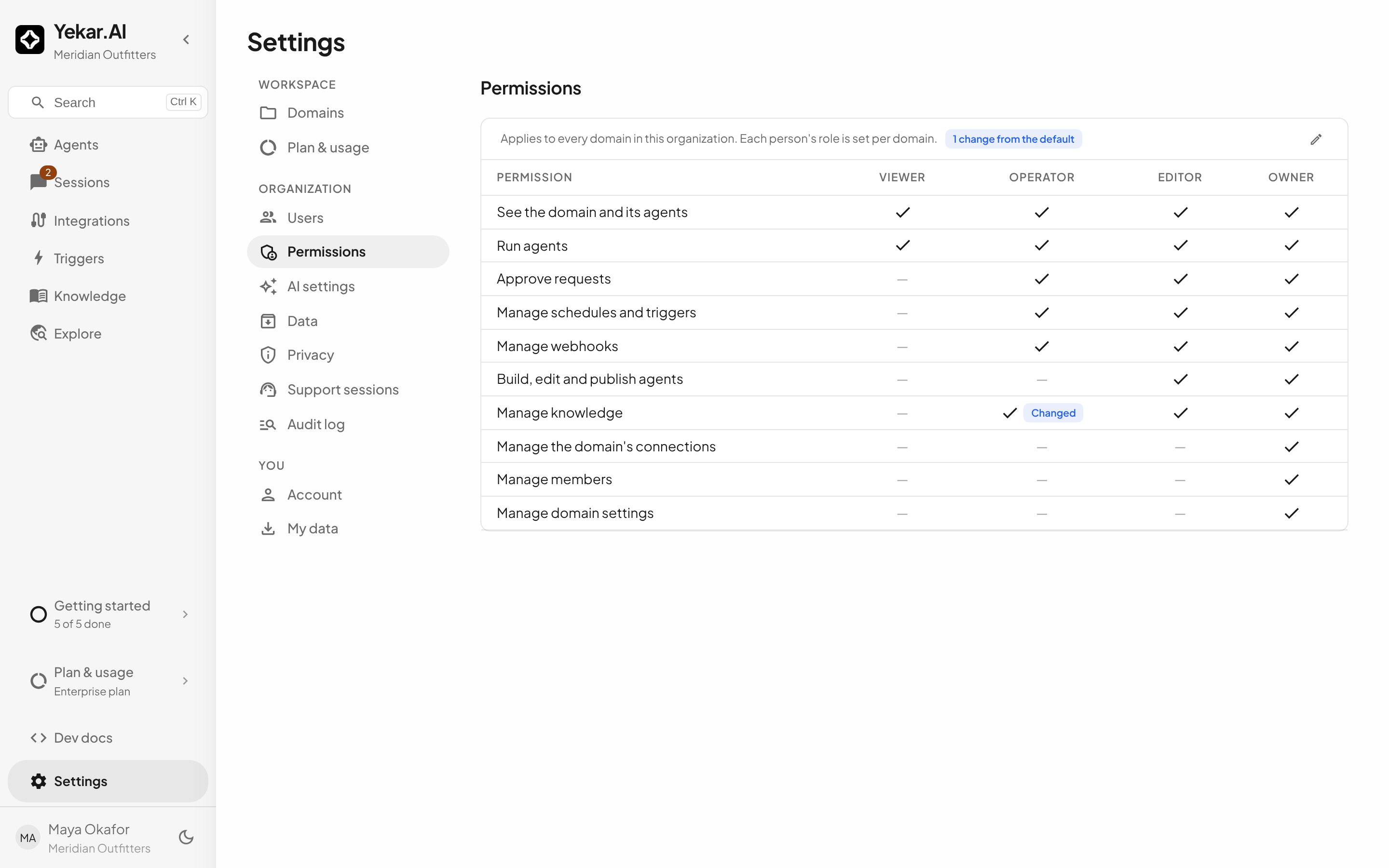
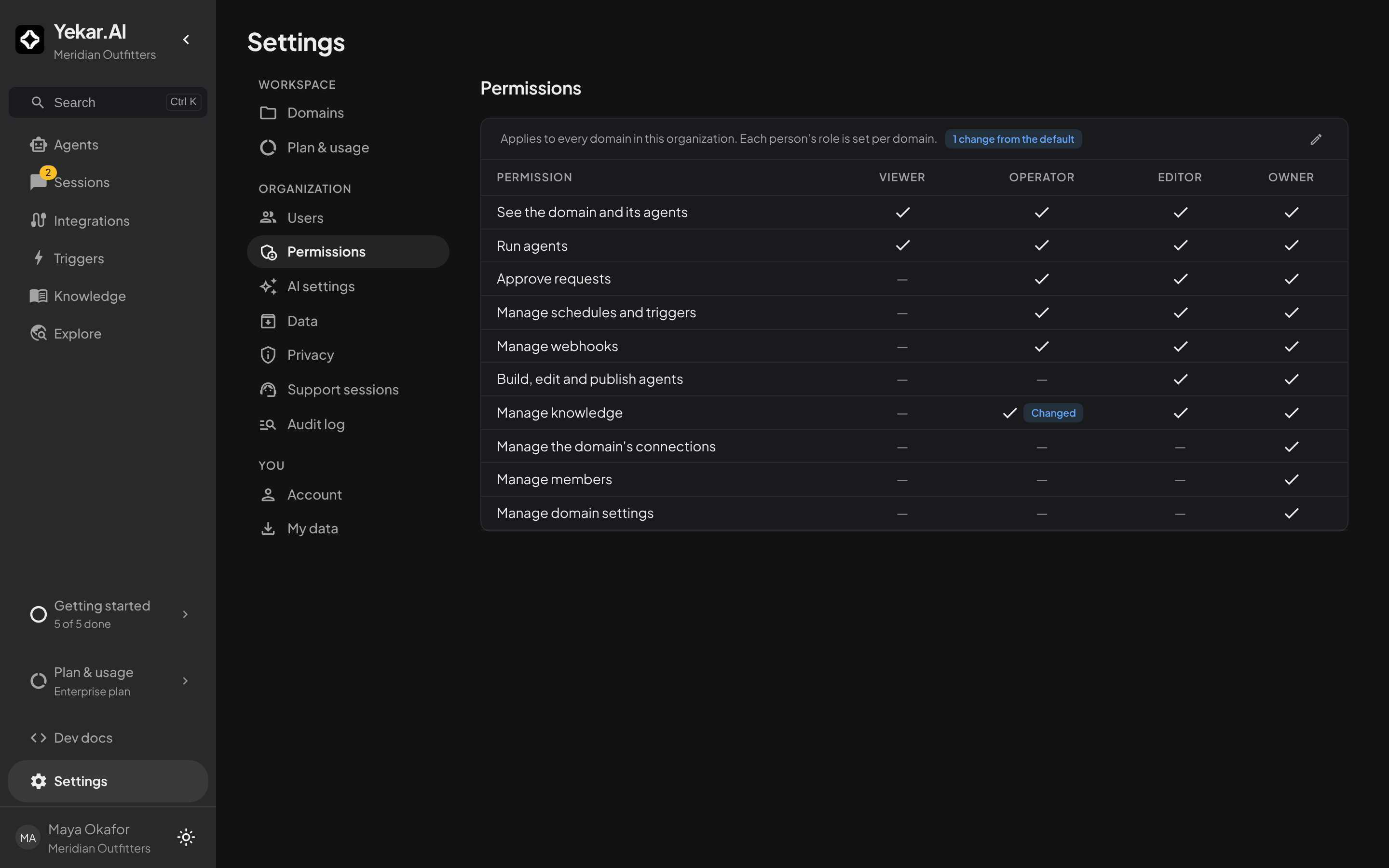
Settings → Permissions shows what each domain role may do in every domain of the organization, and lets an organization Owner or Admin change it: take publishing away from Editors, say, or let Operators maintain knowledge. Cells your organization has changed from the default are marked, Restore defaults puts them back, and each save is recorded in the audit log and applies to everyone with that role within a few seconds. Which permissions can be changed, and which stay fixed so a domain always remains manageable, is set out in Changing what a domain role can do.
Users
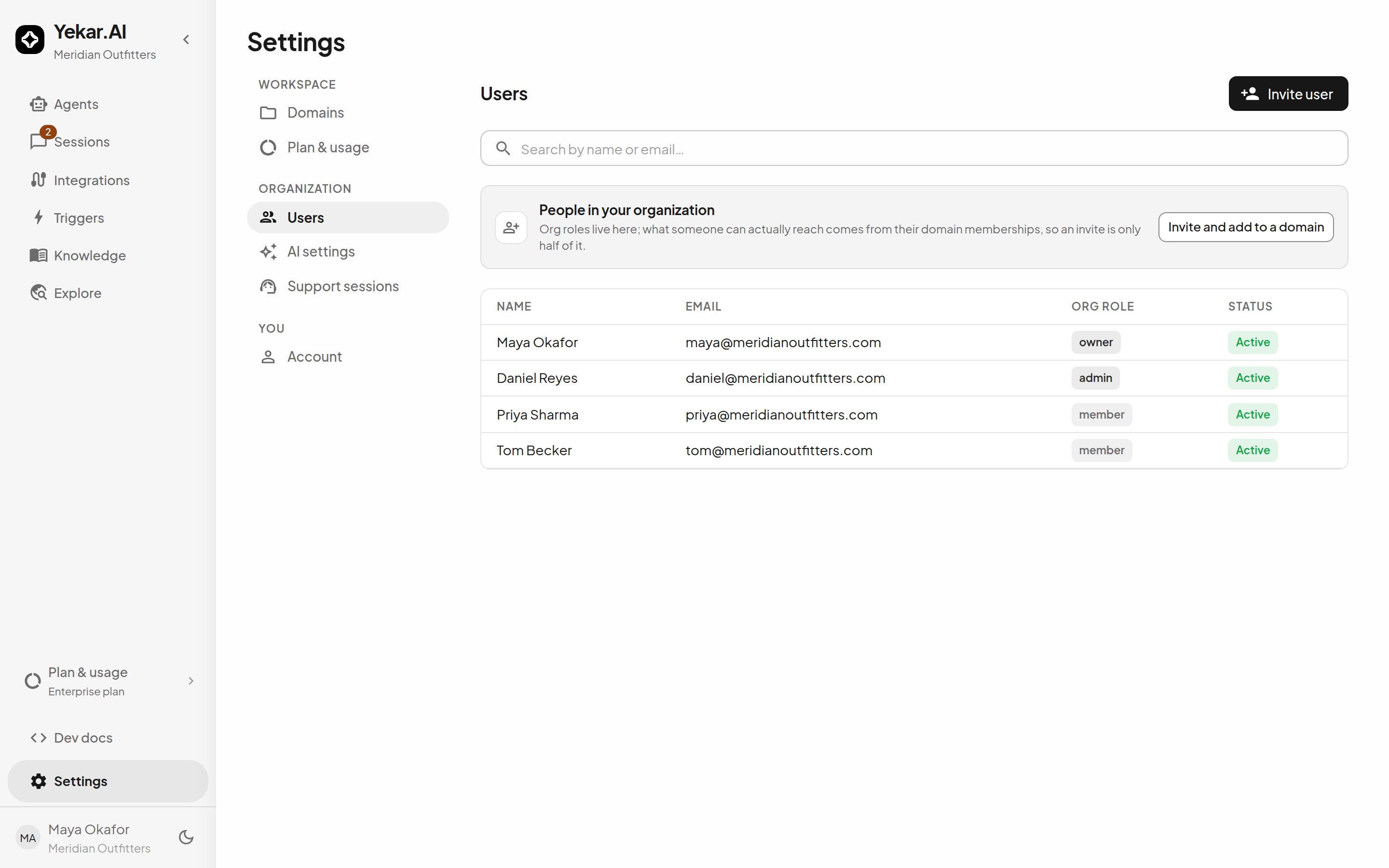
Open Settings → Users → Invite user to choose an organization role (Member, or Admin when invited by an organization owner), then use Add access to select domains and their roles. Organization Owners/Admins can assign any domain role; domain Owners can manage existing organization members within their own domains. Review the access before sending, or leave the access list empty to assign it later. Member + domain Editor is enough to build agents. Organization admins manage org-wide settings; domain roles govern day-to-day work inside each domain. See Teams and offboarding for role assignment and user status controls.
Your own account
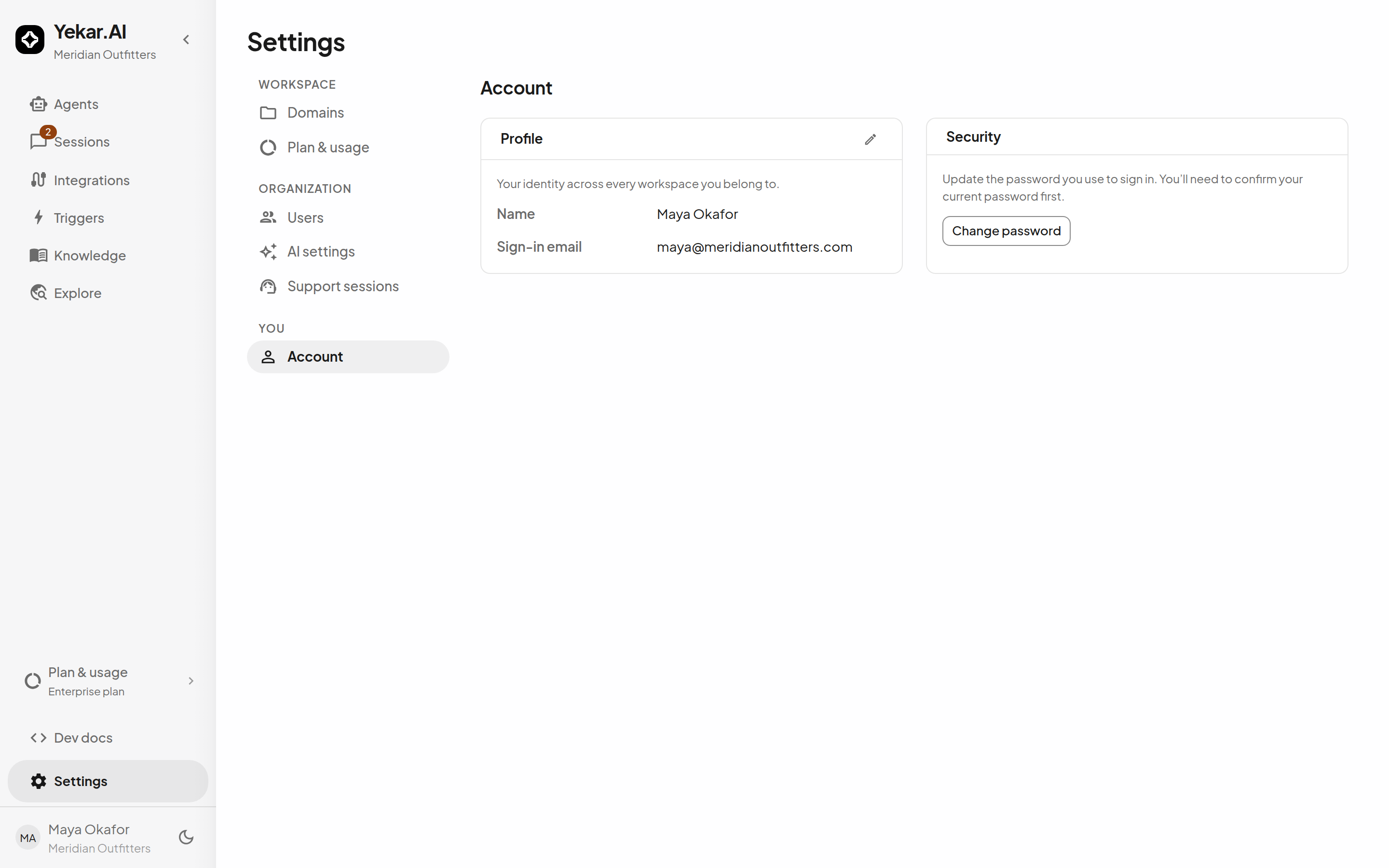
Settings → Account is where each person manages themselves - their name, their password, their sign-in email, and the workspaces they belong to. One sign-in can hold memberships in several workspaces and switch between them without a second password.
Changing the sign-in email is a two-step flow, because an address you have not proved is an address you could be taking from somebody else. Change email asks for your current password (unless the account signs in with Google only and has none), then sends a confirmation link to the new address; the link works once and expires in an hour, and your sign-in address stays the old one until you open it. The old address gets a notification of its own, with nothing to click. Until then you can send the link somewhere else instead.
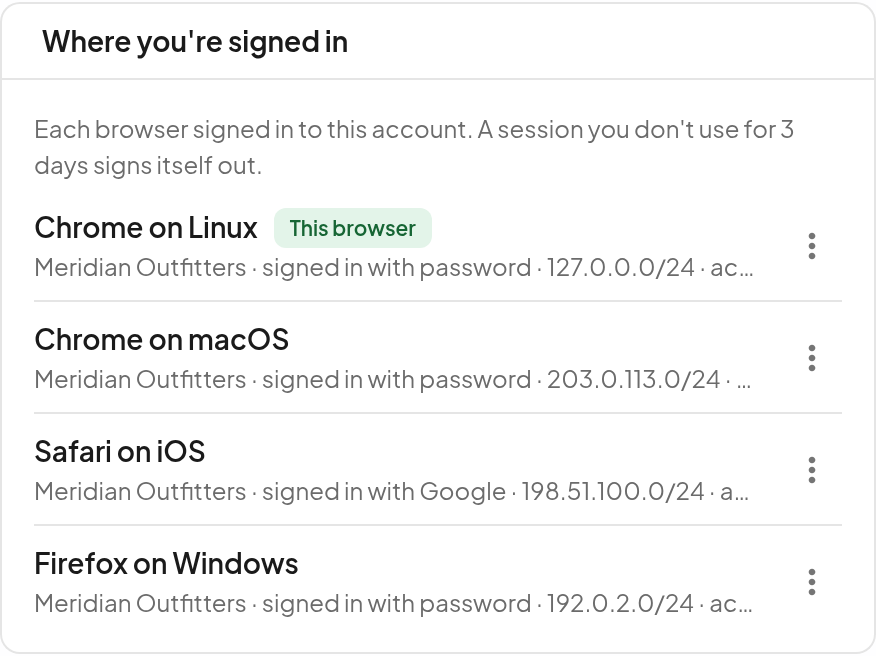
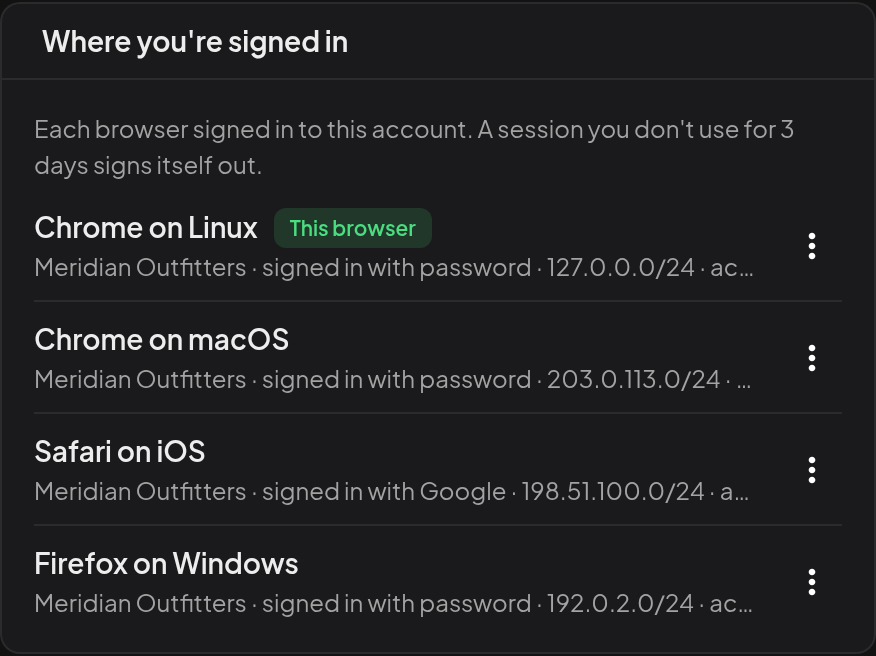
Where you're signed in lists every browser signed in to your account - the browser and system it announced, the workspace it is in, the network it signed in from, and when it was last used - and marks the one you are using. Sign out in a row's menu ends just that session; it is asked to sign in again the next time it is used. Sign out of all devices ends every session on the account, including the one you are using. Changing or resetting your password ends every other session, and confirming a new sign-in email ends all of them, so a browser you no longer control cannot stay signed in.
A session you don't use signs itself out: after three days without use, unless your organization has set a shorter time under Settings → Privacy. "Keep me signed in" keeps a browser signed in for up to 30 days, as long as it is used within that time.
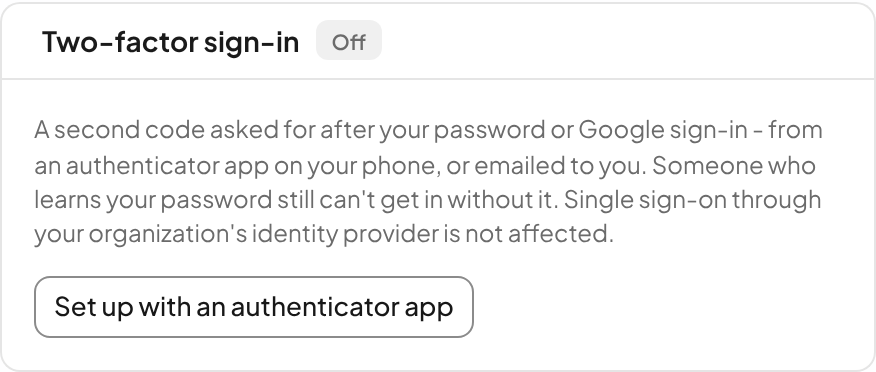
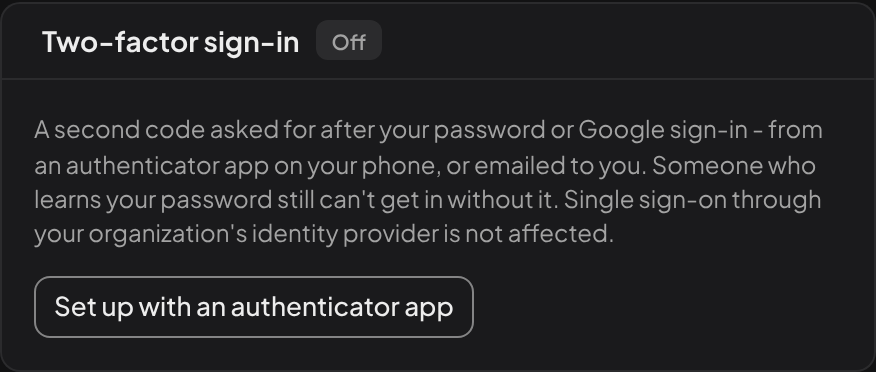
Two-factor sign-in adds a second step after your password or Google sign-in: an authenticator app (scan the code shown and enter the app's six-digit number) or, where Yekar.AI can send email, a six-digit code emailed to your sign-in address - then save the ten recovery codes shown once. Replacing the codes or turning the second step off asks for a current code. A browser you tick Remember this browser for 30 days on skips the second step for that long and is listed under Remembered browsers with a Forget action. How it behaves at sign-in, at a password reset and when a phone is lost is described under Two-factor sign-in; an organization can require it of everyone under Settings → Privacy.
New passwords - when you accept an invitation, reset your password, or change it - are checked against passwords known to have leaked in data breaches, and one that has is refused so you can choose another. Only the first five characters of a one-way fingerprint of the password are sent for that check; the password itself never leaves Yekar.AI. If the check cannot be made, the password is accepted.
Single sign-on
Where the workspace has it enabled, Settings → Single sign-on connects your SAML identity provider so people sign in through your own directory. Nobody is created by signing in - the membership must already exist. You can also require it, so your organization cannot be entered with a password or Google at all. See Single sign-on.
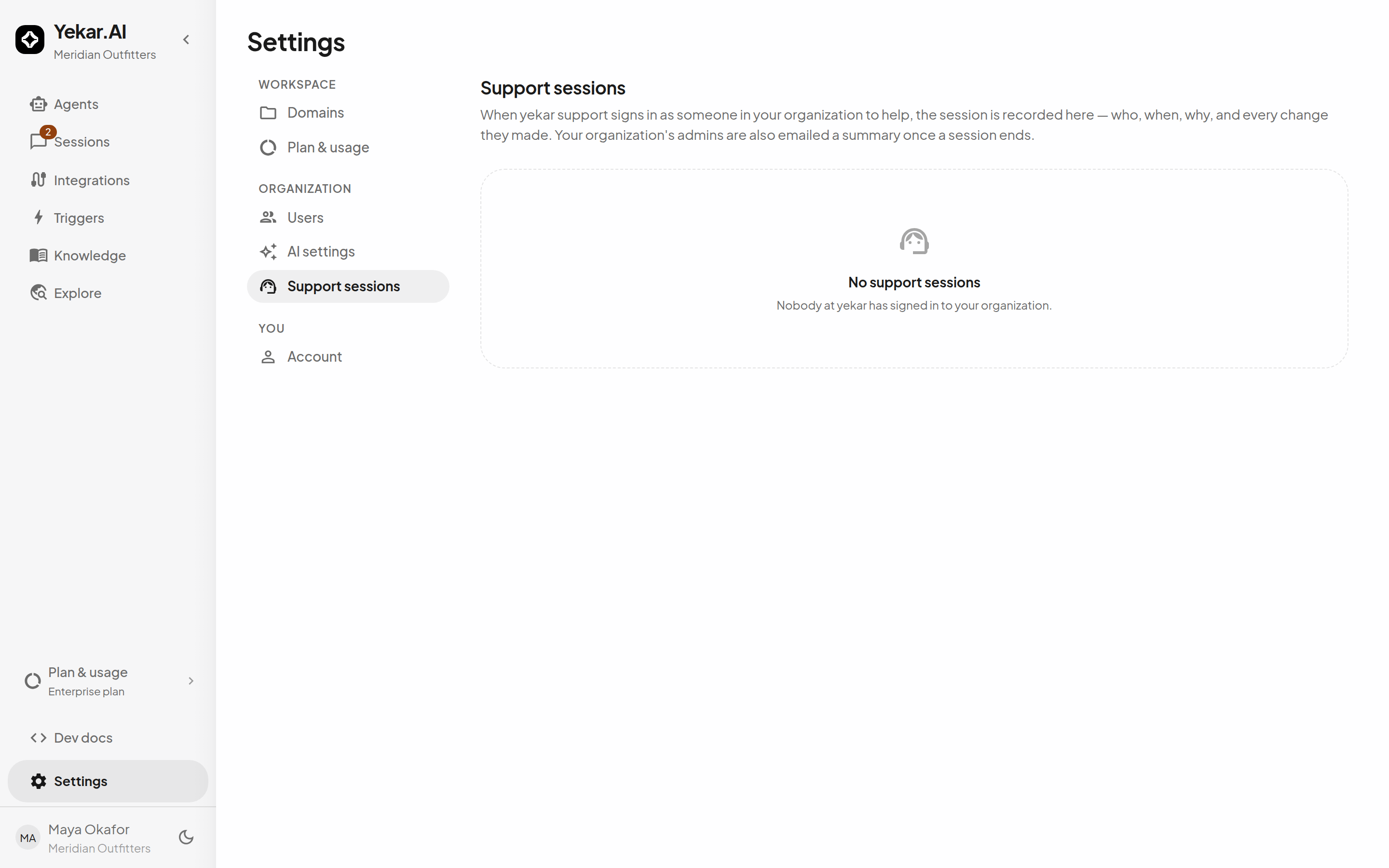
Support sessions
If you ask Yekar.AI for help, Settings → Support sessions is your record of it: every time a Yekar.AI engineer was granted access to your workspace, what they were allowed to do, and when it ended. Access is time-boxed and ends on its own clock, or earlier when Yekar.AI ends it.
Expand a session to see what support did in it: every change they made, and every page and record
they opened, newest first. A page is shown by its address (for example /automations/<id>), never
by what it displayed, and a search box's text is never recorded. A session also ends on its own
the moment the person running it loses the authority that started it, for example when their
Yekar.AI access is removed or lowered, or a partner's console access is revoked.
The Support access section at the top of the page decides whether a support session can happen at all. Allow support sessions is on for every organization unless you turn it off. While it is off, nobody - Yekar.AI support, or your platform's support if your organization is provided through one - can sign in as someone in your organization. Turning it off also ends any support session in progress. Only organization Owners and Admins can change it, and a support session can never change it.
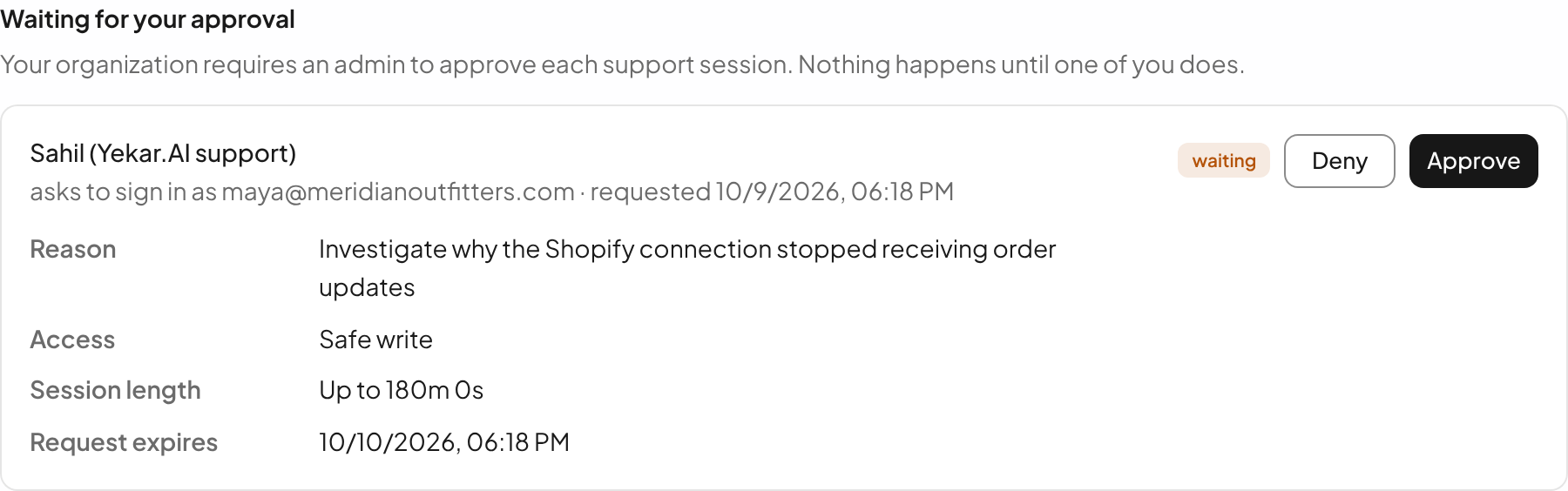
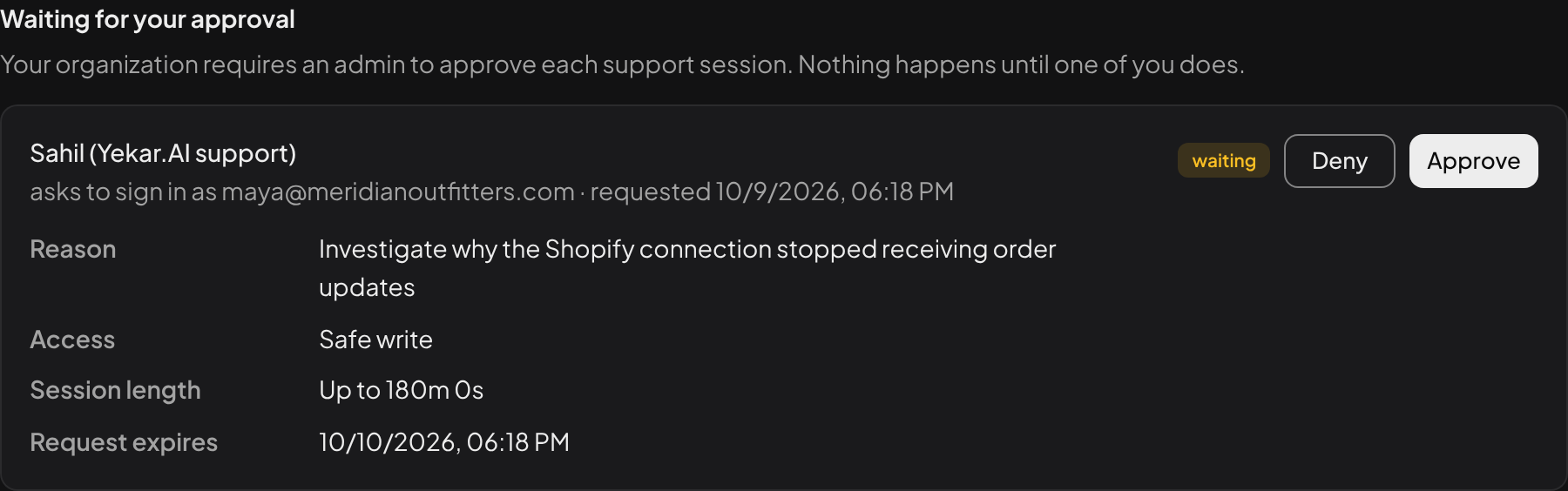
Turn on Require approval if you want support to ask first. Each time support wants to sign in, your organization's Owners and Admins are emailed, and the request appears at the top of the page under Waiting for your approval: who is asking, which person's account they want to use, the reason they gave, the access they asked for (read only, safe write or full write), and how long the session can last. Approve or deny it there. Nothing is usable until someone approves it:
- An approved session must be opened within 30 minutes, and it can last up to 3 hours from the approval.
- A denied request ends there. Support can ask again.
- A request nobody answers expires after a day.
Every request, approval, denial and expiry is recorded in your audit log. Approving and denying are for your own admins only: nobody inside a support session can approve or deny a request, or change these settings.
Data residency
On the Enterprise plan, an organization can keep its data on infrastructure it controls. Once Yekar.AI has set your organization up for this, Owners and Admins see Settings → Data residency with two sections:
-
Storage connects your own S3-compatible bucket (AWS S3, Cloudflare R2 or another provider with an S3 API). Every file your organization stores from then on - uploaded documents, files in conversations, and everything derived from them - is written to and read from your bucket, never Yekar.AI's. Yekar.AI checks it can write, read and delete a test object before saving. If the bucket later becomes unreachable, file operations fail with an error rather than falling back to Yekar.AI's storage. A document you upload passes briefly through Yekar.AI's storage while it is received, and is then moved into your bucket. If your organization already has files in Yekar.AI's storage, the bucket is saved but not used yet: the page says so, and existing and new files stay in Yekar.AI's storage until Yekar.AI moves them into your bucket, checked file by file, when your organization moves onto its own data plane.
The app's security policy only displays files from addresses it names, so tell Yekar.AI once you have saved a bucket. Until Yekar.AI has added your bucket's address and updated the app, your organization's files are stored and downloadable from Yekar.AI's API, but images and PDFs from your bucket don't display inside the app.
-
Encryption key connects a key in your own AWS KMS or HashiCorp Vault. The keys that protect your organization's secrets (integration credentials, API keys, webhook secrets) are then wrapped by your key. Revoking or disabling it makes those secrets unreadable to Yekar.AI within about ten minutes, until you restore it. Nothing falls back to Yekar.AI's key.
Your organization can also run on its own data plane: a dedicated deployment, against a database your organization owns, that holds your knowledge, conversations, agents, integration credentials and audit history. People still sign in at Yekar.AI and are then taken to your organization's own deployment. On the Enterprise plan, an Owner or Admin chooses this when the workspace is first opened: Your own infrastructure walks through your database, bucket and the address of your deployment, shows the deployment's secret once, and lets you request go-live once your deployment has checked in. Until Yekar.AI has moved your workspace onto it, everyone in the workspace sees a setup page instead of the app. For an existing workspace this is arranged with Yekar.AI rather than switched on in Settings. On your own data plane:
- Members, organization settings, single sign-on, your plan and billing are still managed at Yekar.AI, and the pages that show them work as before.
- Your Credit is drawn in small amounts at a time: your billing history shows each one as Credit moved to your data plane, and what is left comes back if your organization moves off it.
- Support sessions reach your organization's deployment when Allow support sessions is on, and end there the same way.
Organization defaults and budgets
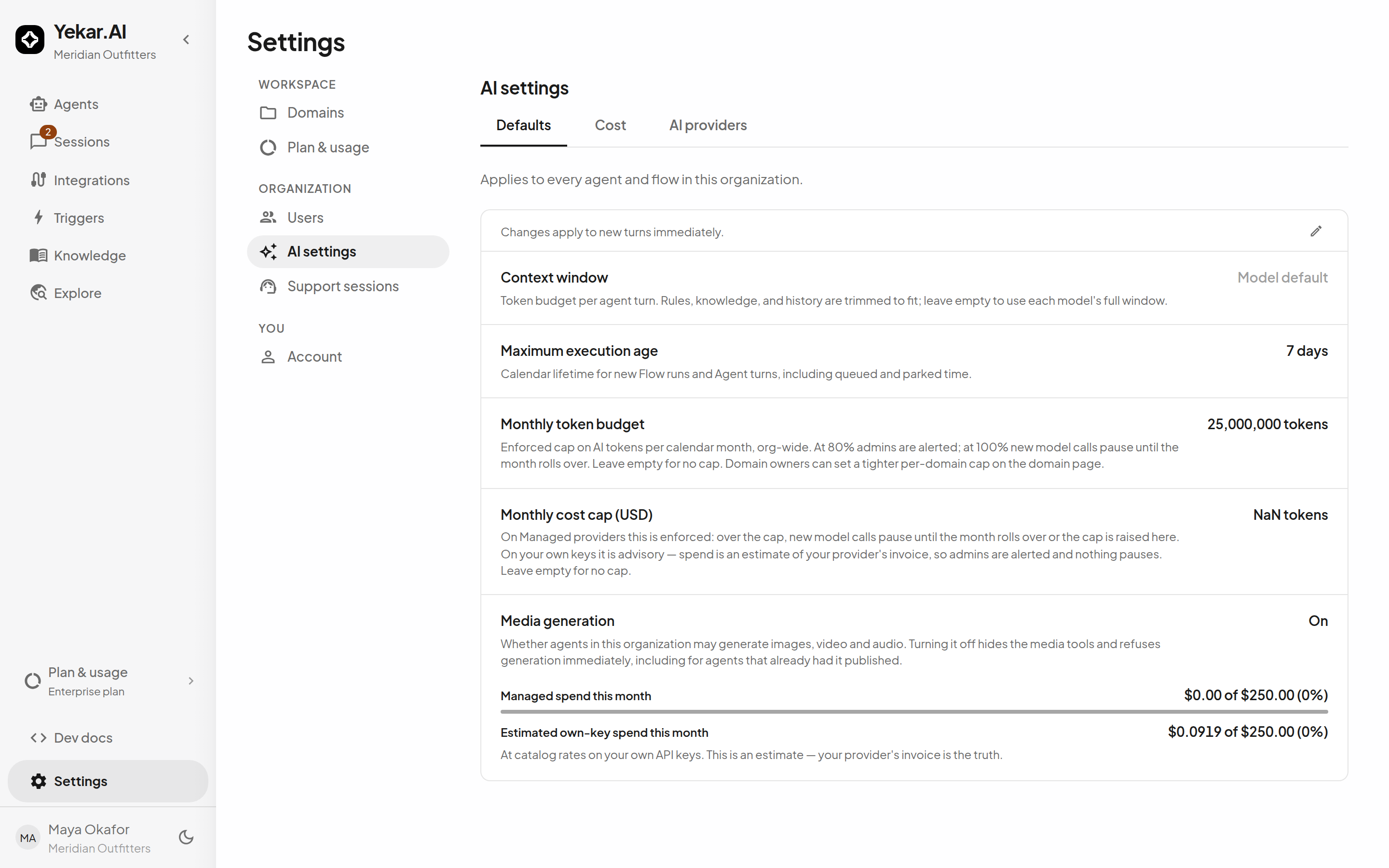
Settings → AI settings → Defaults applies to every agent and flow in the organization:
- Default model - what agents with no model of their own, chats and flow steps without a model run on. Left on Automatic, it is the recommended model when your organization offers it, otherwise the offered model closest to it in price, and the page shows which. If you pick a model that is later turned off, your choice is kept, the page says it is no longer available, and the automatic pick runs until you choose another.
- Default model for background tasks - the model for the small jobs around a conversation: naming it, summarizing older messages, rewording a short follow-up into a full knowledge search, learning from past runs, and discovery. Left on Automatic, it is Claude Haiku 5.5 when your organization offers it, otherwise the lowest-priced model it offers. An agent can choose its own under its Model for background tasks setting.
- Context window - a token budget per agent turn; rules, knowledge, and history are trimmed to fit. Empty uses each model's full window. What a turn does when it runs out of room - dropping the oldest messages, summarizing them, and eliding old tool results mid-turn - is described in Long conversations.
- Maximum execution age - calendar lifetime for new Flow runs and Agent turns, including queued and parked time.
- Monthly token budget - an enforced org-wide cap on AI tokens per calendar month. At 80% admins are alerted; at 100% new model calls pause until the month rolls over. Domain owners can set a tighter per-domain cap on the domain page.
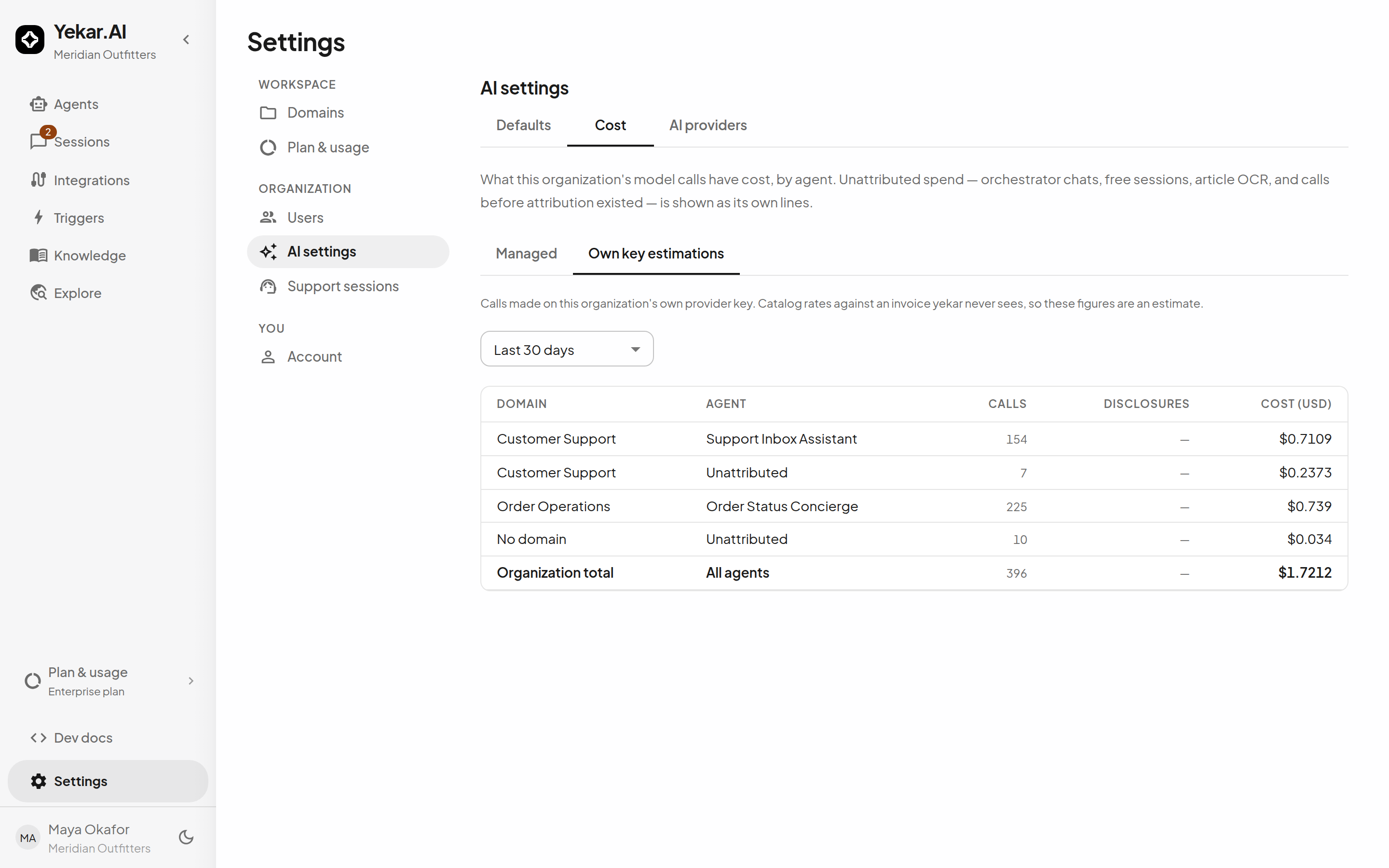
- Monthly cost cap (USD) - enforced on managed providers, where new model calls pause over the cap; advisory on your own keys, where spend is an estimate and admins are alerted instead.
Settings → Plan & usage → Cost reports what was spent - by window, by domain, and by agent, as charged actuals on managed providers and as an estimate on your own keys - so a budget is something you set from evidence rather than a guess. Cost & budgets explains what is counted and how.
See AI providers for the provider and model controls beside them, and Plan & usage for the capacity those budgets run inside.