Bring a team on, and take a person off
A workspace is one organization; a team is a domain inside it. The domain owns the agents, the shared connections those agents act through, and the people allowed to touch them - so the order of setup is the order of ownership.
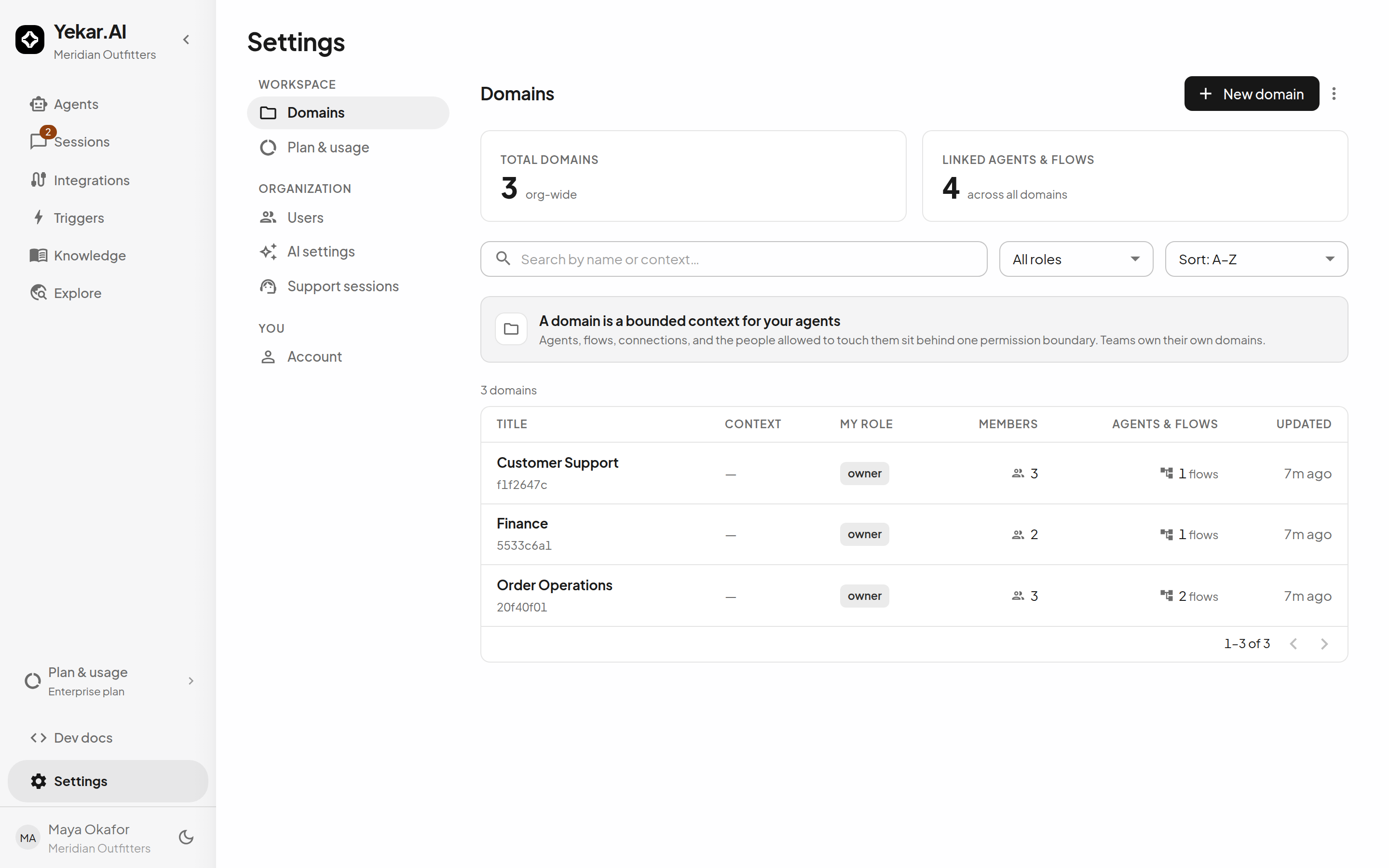
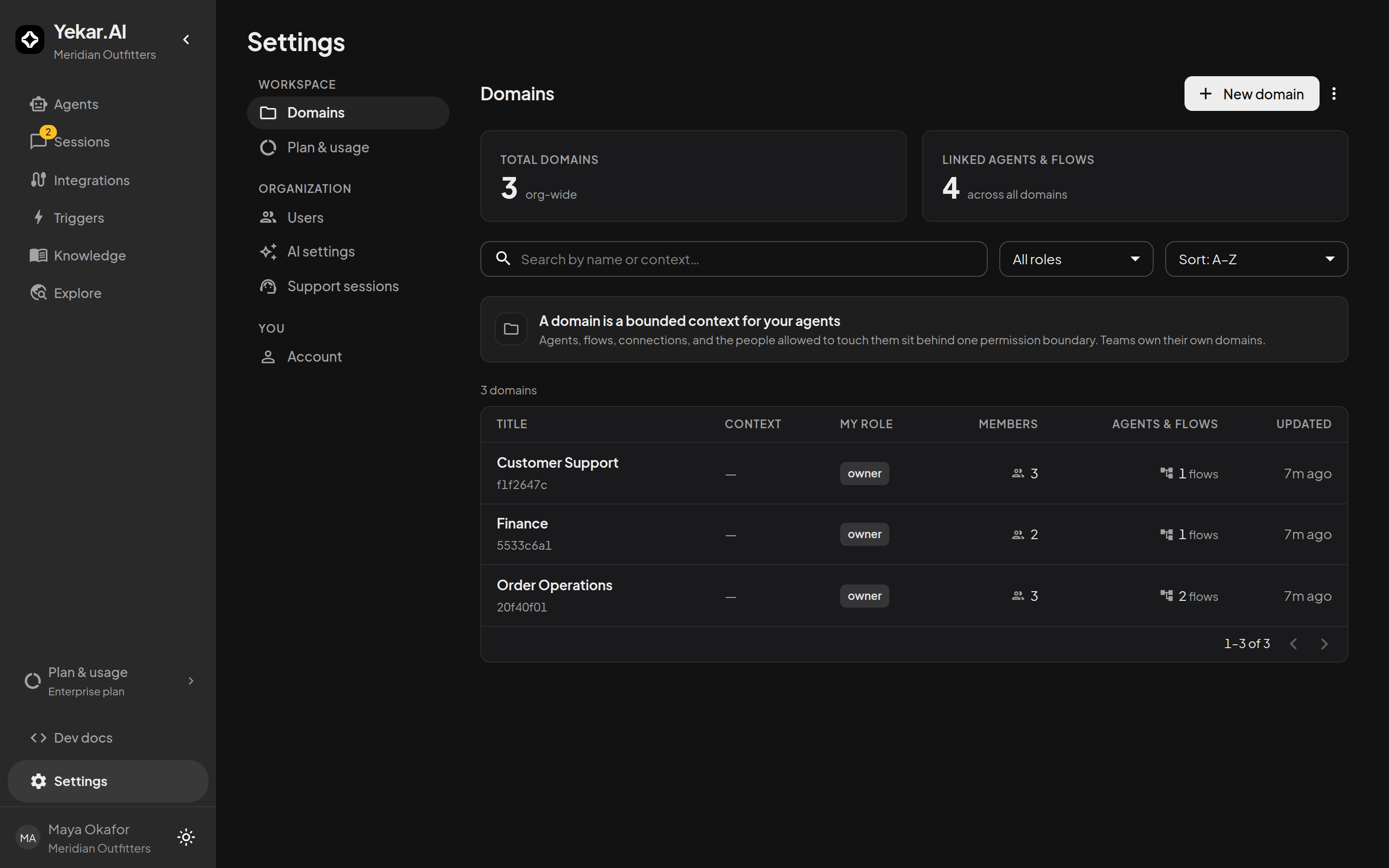
1. Create the domain
Settings → Domains → New domain. Organization admins can always create one; whether ordinary members can is decided by an admin under Settings → Domains, from the actions menu's Who can create domains…, and a member who does becomes its owner. A domain must always keep at least one owner.
2. Connect the team's accounts
On the domain's page, connect the integrations the team's agents will act through - the support mailbox, the shop, the channel. These are team accounts: the domain owns them, agents set to act as the team account use them, and nobody's departure takes them away. Only domain owners can connect or disconnect them.
An owner can also decide, per connection, whether the domain's agents may act as the person using them - Personal sign-ins → Members may sign in with their own account. See Identity.
3. Invite the people
Settings → Users → Invite user opens a three-step wizard - Who, Domain access, Review - and sends a one-time activation link that expires in 72 hours; the last step also shows the link itself so you can pass it on when email is not an option. The person sets a password of at least ten characters - one found in a known data breach is refused, and they choose another - or, if their address already has a Yekar.AI account from another workspace, simply accepts. Google sign-in works once an account exists and holds an active membership; there is no sign-up through Google. In an organization that requires single sign-on, the invitation is accepted by signing in through your identity provider instead, and no password is set. In an organization that requires two-factor sign-in, accepting signs the person in to their account and then asks them to set up an authenticator before the workspace opens.
The invitation wizard asks for their organization role, then lets you choose their domain access. Click Add access for each domain: a row appears with a searchable Domain selector on the left and an Access role on the right. A single available domain is selected automatically, and each domain can appear only once. Review all assignments before sending. Choose Member and domain Editor for someone who needs to build agents. Leave the access list empty to invite without domain access; an organization Owner/Admin or a domain Owner can add access later.
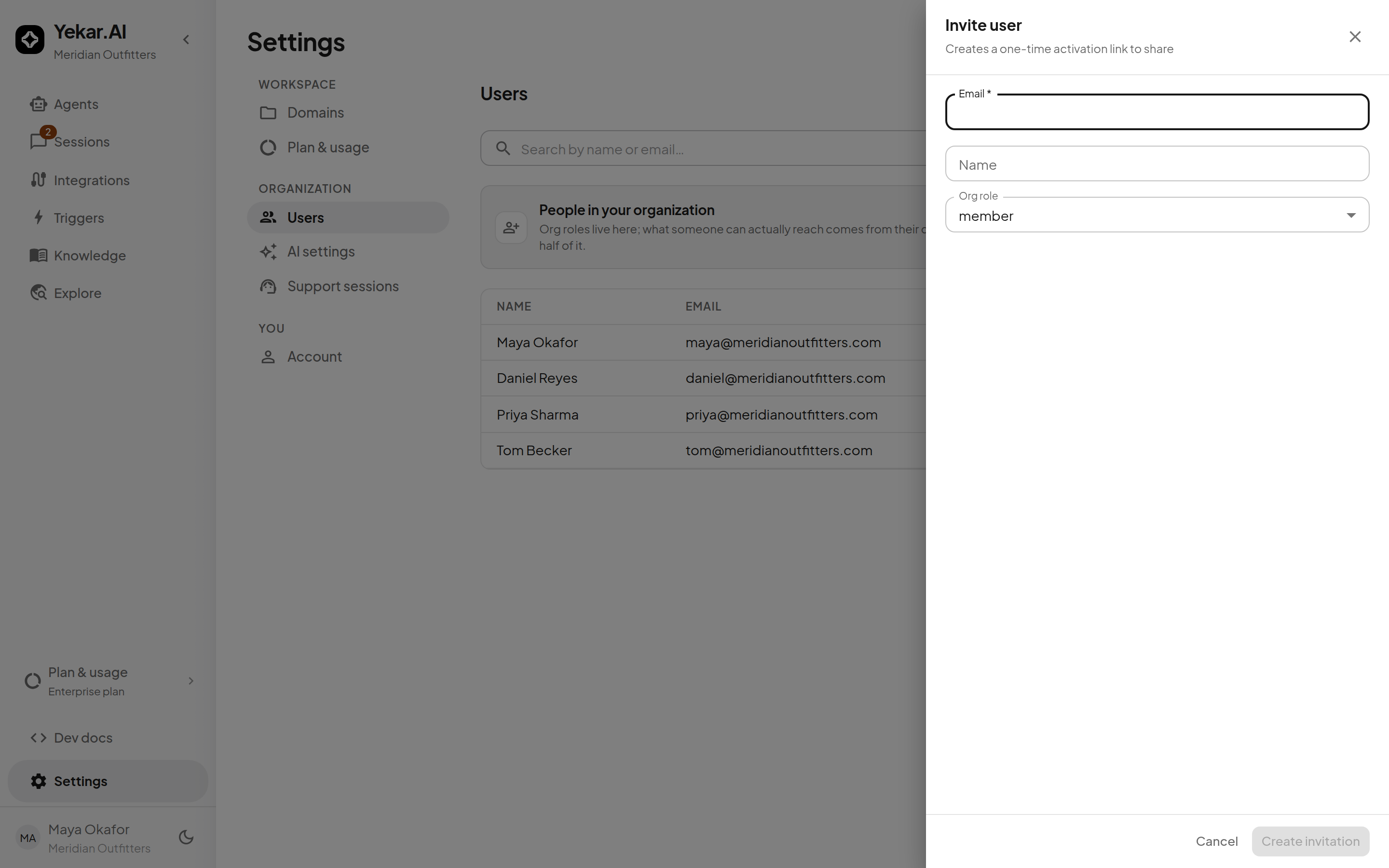
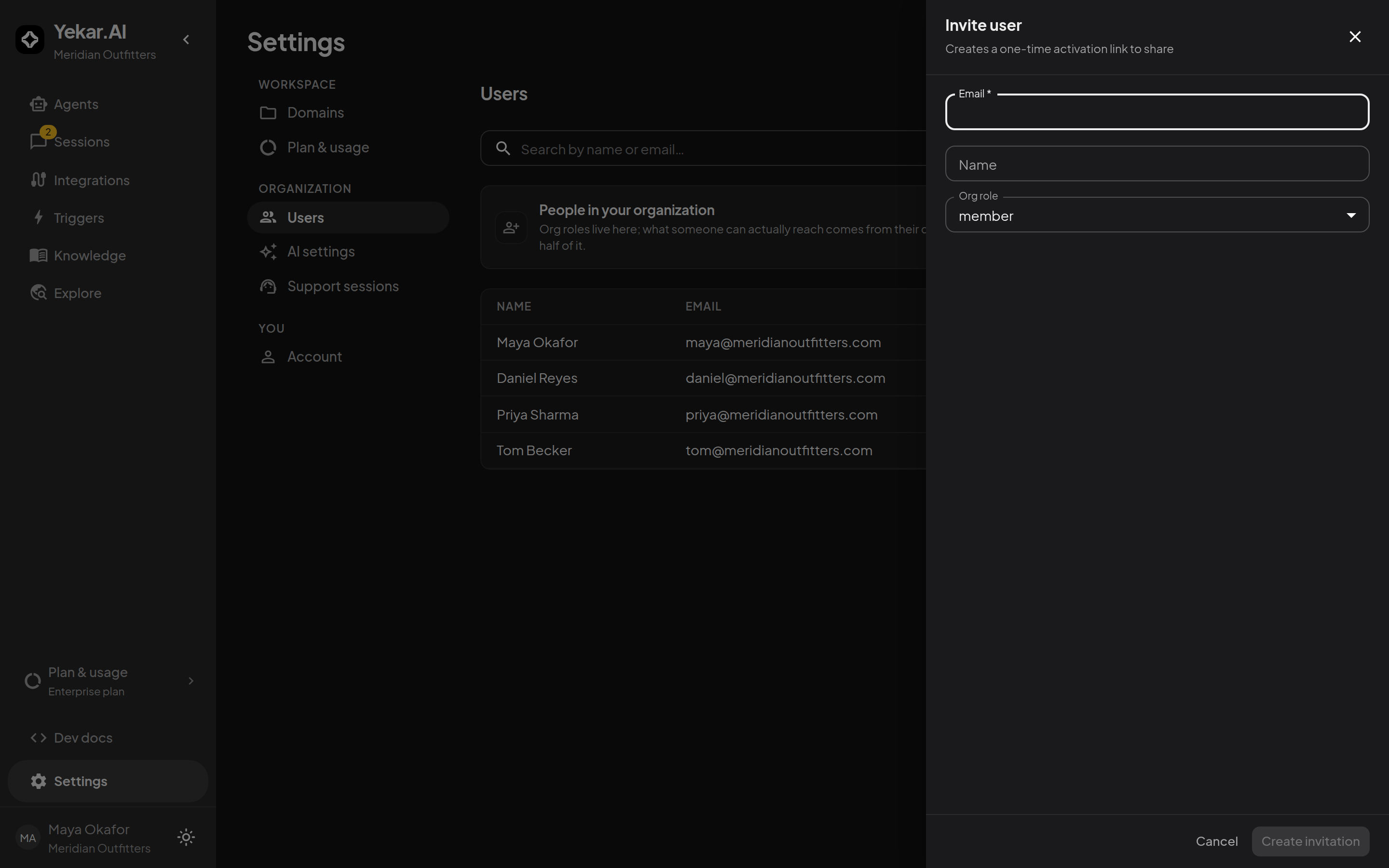
The organization role defaults to Member. Admins manage users, AI providers and keys, organization defaults and cost; only an owner can invite someone as an admin. Being an organization admin does not put a person in any domain - they can see cost organization-wide, but they run a domain's agents only as its member.
An invitation name is an initial default. The name the person enters during signup, invitation acceptance, or Account settings takes precedence across their workspaces. Later invitations cannot overwrite it, and clearing a profile name does not restore an old invitation name.
On a plan with one domain
Plans that include more than one seat include team roles. On a plan with a single domain there is no Domains page, so nothing in these screens talks about domains: the wizard's steps are Who, Agent access and Review, and its second step is one Agent role for the workspace - Editor by default, or No agent access. Manage those roles afterwards under Settings → Users → Agent access, below the user list: Give access to someone already in the workspace, or use a person's menu to Change role… or Remove agent access. Removing agent access keeps them in the workspace. Only organization Owners and Admins see this section. Installing a module adds a domain that Yekar.AI manages, so a workspace with a module has a Domains page instead and manages roles on each domain's Members tab, described next. On the module's domain only Viewer and Operator are offered, with no removal; its other roles are managed by Yekar.AI.
4. Manage their domain role
Assign a domain role during invitation, or add and update members later on the domain's Members tab (on a one-domain plan, Settings → Users → Agent access, above). Organization owners and admins can add, remove, and change members of any domain in their organization, assigning any domain role. Domain owners can do the same within their own domains. A domain must keep at least one owner. Managing membership does not itself grant access to the domain's agents.
If the invitation succeeds but assigning domain access fails, the wizard preserves the activation link and offers Retry access for each failed domain. Retrying leaves successful assignments in place and does not create another invitation.
| Role | May |
|---|---|
| Viewer | See the domain's agents, flows and sessions, and run them |
| Operator | Viewer, plus decide approvals, manage triggers and webhooks |
| Editor | Operator, plus edit and publish agents and flows, manage knowledge |
| Owner | Editor, plus manage connections, members and the domain itself |
Any domain member can start a published agent or flow. Viewers can participate in sessions they started or own; Operators, Editors and Owners can also participate in teammates' sessions. Each membership change is written to the audit trail. The complete matrices, including organization roles and approval exceptions, are in Roles and permissions.
5. Set the approver floor
The domain's approval policy defaults to Operator or higher. A domain Owner can instead choose another role floor or a named list of domain approvers; a Flow gate's own minimum role still applies. Make sure enough people qualify under the chosen policy and gate floors that unattended work does not depend on one person's inbox. See How approvals are layered.
Who sees what
Current domain members can inspect ordinary Agent and Flow sessions in their domains. Personal/free chats are private to their creator, including from organization Owners and Admins. Sending messages, attaching files and cancelling work require session participation; renaming, deleting and setting the outcome require the creator/recorded owner or a domain Owner. A trigger or schedule's recorded owner can participate in its sessions while remaining a domain member.
Builder conversations are shared with everyone who can currently edit the linked agent. Evaluation replays remain read-only. See the session access table for all session types.
One person, several workspaces
An account may hold memberships in several organizations. Sign in once and pick a workspace; switching rebinds the same session to another organization rather than widening it. A pending invitation shows beside the memberships until it is accepted.
The picker offers one other action, Sign out, so a person who signed in to the wrong account can leave from there without entering a workspace; the plan activation page carries the same link.
Passwords
A signed-in person changes their own password under Settings → Account. Every new password - set at an invitation, a reset or a change - is checked against passwords known to have leaked in data breaches and refused if it is one of them; how that check works without the password leaving Yekar.AI is described under Your own account.
A person who is locked out uses Forgot your password? on the sign-in page. It always answers the same way - if that address has an account, a link is on its way - so the page never reveals who has an account here, and the emailed link lasts one hour, works once, and is replaced if they ask again. Setting a password this way signs them in and signs the account out everywhere else it was signed in, which the page says under the button - a browser that someone else still holds does not survive the reset. Changing a password while signed in ends every other session the same way; each person can see and end their sessions one at a time under Where you're signed in. The same link sets a first password, for someone whose account has never had one. An account with two-factor sign-in turned on is asked for its authenticator code before the reset completes.
If password reset is unavailable, the sign-in page directs you to contact your organization admin.
Two-factor sign-in
Anyone can add a second step to their own sign-in under Settings → Account → Two-factor sign-in, in one of two ways: scan a code with an authenticator app on their phone (Google Authenticator, Microsoft Authenticator, 1Password, Authy and the like) and enter the six-digit number it shows, or - where Yekar.AI can send email - choose email codes and enter the six-digit code mailed to their sign-in address. Either way ends with ten recovery codes shown once. From then on, signing in with a password or with Google asks for a current code before anything else happens; completing a password reset asks for it too. Someone who learns the password still cannot get in with it alone.
- Email me a code. Whatever was set up, the sign-in page can email a code to the account's address when the deployment can send mail - for a phone left at home, or as the only channel for someone who chose email. An emailed code works once and expires in ten minutes; asking again replaces the earlier one, and each account may ask a few times in ten minutes. Each code sent and used is written to the audit log, without the address or the code.
- The honest limit of email codes. They protect against someone who learns your password. They do not protect against someone who gets into your email, because a password reset goes through that same inbox - so an authenticator app is the stronger choice when you can use one, and the setup screen says so.
- Remember this browser for 30 days. After a code is accepted you can tick this so the same browser skips the second step for thirty days - the password or Google step still runs every time. Each remembered browser is listed under Settings → Account → Two-factor sign-in → Remembered browsers with a Forget action, the one you are using marked; the thirty days are counted from the tick and are not extended by use. Every remembered browser is forgotten when two-factor sign-in is turned off, when the password is changed or reset, when the sign-in address changes, and by Sign out of all devices - a browser no longer trusted to hold a session is not trusted to skip the step either.
- A recovery code signs you in once if the phone (or the inbox) is out of reach. Each use is written to the audit log with how many codes remain, and the whole set can be replaced from Account settings - which needs a current code, as does turning two-factor sign-in off, so a stolen session cannot quietly weaken the account.
- Wrong codes are limited like wrong passwords: ten in fifteen minutes lock the second step for the rest of the window (
429 SIGN_IN_LOCKED), and a code is accepted once - the same code cannot be replayed within its thirty seconds. - Single sign-on is not affected: an organization's identity provider decides its own second factor.
An organization can require it of everyone, and can accept an authenticator app only - see Privacy → Require two-factor sign-in.
Sign-in, password reset, signup and email-change requests are rate limited per address and per network origin, so a burst cannot be used to probe or exhaust them: an over-limit request is answered with 429 RATE_LIMITED and a Retry-After in seconds. Separately, ten failed password attempts for one address within fifteen minutes lock that address for the rest of the window - the next attempt is answered with 429 SIGN_IN_LOCKED even when the password is right, and the message names the wait. The same lock applies to the current-password check when changing a password or sign-in address.
An invitation cannot be reissued to someone who has already activated - that would be a password reset in disguise.
Offboarding
Organization Owners and Admins can deactivate or re-enable other members from Settings → Users. Only an Owner can change another Owner's access status; nobody can change their own status or disable the last active Owner. Re-enabling a person requires an available seat. This changes access status; it does not delete the person's history. To answer a request to erase a person, use Erase member in the same row's menu instead - see Data-subject requests.
- Their sign-in is refused and any live session ends at its next request. Memberships in other workspaces are unaffected.
- Every personal API key they hold stops working.
- Their personal sign-ins are deleted - every integration account they signed in to with their own credentials, in that organization. A token must not outlive the access it was granted under; a re-enabled person signs in again. Team accounts are untouched.
- An agent bound to The person using it for them then has nothing to act as: Fall back to the team account keeps running and says so, and otherwise its tools for that integration fail with a sign-in link.
- Their conversations, messages and audit rows remain, visible under the same rules as before.
- An approval routed to them personally becomes blocked, because the credential owner is unavailable; it expires on its own clock unless re-routed by cancelling and re-running.
- Schedules and event triggers they created keep running - a trigger's authority comes from its domain, not from its author. An API trigger fired with a personal API key uses that key's active owner; a path that needs to act as the trigger creator refuses when that creator is unavailable. The exception is a trigger firing an agent bound to The person using it: that fire runs as the trigger's creator, so when that person is unavailable its configured policy either uses the team account or skips the firing with
person_unavailable. - Team accounts are never orphaned: they belong to domains, not to people, so an agent acting through one keeps acting.
Removing someone from a domain revokes access to its sessions even when they created or own them; the domain must keep an Owner. Removing edit permission also revokes access to that domain's linked Builder conversations. Other current Editors and Owners can continue those Builder conversations.