What your workspace can hold, and how much of it you're using
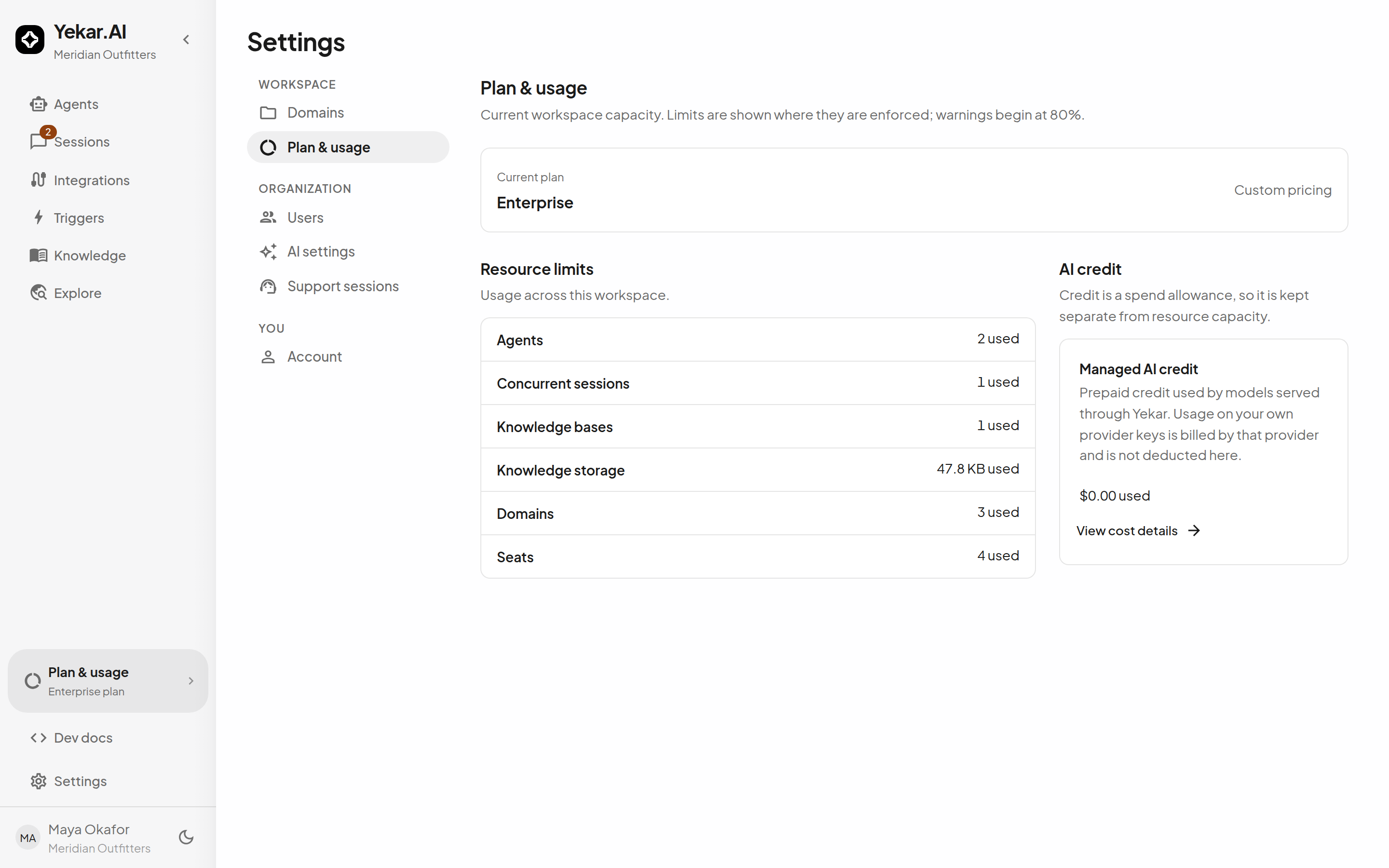
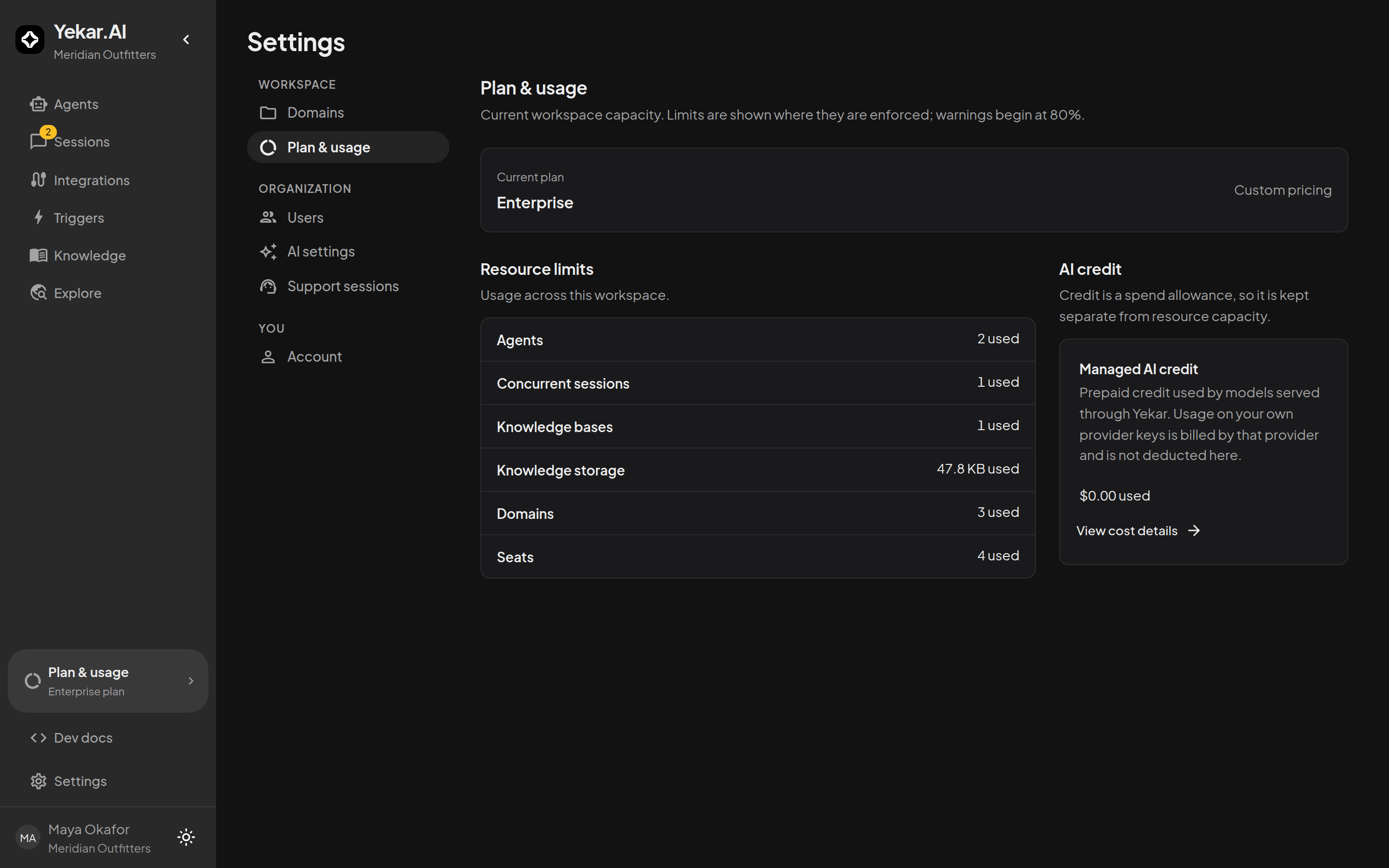
Plan & usage at the foot of the sidebar answers two questions that otherwise get answered by hitting a wall: how much capacity this workspace has, and how much of it is spoken for.
Starting a paid plan
A plan that offers a trial starts access without payment after signup verification. Signup shows the trial's duration and credit. The payment flow below applies when no trial is offered, when a trial has ended, or when you choose to convert to paid access.
When creating an organization from the pricing page, verify your email first, then complete payment on the activation page, headed Activate plan: choose a plan, add your billing details if asked, and press Subscribe to start checkout - the plan renews monthly until you cancel it from Plan & usage. Only an organization owner or admin can pay; anyone else is told to ask one. Switch organization and Sign out leave the page without paying. The organization remains unavailable until the payment provider confirms a successful charge. Sign in again to continue an unfinished signup. A payment that is still being confirmed shows a status check; check its status before paying again.
After activation, Plan options opens the existing plan and renewal controls. The available payment methods and currency follow your organization's billing country. Where both are offered, choose Auto-renew or One-time payment; a one-time purchase pays for one month (Pay for one month, or Extend one month when a period is already paid for), and some payment methods offer automatic renewal only.
Your subscription
Under the plan's name the card says what happens next: Period ends on 1 Oct 2026, Trial ends in 9 days, or Ends 30 Sep 2026 - the workspace is suspended after that. A subscription runs in periods - a month at a time - and renews on its own until it is cancelled or its agreed term ends.
When a subscription ends, the workspace is suspended, not deleted: new runs and sessions are refused, everyone can still sign in, and every agent, flow, document and conversation is kept - and so is the credit left in the balance, unused monthly credit on us included. The page then reads Ended 30 Sep - the workspace is suspended, and a new subscription lifts the suspension. During a trial an organization admin can choose a paid plan at any time from Choose a paid plan: the payment ends the trial at once, the paid period starts that day, and any unused trial credit expires. A trial that ends without a payment suspends the workspace like any other ending, and a signup address gets one free trial. Organization admins are emailed when a trial is three days from ending, when a subscription is seven days and again one day from ending, and when it has ended.
Triggers do not come back on their own. Schedules and event triggers are disabled when a plan lapses, and a new subscription does not re-enable them - that would silently resume unattended work nobody has looked at since. Instead a notice on the page counts the triggers still paused and offers Review triggers, which opens Choose which triggers to resume: every switch starts off, you select the ones that should run again and choose Resume selected - up to 100 at a time - and Dismiss leaves the rest paused. The list stays reachable from Plan & usage until nothing remains, and a trigger you lack trigger-management access for is listed but cannot be switched on.
An organization admin manages the plan from this page. The button beside the plan reads Set up auto-renew where automatic renewal is available and not yet configured, Manage auto-renew once it is, and Plan options otherwise; each opens the Plan & renewal drawer, which decides what the next period buys. Automatic renewal can be cancelled there too, and access continues through the period already paid for. For a change that has to take effect mid-period, contact Yekar.AI. Where payments are configured, Add credit on the credit card takes a top-up through checkout.
If the workspace was suspended by Yekar.AI instead, the subscription's clock is paused for as long as the suspension lasts, so a suspension never costs you time on your plan - trial and one-time credit aside, which keep their original end date (see Credit). Your organization's Owners and Admins are emailed when that happens, with the reason and what to do next - a billing problem points at this page, anything else at the workspace - and emailed again when the workspace is active. A suspension because the plan ended is told by the plan emails above instead. If a plan change has been agreed for your next renewal, the line under the plan says so - Period ends on 1 Oct 2026 · moves to Pro then - so nothing about your price or limits changes without the date being on the page first.
Resource limits
Resource-count and storage limits cap growth: reaching one does not delete existing agents or documents, but can refuse a new create or upload. Concurrent sessions is an execution limit, so it can also refuse new work while existing work is busy. Credit and spending caps apply separately to model and tool calls.
| Limit | What it counts |
|---|---|
| Agents | Agents in the workspace |
| Concurrent sessions | Sessions allowed to be busy at the same moment |
| Knowledge bases | Knowledge bases across all domains |
| Knowledge storage | Total bytes of knowledge content |
| Knowledge documents | Articles in the knowledge library plus files uploaded to agents |
| Knowledge pages | Pages across those documents |
| Domains | Domains in the workspace |
| Seats | Members of the workspace |
| Triggers | Triggers in the workspace |
| Schedules | Scheduled triggers in the workspace |
Each row shows what you have used against what you may use, with a bar that turns amber and reads Near limit from 80%, sits green exactly at the ceiling, and turns red with Over limit only above it - a full limit is spent, not broken - and links to the list it counts so you can see what is taking up the room. (The Seats link opens the member list, so it is there for organization admins only.) A limit with no ceiling reads as a plain used-count - it is unlimited, not unknown.
Credit
Every paid plan comes with credit on us - a monthly amount at no extra charge, on top of the plan's price - for models served through Yekar.AI, the managed option in AI providers. It is kept apart from resource capacity because it is spend, not a ceiling on what you can build. Work running on your own provider keys is billed to you by that provider and never deducted here, which is why a workspace on its own keys can show credit untouched while models run all day. The exception is the tools charged per call - web search and media generation - which run on Yekar.AI's account, draw credit whichever key your models use, and are refused when the balance cannot cover them (Cost & budgets).
With a subscription, Credit on us is granted per period, and the card names the day the next grant arrives. Whatever you don't spend rolls over: it stays in your balance beside the next grant - through renewals, a pause, a plan change and a lapse alike - so unused credit on us adds up from month to month, and the card shows what is left on us, which can be more than one month's grant. Runs spend credit on us first and added credit after it. When what is left on us falls to 20% of a period's credit on us, organization admins receive an email; when your credit runs out - the balance can no longer cover the next model call - models served through Yekar.AI are refused until credit is added, while work on your own keys carries on. Added credit - credit the workspace purchased - never expires.
Trial and one-time credit are the exception, and the card says which you have and when it ends: a plan trial's credit lasts until the trial ends - or until you pay, which ends the trial at once - and a plan's one-time credit lasts the number of days the plan states. Whatever is unused then expires. One-time credit is given once per signup email address: a workspace created later with the same address - or after the first one was deleted - gets the plan without it. Both keep their original end date if Yekar.AI suspends the workspace in the meantime: the pause gives a trial its days back, but not its credit.
Billing history and invoices
Organization admins get three more tabs - Billing history, Invoices and Cost. Billing history is the workspace's money and credit statement: plan payments, credit purchases, credit added by Yekar.AI, plan credit grants, daily usage and expiries. A plan payment shows the plan and the period it paid for, the amount in the currency you paid in, and a link to its invoice; usage rows link through to the cost breakdown for that day. What was spent on models - by window, by domain and by agent - is the neighbouring Cost tab, described in Cost & budgets.
Invoices holds one document per payment - a plan purchase, a renewal, or a credit top-up - issued the moment the payment is captured, numbered in sequence, and never changed afterwards. Open one to print it or save it as a PDF from your browser. The Billing details card on that tab is who invoices are made out to: legal name, address, country, tax ID and billing email. They are required before any payment - until they are saved, every pay button on this page reads Add billing details and opens the same drawer - and they print on every invoice from then on; an invoice issued before they existed carries the workspace name and says so. Editing the details never rewrites an invoice already issued.
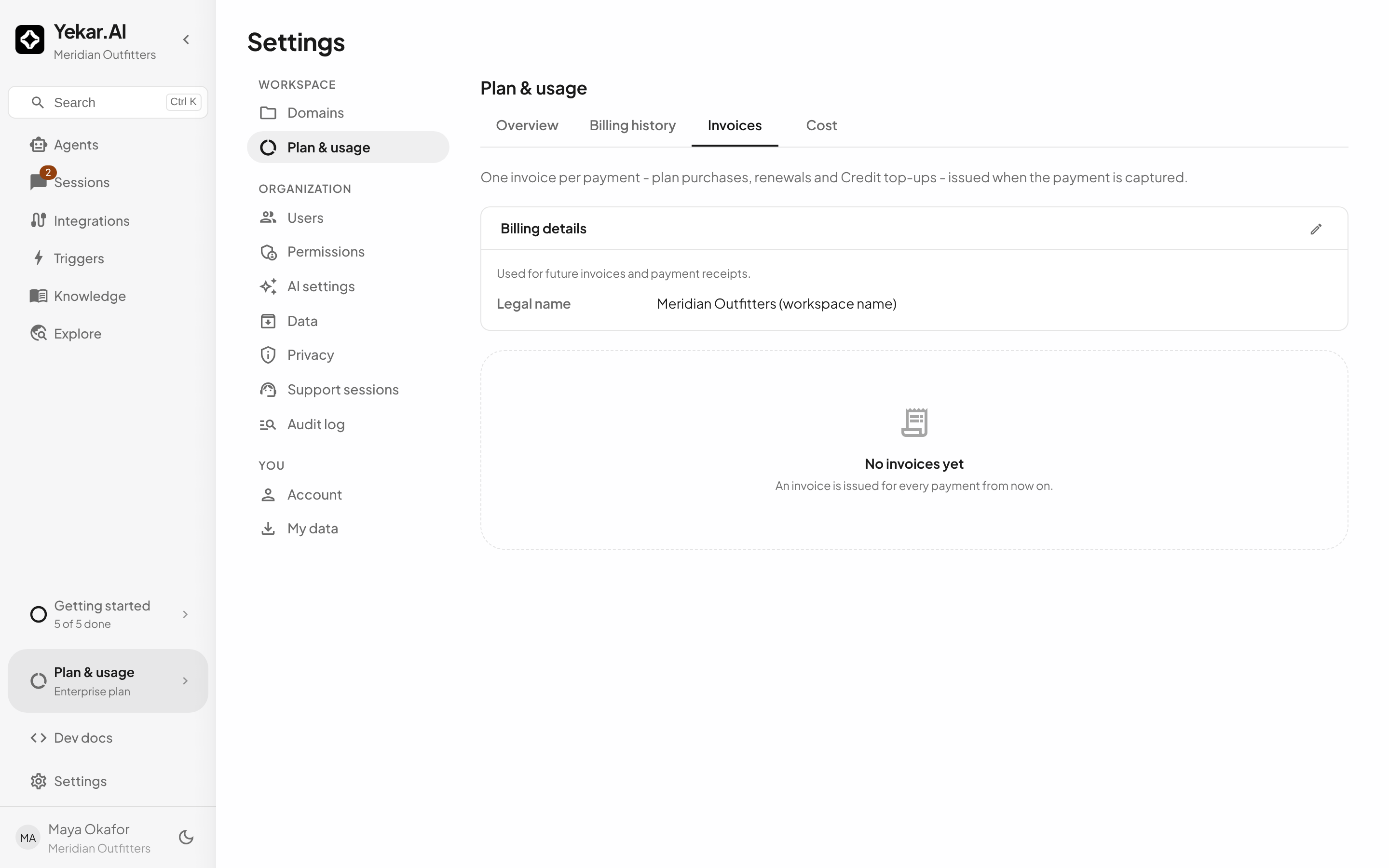
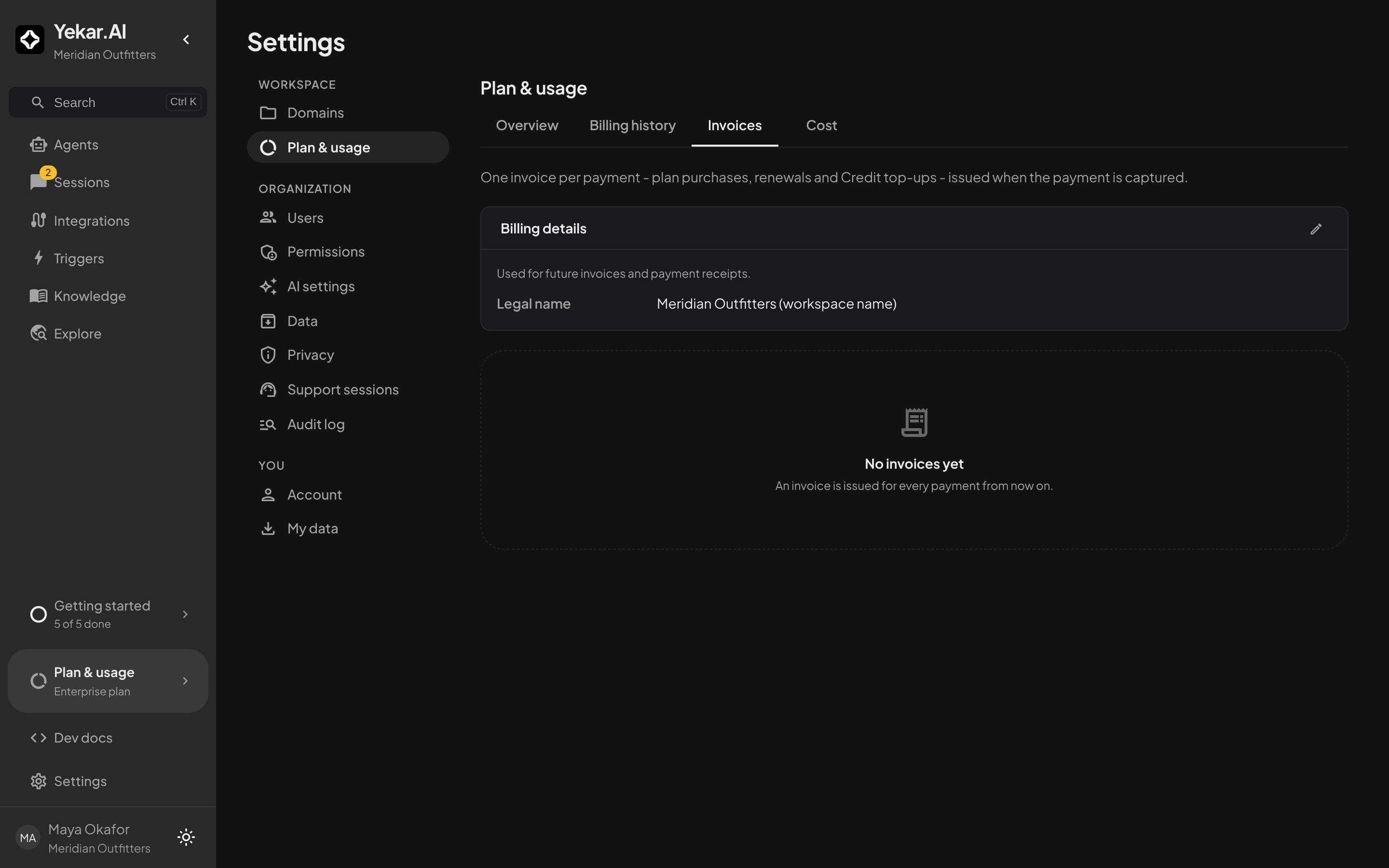
Tax. A workspace whose billing country is India pays 18% GST on top of every price - plan purchases, renewals and credit top-ups alike - and every price you see before paying shows the total with the GST line beneath it. Workspaces billed elsewhere pay the listed price. An invoice states the tax that was actually charged; where an older payment carried no tax breakdown, its tax line reads not itemised on this payment rather than a zero.
Modules
Plan & usage → Modules lists the modules your workspace can install - today the GTM module - with its version, what installing it adds (a managed domain, three agents, your knowledge base and two disabled triggers) and whether it is Installed. An organization owner or admin can Install it, which opens the module's setup; only an owner sees Upgrade to version when a newer release exists, and only an owner can uninstall it. Once installed, members of its domain get Open settings. Modules are part of a plan: a module your plan does not include is not offered here, and the tab itself appears only where Yekar.AI offers modules to your workspace - ask Yekar.AI about adding one.
Tips
Two different things can stop a session from starting, and they read alike: Concurrent sessions here is the capacity your plan bought, while a workspace also has a platform fairness cap that makes new work wait rather than refusing it. If sessions are queuing rather than being refused, the plan limit is not what you are hitting. If a create action is refused outright, this page names which ceiling you reached.