Every piece of work, start to finish
A session is one piece of work an agent did - the request, the reasoning, every tool call, and the result. Whether a person started it, a schedule fired it, or your API called it, it lands in Sessions as a conversation you can open, read, and share with teammates who have access to its domain.
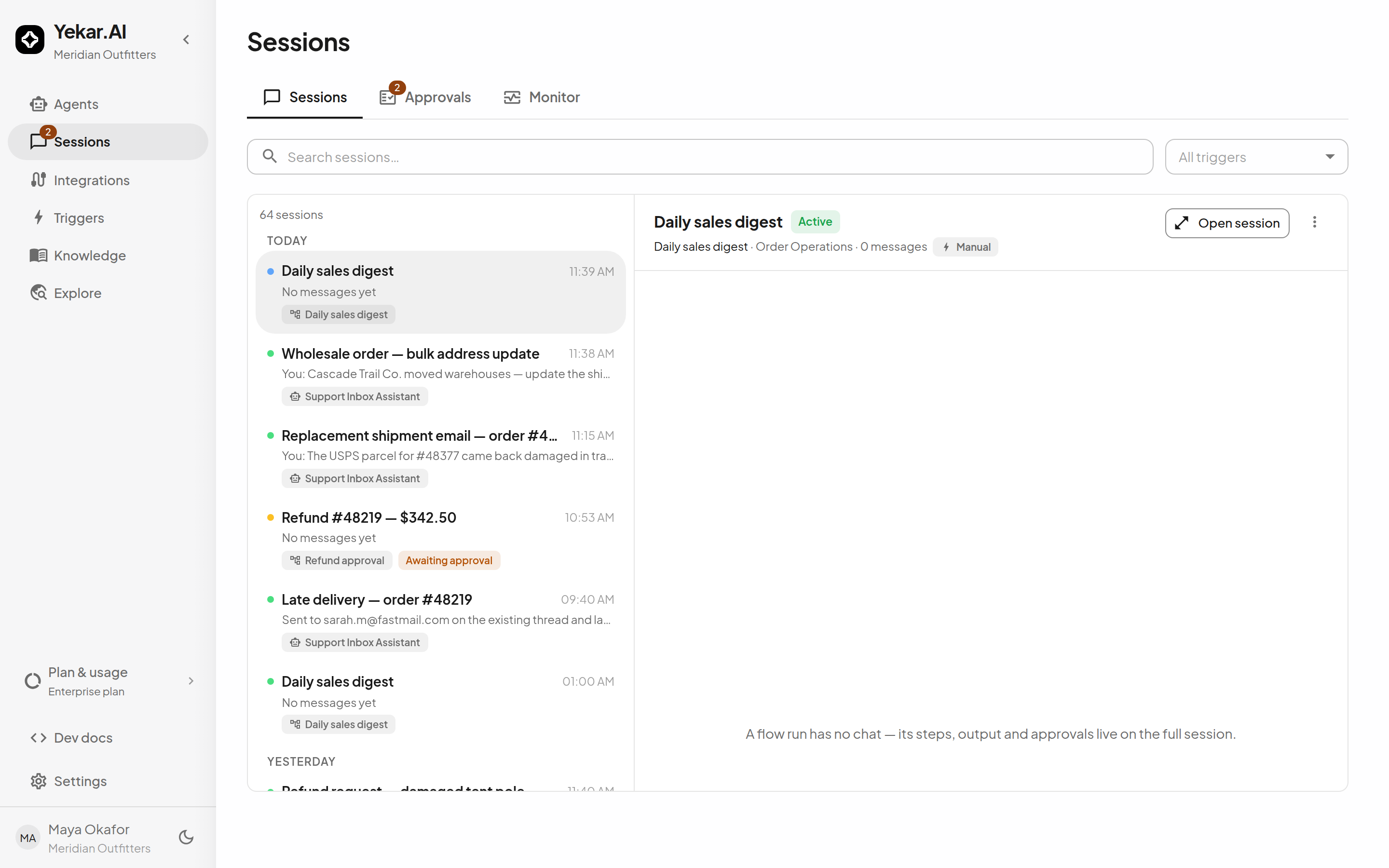
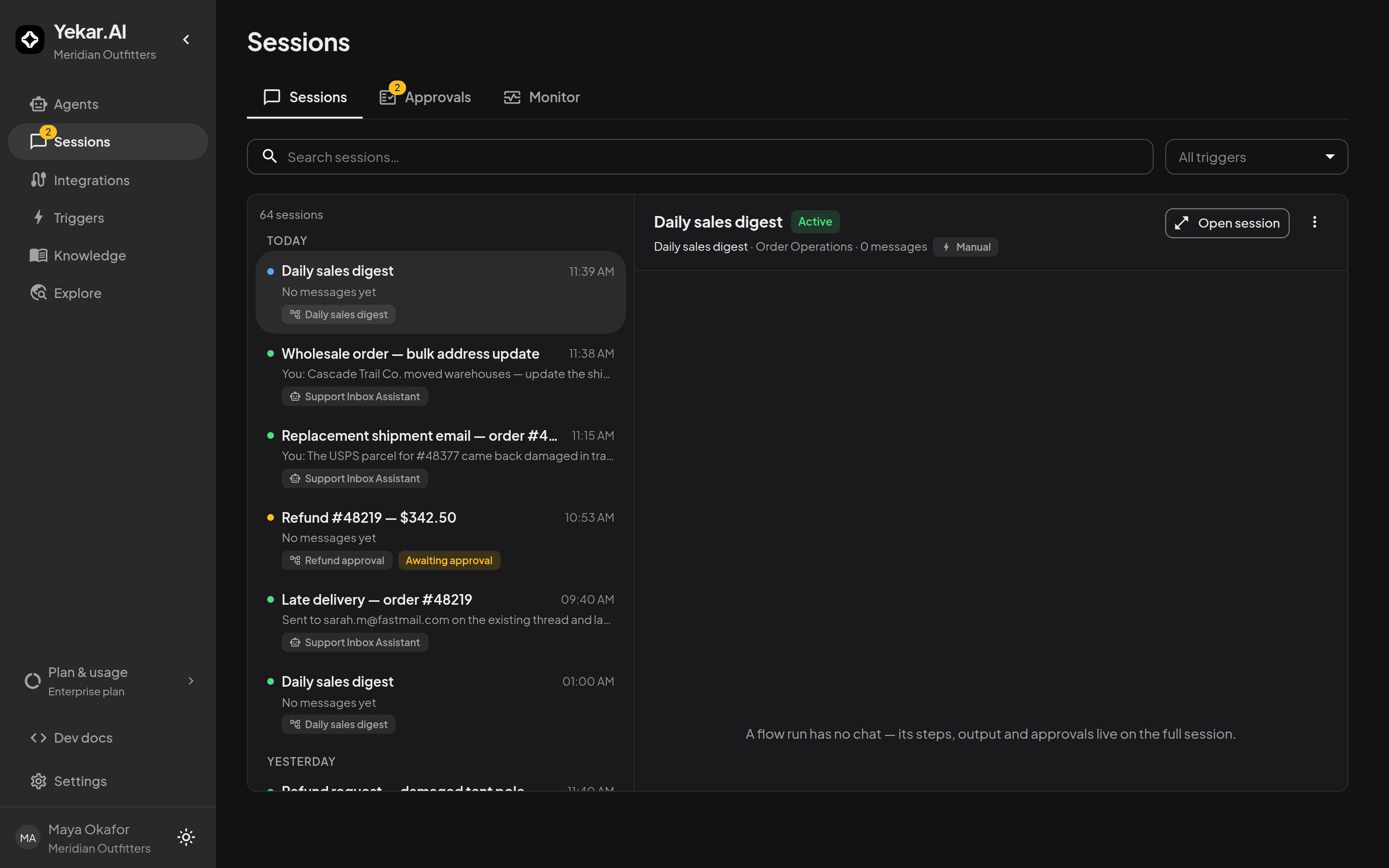
The inbox is your operations view: what ran, who or what started it, how it ended, and when it was last active. Conversations group by day on the left and preview on the right, so you can scan a morning's work without leaving the page. Search it, narrow it by what started it, and open anything worth a closer look.
Who can view and participate
Ordinary Agent and Flow sessions are visible to current members of their domain. Viewers can send messages, attach files and cancel work in sessions they started or own, including sessions started by their triggers and schedules. Operators, Editors and Owners can also participate in teammates' domain sessions. Personal/free chats remain private to their creator, including from organization Owners and Admins.
Builder conversations require edit permission on the linked agent; evaluation replay transcripts cannot be continued. Permissions are checked against the session's actual domain. See Roles and permissions for the complete table.
Start work
Open a published agent in a domain you belong to and type into its composer - sending creates the session and starts the first turn. From then on the agent runs on its own whenever a trigger, an API call, or another agent calls it.
Read a conversation
Open a session to see the whole exchange. Chat shows the messages; Activity shows the same work turn by turn - the tools each turn used, what failed, and every step as a bar on that turn's own time axis, with anything still running drawn as open-ended. When a session feels slow, Activity shows you where the time went.
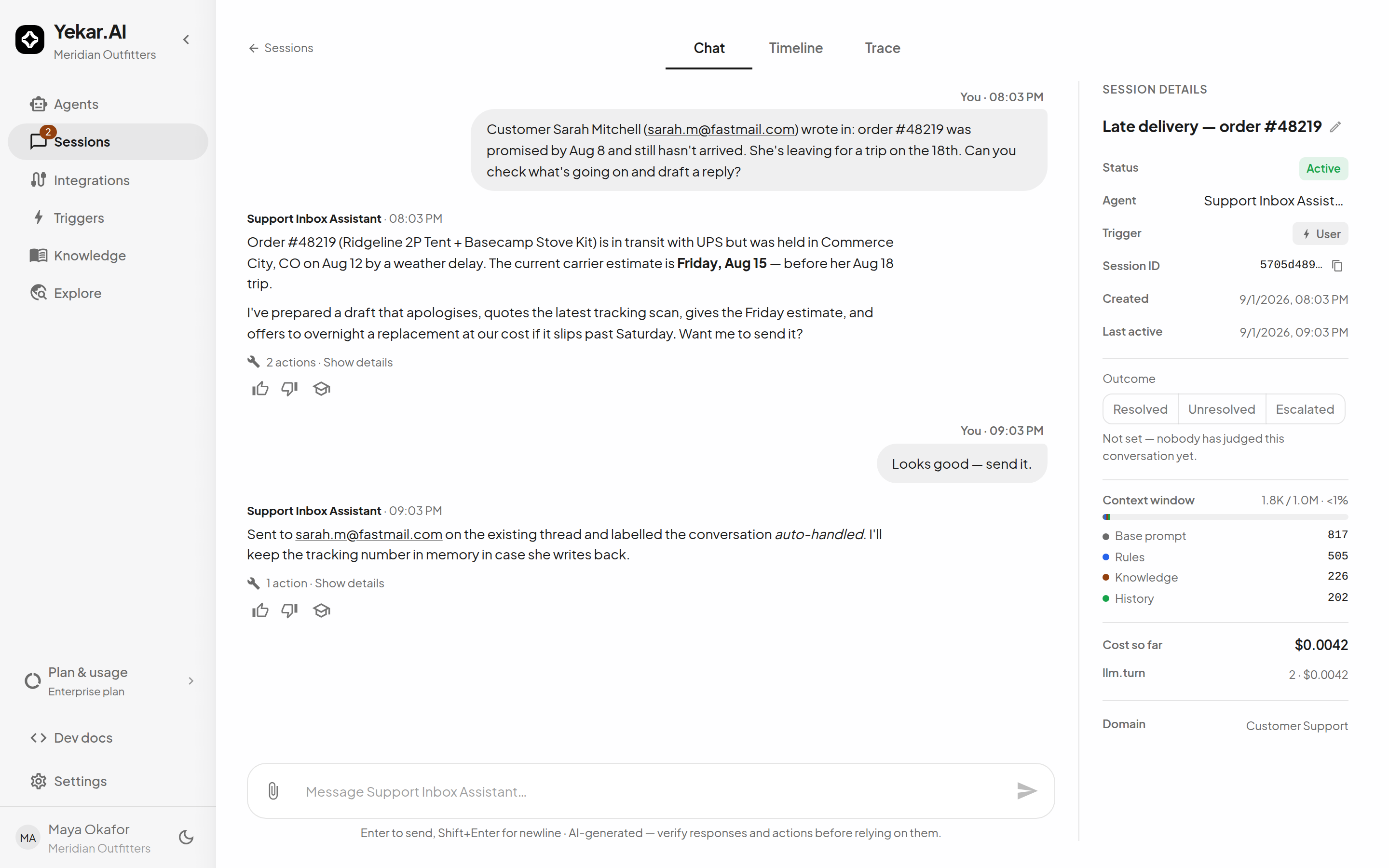
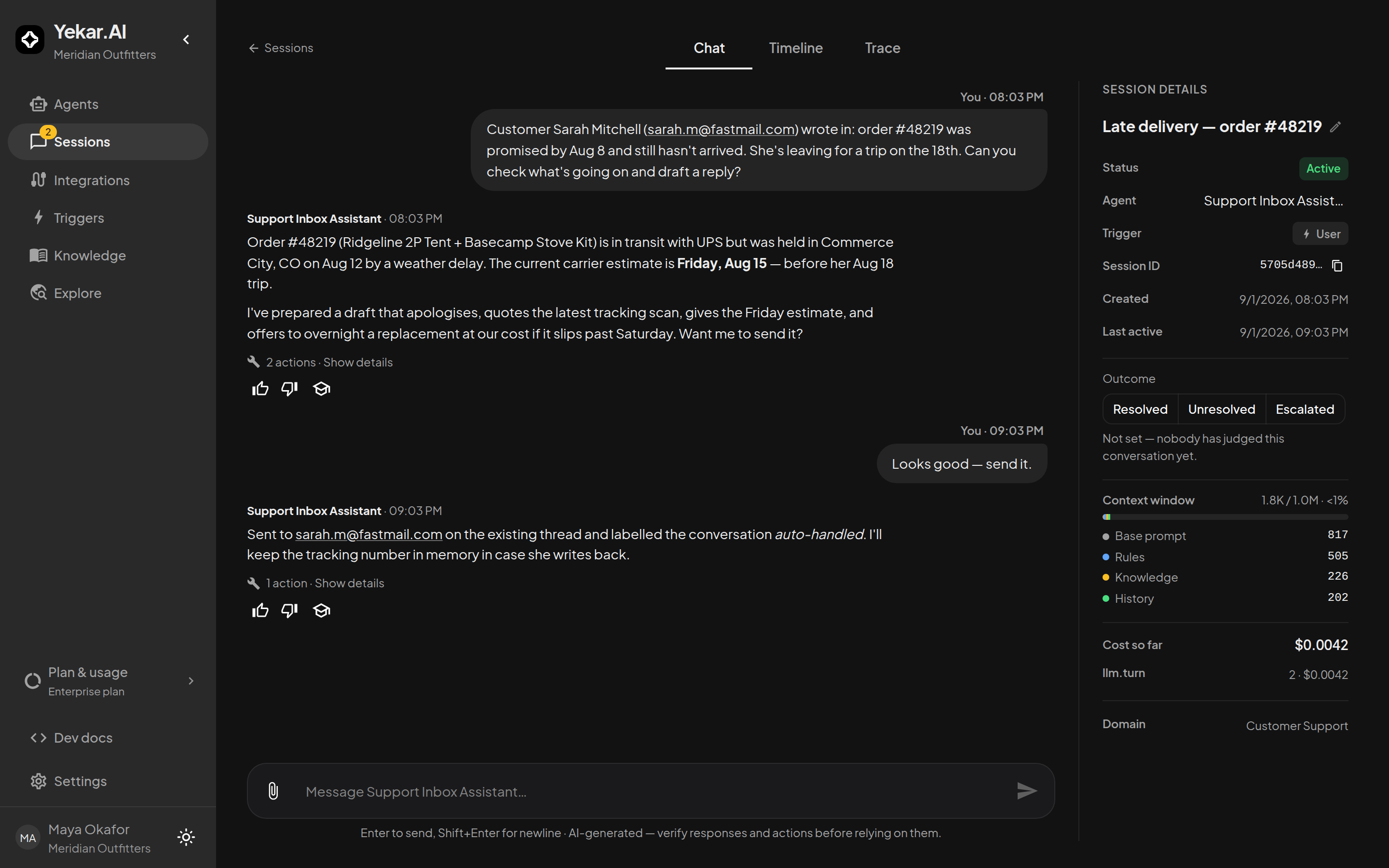
Each reply carries a one-line summary of its actions - select it to open every tool call in a drawer with its input, output, duration and status (Watch and inspect tool calls covers reading them, live and afterwards). The details panel on the right states the session's status, what started it, what the session has done so far (turns, tool calls, failures and tokens, with Open activity), and exactly what the agent had in front of it: base prompt, rules, knowledge and history - plus the rolling summary, tool definitions and attachments where a turn carried them - measured against the model's context window. It also says how many of the oldest messages no longer fit. Nothing about the run is hidden behind a summary; how a long conversation stays inside the window is described in Long conversations.
Archive or restore a session
Sessions shows unarchived conversations. Choose Archived from the view filter to find archived transcripts; search and other filters work within the selected view.
Use the three-dot menu beside Rename in the inbox preview, or beside Session details, to Archive a conversation. It leaves the main list and keeps its complete history. Restore brings it back. These actions require the session's creator or recorded owner, or a domain Owner, with current access to the session.
New messages automatically bring an archived conversation back to Sessions, including worker replies and incoming messages from external conversations. They continue the same history. Archiving does not stop ongoing work or bypass participation restrictions; use Stop to cancel work.
Idle conversations have no activity badge. Queued, Running, Needs approval, Needs input, Waiting, and Failed describe the agent or flow's actual work. An archived conversation can still have work in progress.
When an agent calls other agents
An action that started another agent or flow links to its session. Opening that session requires membership in the child's domain; access to the parent conversation does not grant it. Several started together fold into one block with a running tally - how many have come back, how many are still going, how many are waiting on something.
A called agent that needs something shows what it is waiting for rather than just "running": the question it asked in its own words, or the action it wants approved. If you have the required decision authority, you can answer or decide it from Approvals - you do not have to wait for the calling agent to notice.
An agent can also set a whole batch going in one action. Each one still gets its own row, its own link and its own result, so the block reads exactly as it does when they were started one at a time - and if some of the batch could not start (a limit reached, an agent or flow the agent may not call), the ones that did are unaffected and keep running.
The whole model - linking, waiting, background calls, fan-out, questions to the caller and the limits on a call tree - is in Calling other agents. Work started in the background does not hold up the conversation. It appears above the composer while it runs, and its result arrives later as a new message in the thread, labelled as coming back from that agent or flow. Nobody typed it - it is the answer to something this conversation started earlier, and the agent picks up from there on its next turn. A job shows in one place or the other, never both: still running above, finished below.
Answer "what did it do?" in seconds
This is the part your risk and compliance colleagues care about, and it is the reason teams put real authority behind Yekar.AI agents: every tool call is written down before it runs, so an interrupted call leaves a record rather than a gap (see Audit before effect). What you read in the session is what actually happened - arguments, outputs, timings and all.
Turn a good run into a test
Domain Editors and Owners can use Save as a test to turn a conversation you were happy with into a test. Run it against your latest changes from Evals on the agent's page (under Observe) before you publish, and you'll know whether your edit improved the agent or quietly broke something that used to work.
Keep an eye on live work
- Monitor - everything executing right now, with the ability to step in.
- Approvals - the inbox for work paused on a human decision.
Tips
If sending is disabled, check your participation permission, the agent's archive state and whether an AI provider is available under Settings → AI settings. Authorized follow-up messages can queue while an agent is working. Stopping a turn requires participation; deciding an approval requires its own authority. Troubleshooting covers the rest.