Decide pending work
The fastest way to get comfortable with agents is to keep a hand on the writes that matter. Gate a tool and the agent stops there, in front of a person, with the real request on screen - while everything else keeps moving.
Sessions → Approvals is that inbox: flow approval gates, human tasks, and agent tool approvals you're allowed to decide. An agent's confirmation in an attended conversation is a separate decision for the person who initiated that turn, including a Viewer, and is shown only in that conversation.
Find pending items
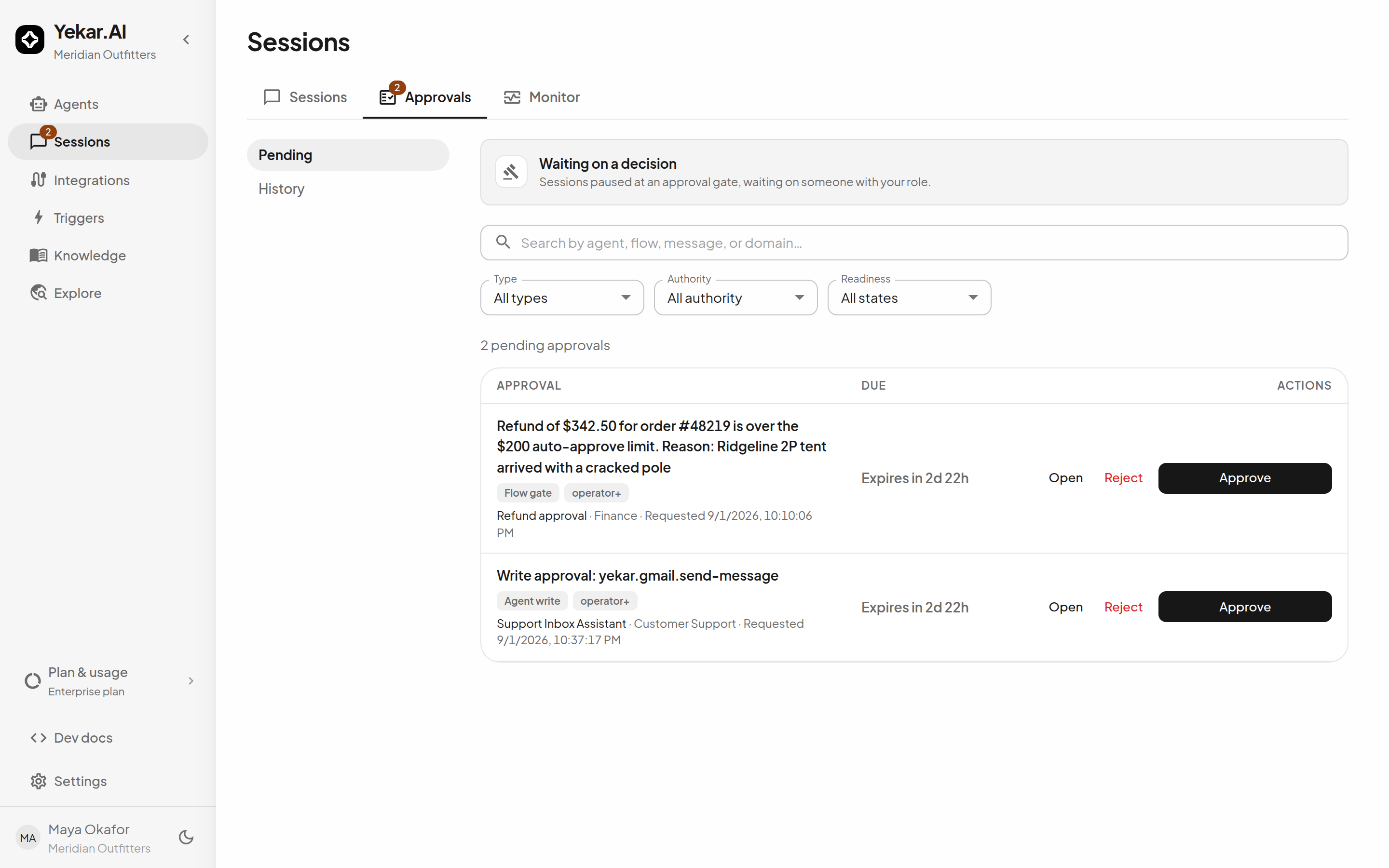
Open Sessions, then Approvals. The tab badge shows the pending count. Search by agent or flow, message, or domain; filter by Type (Agent writes, Flow gates, Human tasks - shown where flows are enabled), Authority (My credentials, Domain role) and Readiness (Ready to decide, Needs credentials). Each row is chipped Flow gate, Agent write or Task, plus Your credentials where only the credential's owner may decide or the minimum domain role such as operator+; a row whose credential is unavailable is chipped Credentials required.
Each row shows what is being asked, who may decide it, and when it expires. Select Open to inspect the conversation or run before acting - a Flow gate shows the work waiting at that step; an Agent approval shows the pending call, with its exact arguments, in the session.
Approve or reject
Select Approve or Reject, complete Comment (optional) if needed, and confirm the same action in the dialog. Permission is checked again when you submit:
- Domain-routed items follow the domain's approval policy: Operator or above by default, or a minimum role or named-member list set by a domain Owner. A named list replaces the domain role floor; a Flow gate's own role floor still applies on top. A named Viewer can therefore decide an agent approval, but not a Flow gate requiring Operator or above.
- Your credentials items can be decided only by the person whose credential the work runs on - either a credential they supplied on an API fire call, or their own sign-in where the agent is set to run as the person using it. Nobody else can decide one, including a domain owner holding every role.
- A gate configured with disallow self-approval refuses the run's own initiator.
Tools that need more than one approver
Your organization can require several different people to approve a tool (see How approvals are layered). Such a row carries a progress chip - 1 of 2 approvals - and stays pending until enough people have approved. Your approval is recorded, the item leaves your inbox, and the call runs only once the last approval is in. Any one approver can Reject it, which stops it at once. The same person cannot count twice, and an approval with edited arguments is refused, because the earlier approvers approved the original request.
A human task is completed in the session rather than with Approve or Reject: open it, fill in the requested values, and submit them. This requires Operator or above and the task's assignee-role floor; a named Viewer approver does not gain human-task permission.
Viewing or participating in a session does not grant the right to decide its approvals. All decision routes require current domain access. See Roles and permissions.
After a decision, Yekar.AI queues fresh work rather than having held the original run open while the item waited. Return to the session to watch it continue.
Over the API, an approval decision can carry amended arguments (editedArgs) - the call then runs with those arguments, the action record shows them, and the audit entry is marked as edited. This is available on every approval route, including the personal-key agent API, except on a tool that needs more than one approver. An approval that still needs others answers with awaiting: { received, required }; without that field, the decision took effect. See the API reference.
Expiry and blocked items
Every approval carries an expiry (Agent approvals default to 72 hours). An expired item fails its work rather than executing unapproved. An agent's Setup can ask for one reminder a chosen time before its gates expire, to the people who can decide them, the domain's owners or the organization's admins; the reminder changes neither the deadline nor who may decide (see How approvals are layered). An item can also be blocked - its credential became unavailable while it waited - and asks for the credential to be fixed before it can proceed. Where that credential is the approver's own sign-in, the row links straight to it under My account; a credential supplied per API call has nothing stored to repair, so the run has to be fired again.
History
History beside Pending is the permanent record of past decisions - approved, rejected, timed out or withdrawn - with who decided, when, and the comment or reason. It is built from the audit trail, which is never pruned, so it outlives the runs and conversations it came from, and it covers the domains you currently belong to.
Where each kind of gate is declared, who may decide it, and what happens when nobody does is in How approvals are layered.
Tips
If an item is absent, it may belong to another initiator or require a higher domain role. If a decision says it was already made, refresh the inbox and session. If work does not continue after approval, open the session and inspect its current Run or Timeline. See Troubleshooting.