Integrations
Your agents are only as useful as the systems they can reach. Yekar.AI ships with more than 120 integrations already built - mail, chat, payments, storefronts, spreadsheets, CRMs, ticketing, analytics - so the work you want automated is usually one connection away rather than one engineering project away.
Connect an account once; every Agent and Flow then calls that integration's tools as the identity you chose.
The catalog
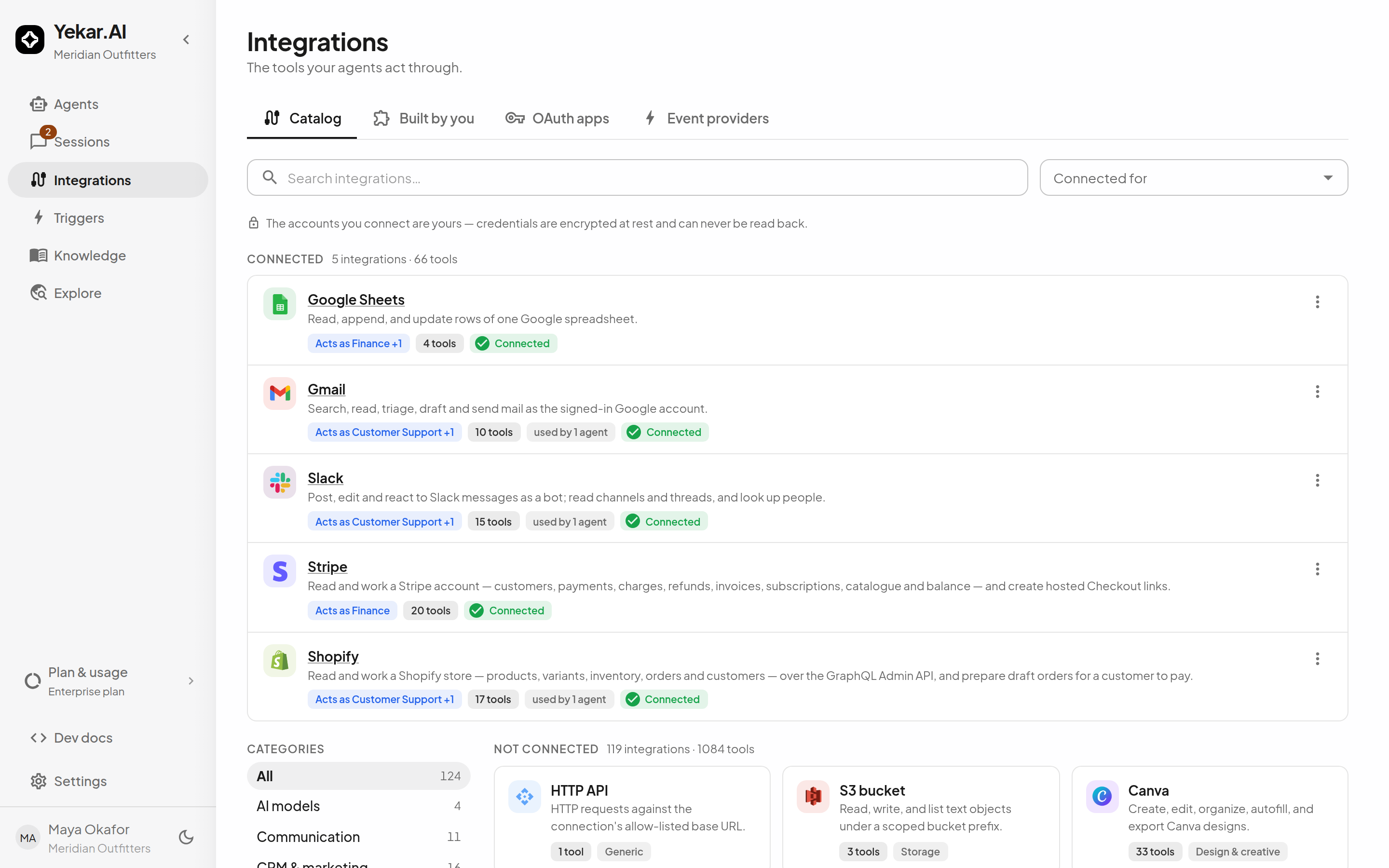
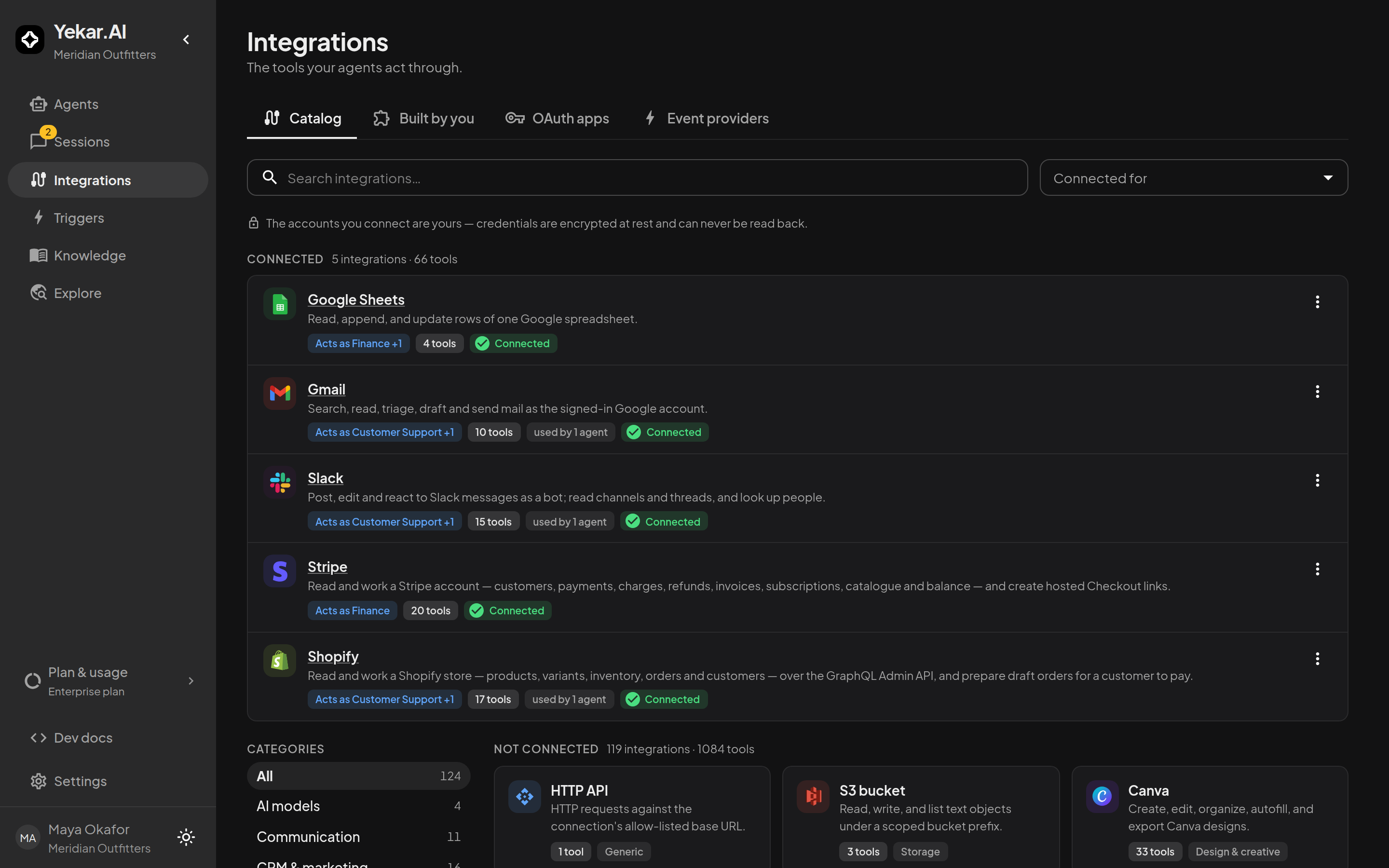
Open Integrations → Catalog. Each card names the integration, what it does, its tool count, and its category; the category rail narrows the grid and Sort orders it A–Z or Z–A. On a plan with more than one domain, Connected for filters by account - My account or a domain you own. Connected integrations - those with a usable account for you or your domains - are listed first as rows rather than cards, each with its tool count and which agents and flows use it; on a multi-domain plan the row also carries an Acts as chip naming the account (hover it to see every connected account when there are several).
The catalog ships with 120+ integrations across communication (Gmail, Slack, Teams, Outlook, Resend…), e-commerce and payments (Shopify, Stripe, Square…), CRMs (HubSpot, Salesforce, Attio, Pipedrive…), documents and files (Google Drive, Sheets, Docs, Notion, Confluence, Coda, OneDrive, Dropbox…), project management (Jira, Linear, Asana, ClickUp…), research and web search (Exa, Tavily, Firecrawl, Google Maps…), developer and observability tools (GitHub, Datadog, PagerDuty, Vercel, ClickHouse…), meetings (Zoom, Fireflies.ai, Granola), scheduling, marketing, accounting, and social - plus generic HTTP and webhook integrations for everything else.
The Catalog section describes each integration's tools and usage. External integrations include account connection instructions. Built-in tools - web search and the Browser - are managed by Yekar.AI. Web search is on by default in every workspace where Yekar.AI offers it, and each search draws credit; ask Yekar.AI if you want it turned off. The Browser is enabled per workspace, on request: ask Yekar.AI to switch it on. Once on, they appear under Connected as Managed by Yekar.AI · Organization-wide · Ready to use with nothing to connect, and their page shows the available tools and a Calls tile covering your chats and the domains you can access.
Tools, reads, and writes
An integration exposes tools - Get order, Send message, Create refund - that Agents reference from their Procedure and Flows call as steps. Every tool declares whether it is read-only, and your organization can override that treatment per tool (the badge then shows the override beside the declared value). The effective classification matters: it decides whether calls may run in parallel within a turn, and what the audit trail records for each call. It no longer limits what an Agent's own approval list may gate - that covers reads and writes alike.
Require approval on any tool
An organization Owner or Admin can require human approval before any tool runs - reads included - for every Agent in the organization at once: open the integration's page and select the Tool approvals control beside the tools list (it sits next to Edit enabled tools). The drawer lists every tool with a switch; Save approvals commits, and a required tool then carries Approval required in the tools list. A required tool's calls pause in Approvals, whichever Agent made the call. Beside each required tool, Approvers needed sets how many different people must approve every call - one by default, up to five - and the badge then reads, for example, 2 approvers required; any one of them can still reject. See More than one approver. This organization requirement always takes precedence over an agent-selected confirmation. An Agent can add more gates but cannot remove an organization requirement, and Agent settings show the organization-required tools beside that list.
Where accounts live
Most connections are owned by a domain - a team account managed by that domain's owners, and the identity agents and flows in it run as. A domain can hold several named credentials per integration - Production, Staging - and choose which is default.
Beside them, a person can hold their own sign-in for an integration, once per organization, for agents set to run as the person using it. A personal sign-in is a credential and nothing else - the settings and enabled tools always come from the domain's connection - and it is usable in every domain unless a domain owner has closed that door (Personal sign-ins → Allow personal accounts, on by default). Both live on the one Integrations screen, chosen with Acting as.
Connecting is covered in Connect an integration; which one an agent or flow uses is covered in Identity.
Beyond the catalog
Organization admins can author custom integrations against any HTTP API, and import tools from an MCP server, in Integrations → Built by you. See Custom integrations & MCP.
OAuth apps
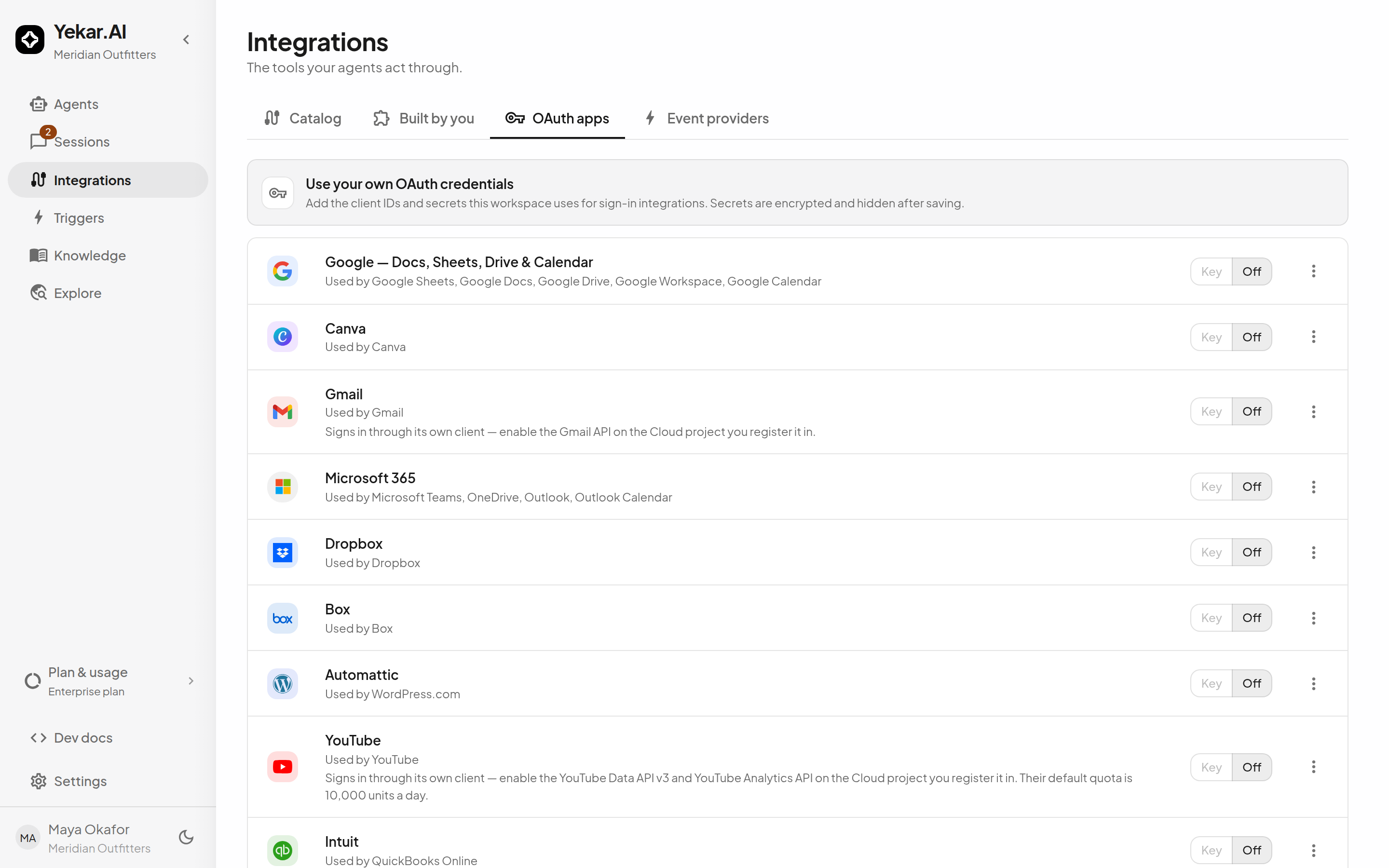
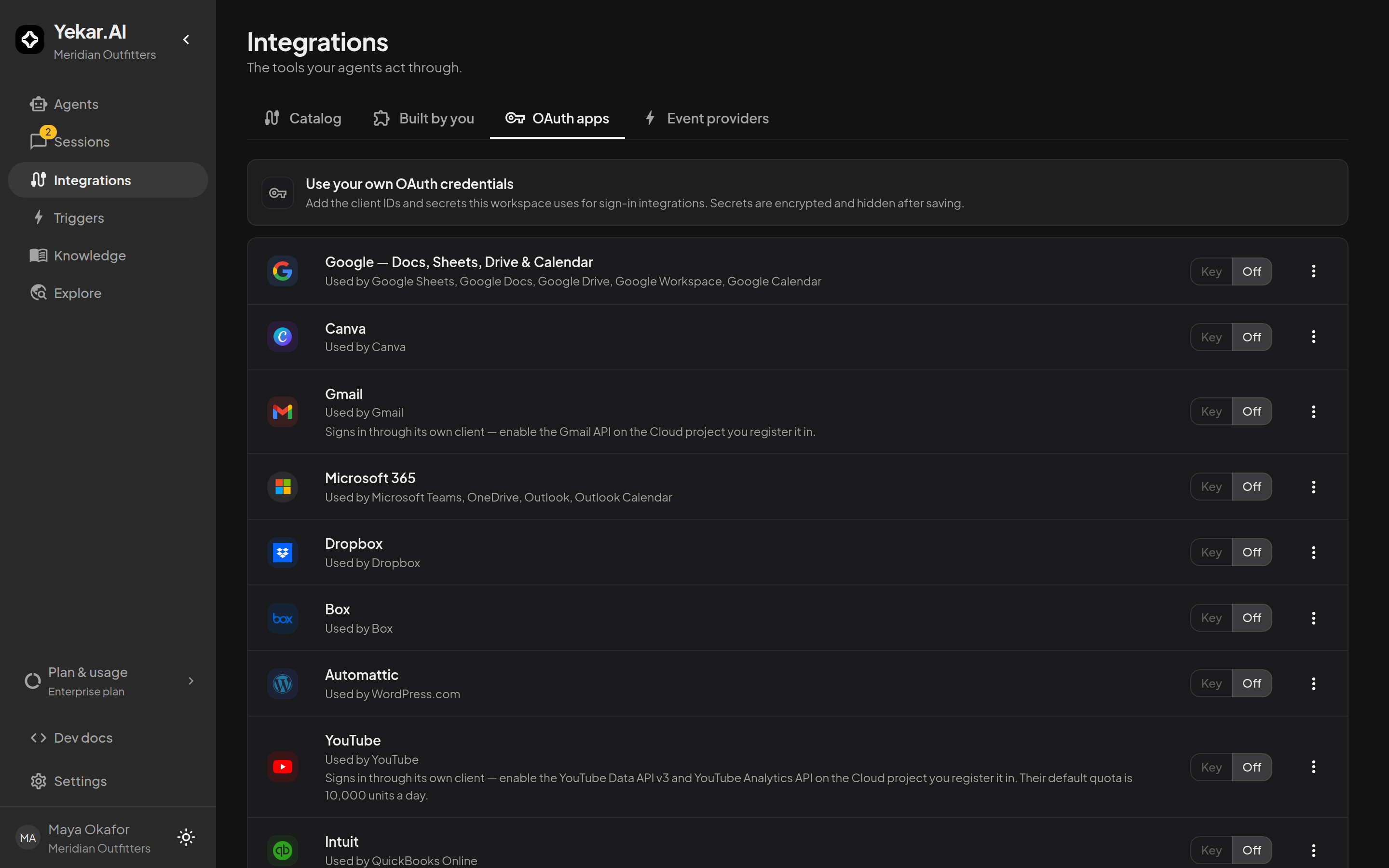
Sign-in integrations reach the provider through an OAuth app. Under Integrations → OAuth apps an administrator chooses, per provider app, which one this organization signs in through: Yekar.AI's app (Managed - connect with one click, nothing to register; offered where Yekar.AI has registered an app with that provider), Your own app (register an app in your provider's console and paste its client ID and secret, so consent screens run in your own project), or Off (nobody in the organization can sign in to those integrations). Each row names the integrations it signs in; the client ID, secret hint and last update sit in the row's info tooltip. Switching apps first tells you which existing connections will have to sign in again.
Event providers
Eleven integrations can push events to Yekar.AI - a Stripe payment, a Shopify order, a GitHub push, a Slack message, a Microsoft Teams channel post or chat message, an inbound Telegram, WhatsApp or Twilio SMS message, a new Gmail or Outlook message, or mail sent to a trigger's own hosted address. Triggers → Event providers is where those inbound channels are set up and their health is visible, so an agent can react the moment something happens instead of waiting for the next schedule. The full list, with the event types each one offers and what each needs configuring, is in Triggers.
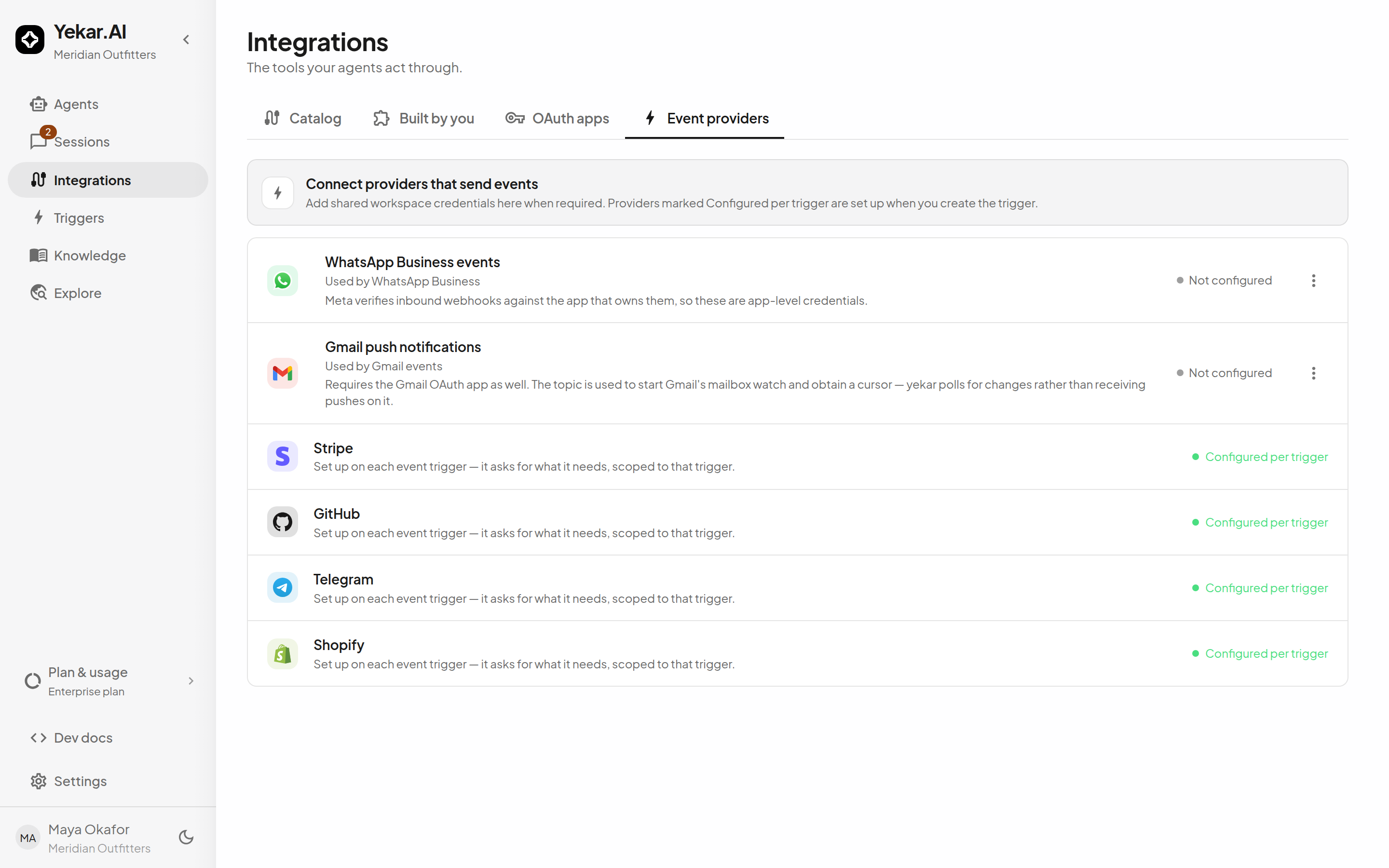
See Triggers for turning an inbound event into work.