Connect an account
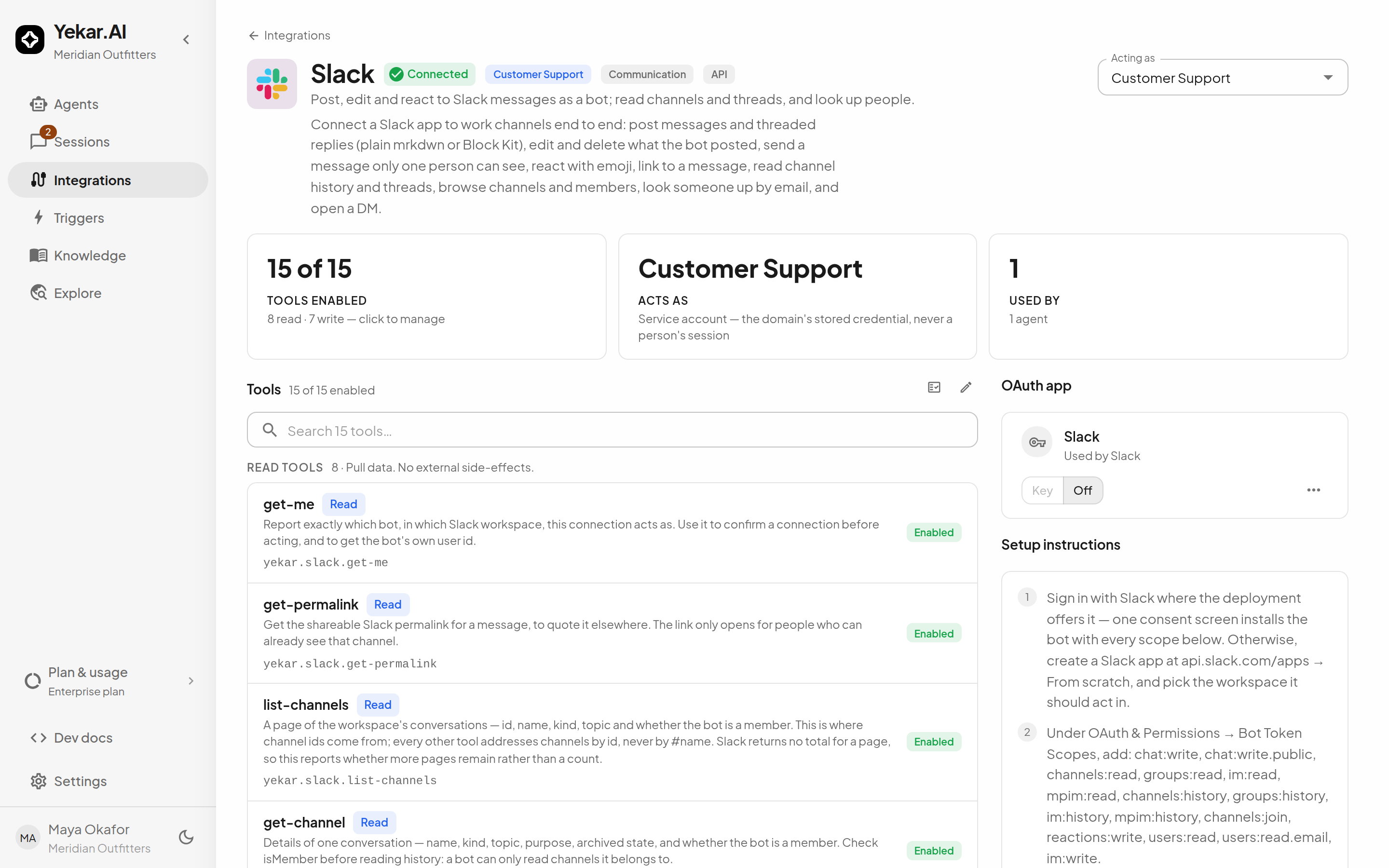
You connect an integration once per identity that needs it, name each credential for its environment, and let agents and flows act through it. An integration's page is one screen: three tiles across the top say what is on (Tools enabled), whose account it runs as (Acts as), and who leans on it (Used by); beneath them sit its tools, its accounts, its setup instructions, and its usage.
Pick who you are connecting for
The Acting as selector in the page header chooses whose account you are looking at:
- My account - the first option, and yours alone: one sign-in per integration for the whole organization. Used only by turns you run, and by agents set to run as the person using it in domains whose owners allow personal sign-ins. It carries a credential and nothing else - settings and enabled tools always come from the domain's connection - and it holds exactly one, so there is nothing to name and nothing to pick between.
- A domain you own (Customer Support, Finance) - the team account unattended agents and flows run through, managed by that domain's owners.
Connected state is per owner: Slack can be connected for the Customer Support domain and not for Sales. The Acts as tile names whichever one the page is currently showing. The picker always renders, even where you own no domain and My account is the only option - a greyed control that names the owner answers "acting as whom?" where a hidden one would not. On a plan that permits a single domain it is not shown at all: there is one team account and nothing to choose between.
Connect
- Open Integrations → Catalog and choose the integration.
- Pick the right Acting as identity in the page header.
- Follow the Setup instructions beside the tools - each integration documents exactly what to create on the provider's side and which scopes or permissions it needs.
- Select Connect. The drawer walks through Scope (Connect for - one or more domains you own at once; on a multi-domain plan also Which credentials to use), Connection (settings, then the stored credential with a Credential label such as
production), the provider's sign-in where one applies, Event delivery settings where the integration can push events, and a Review before Connect - or Continue to Provider for a sign-in - commits. Where the integration declares a connection test, a domain's credential is tested the moment it is saved: the connection is stored either way, and a rejected credential is reported in the drawer with the provider's answer so you can correct it before an agent hits it.
OAuth integrations send you through the provider's sign-in flow. The drawer's Sign in step says which OAuth app carries it. Where the organization's app is already set up it says so and you continue to the provider. Where it is not, an administrator sets it up right there: where Yekar.AI offers one, they pick Yekar.AI's app (Recommended - nothing to paste) or Your own OAuth app and enter its client credentials, with the Redirect URI to add in the provider's console shown beside them; anyone else reads that an organization admin must configure OAuth before a stored sign-in can be created, and the drawer cannot finish until they do. Integrations that accept both a sign-in and a pasted key ask for the Authentication method first: Continue with Provider or Paste a key.
Secrets are write-only: encrypted at rest, decrypted only for a tool invocation, and never shown again - the credential list shows when secrets were last updated, not the secrets. See Credential handling.
Named credentials and rotation
A domain's Team account section holds one credential per environment - production, staging, sandbox. Select Add credential to add another; use a credential's action menu to Make default, Rotate secrets or Delete it. The credential marked default is what runs use when nothing selects a different one - see credential precedence. Under My account the same section reads Your sign-in and takes exactly one credential, so Add credential disappears once it holds one. A connection that holds no credential yet says so here: for a sign-in integration, Sign in with Provider finishes it; a domain owner can instead select Callers supply it per call, which marks the connection complete with no stored credential because one arrives on each API call (see Caller credentials) - a credential added later becomes the fallback for runs with no caller, such as schedules and triggers.
Let members sign in with their own account
Members may run a domain's agents as themselves by default: Personal sign-ins → Allow personal accounts is on unless a domain owner turns it off, and it does not depend on the domain connecting a team account first. The switch sits on the integration's page for the domain whether or not anything is connected there, beside a count of the members who have signed in. Turning it off removes nothing; it only stops new turns resolving that way.
Turning it off is the owner's decision and nothing reaches past it: a binding set to fall back to the team account still fails to resolve a person while the switch is off. Choosing the identity is covered in Identity.
Configuration properties
Some integrations carry non-secret configuration alongside the credentials - Slack's default channel, an HTTP integration's base URL. These live in the Configuration section and can be edited without touching secrets.
Test connection
For a domain's connection to an integration that declares a connection test, Test connection sits beside Disconnect at the foot of the accounts section. It runs the integration's read-only probe exactly as an agent call would - the same credential pick, the same settings - so Connection works means the next agent call authenticates, and Connection failed is the failure an agent would see, with the provider's own answer beneath it. The test is recorded in the integration's Usage, marked Test. A personal sign-in has no test: its settings live on the domain's connection.
Disconnect
Select Disconnect at the foot of the accounts section. The confirmation explains which agents and flows depend on this account before you confirm; after disconnecting, calls that need it fail with a named error until it is connected again.
Tips
If Connect is unavailable, complete every required field or ask an administrator to configure the required OAuth app. If an agent or flow still reports the integration as unconnected, check which domain it expects: a team-account binding resolves the connection of the domain the agent or flow lives in, which may not be the one you just connected. See Troubleshooting.