Work that happens without anyone asking
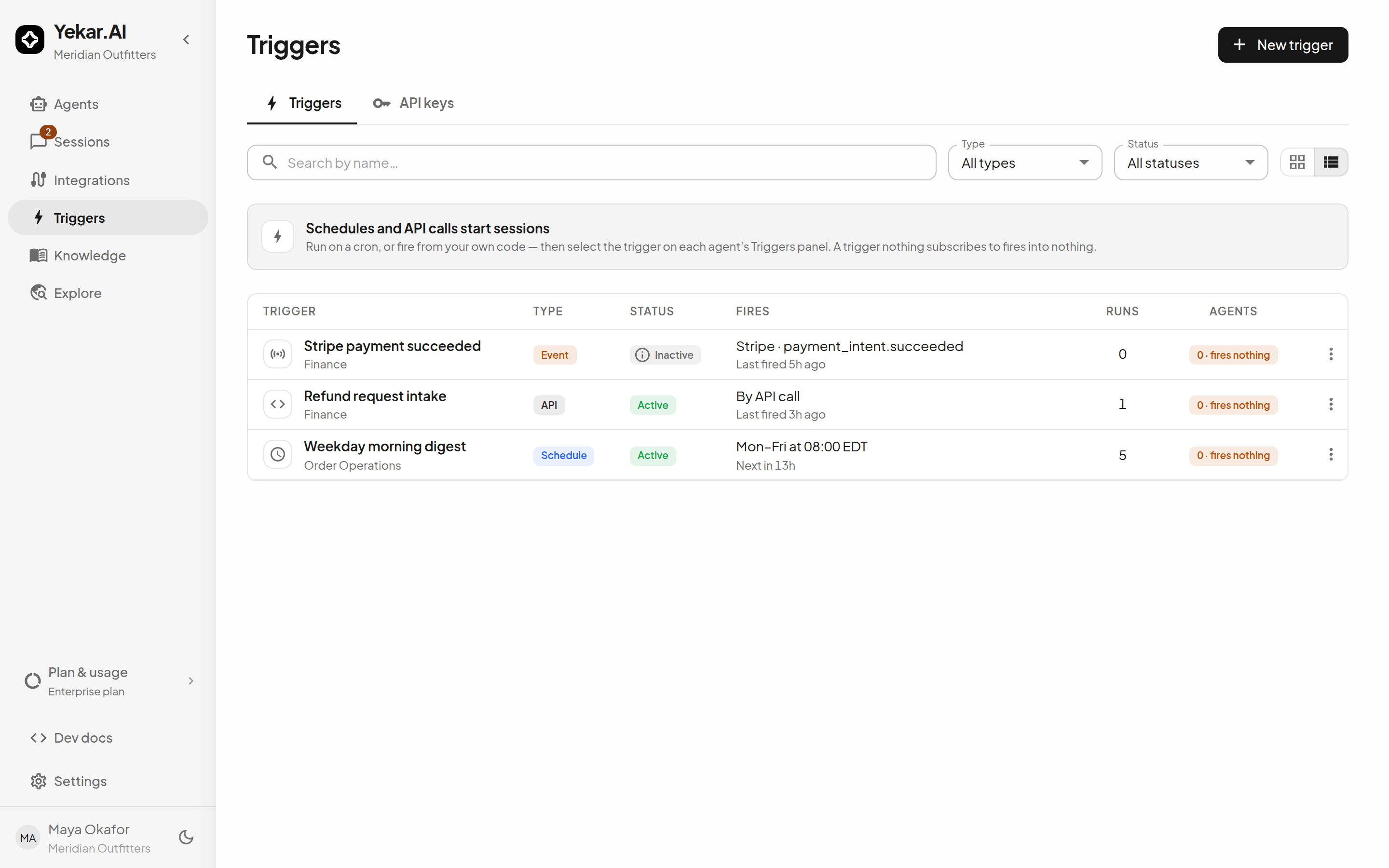
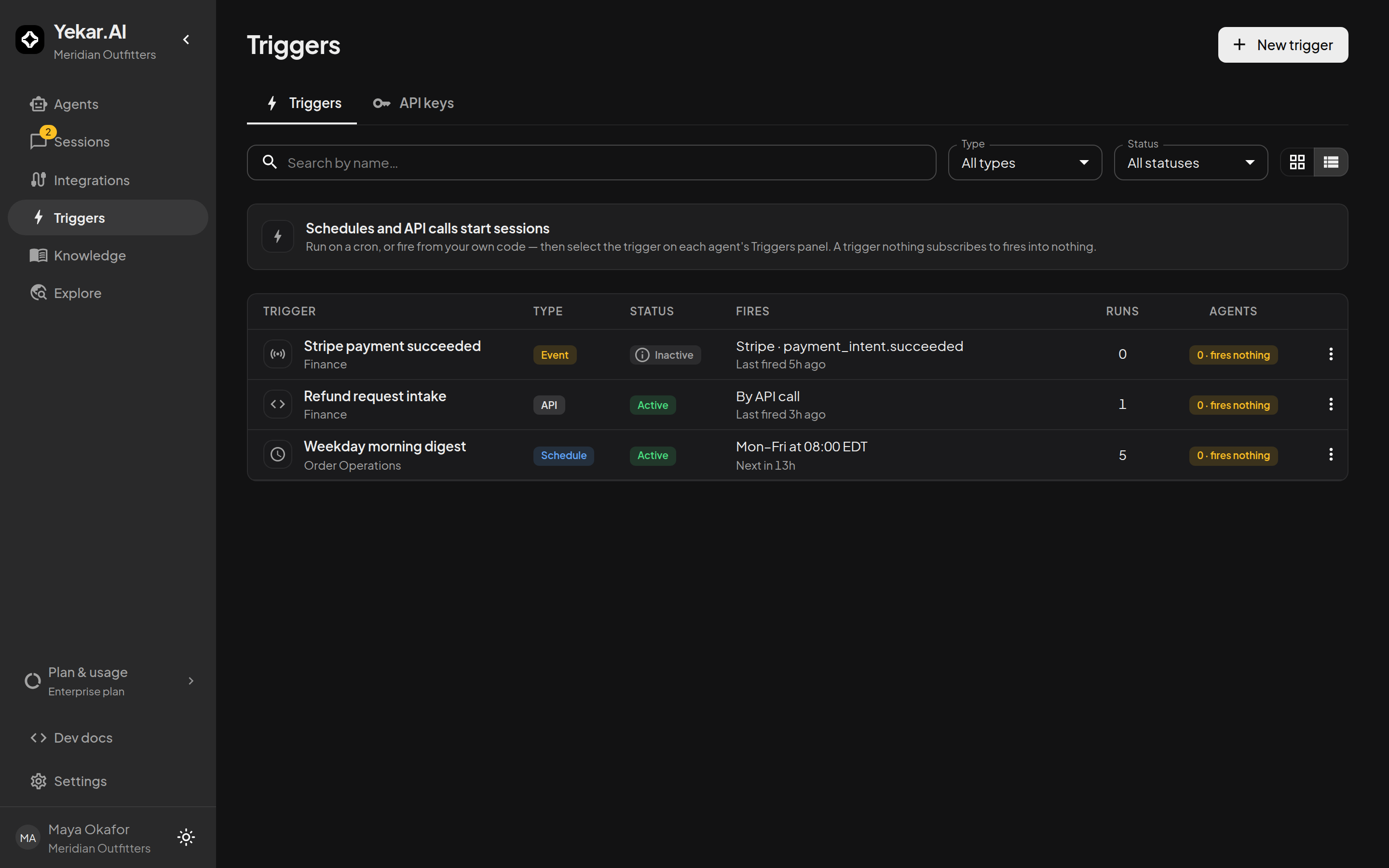
An agent someone has to open is a tool. An agent that runs at 8am every weekday, or the moment a Stripe payment fails, or whenever your own product calls it - that is staff. Triggers are how you get there.
Create a trigger in a domain, subscribe the agents that should answer it, and every firing is recorded with the sessions it started.
Permissions and session ownership
All domain members can inspect triggers. Operators, Editors and Owners can create, edit, bind and manage them, including schedule catch-up batches. Organization roles alone do not grant these domain actions.
The trigger's owner is recorded on new sessions separately from their executing actor. A Viewer who owns a trigger can participate in its sessions while remaining a domain member; this does not grant permission to edit the trigger. Other Viewers can inspect those sessions, and Operators, Editors and Owners can participate. Personal API keys act as their authenticated owner. See Roles and permissions.
Create a trigger
Open Triggers and select New trigger. The stepper runs Source → Configure → Review. On Source, choose a Domain and pick what starts it: Schedule, API call or Provider event. On Configure, enter a unique Name and what that source needs. Review shows one section per step, and Create trigger saves it.
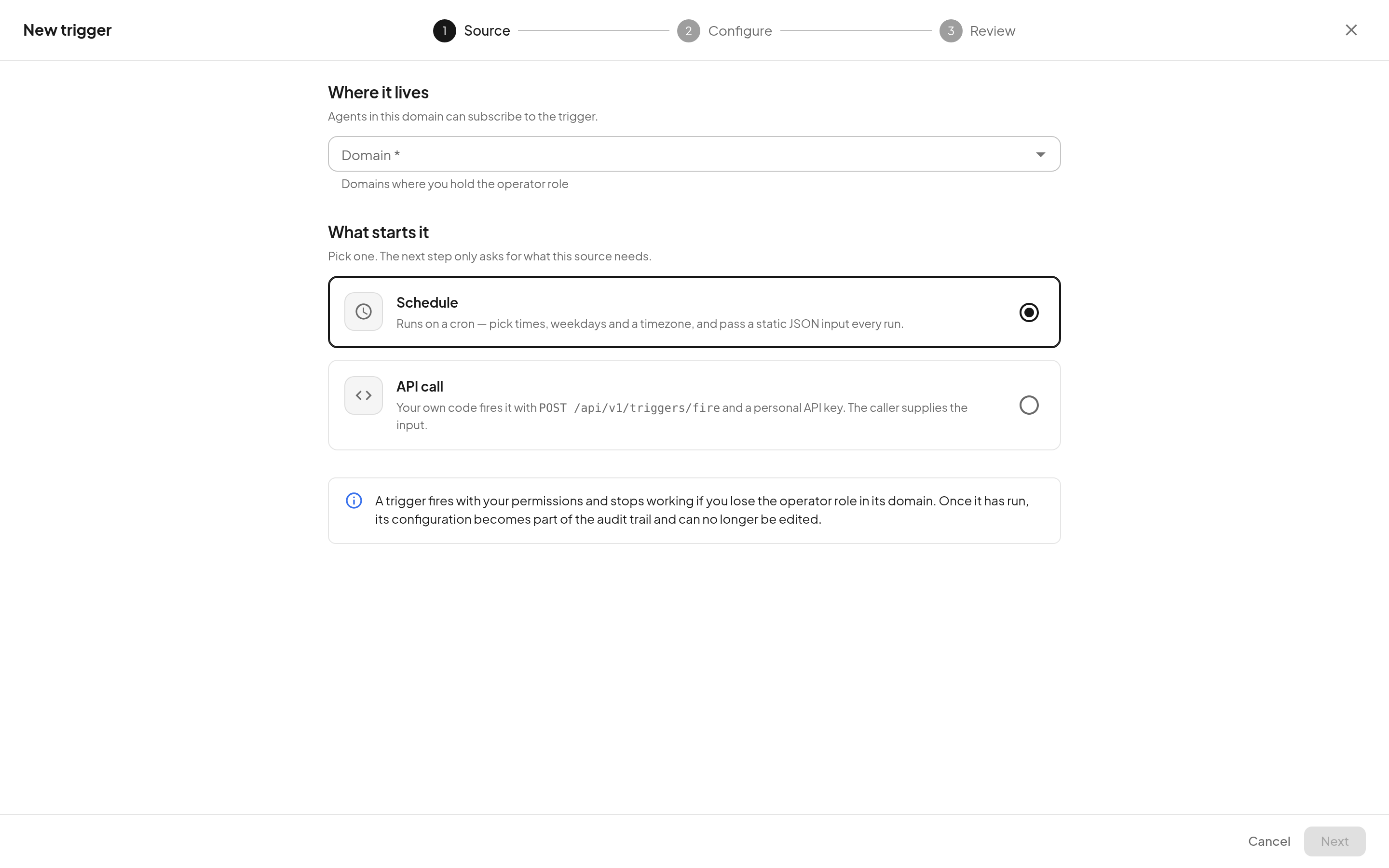
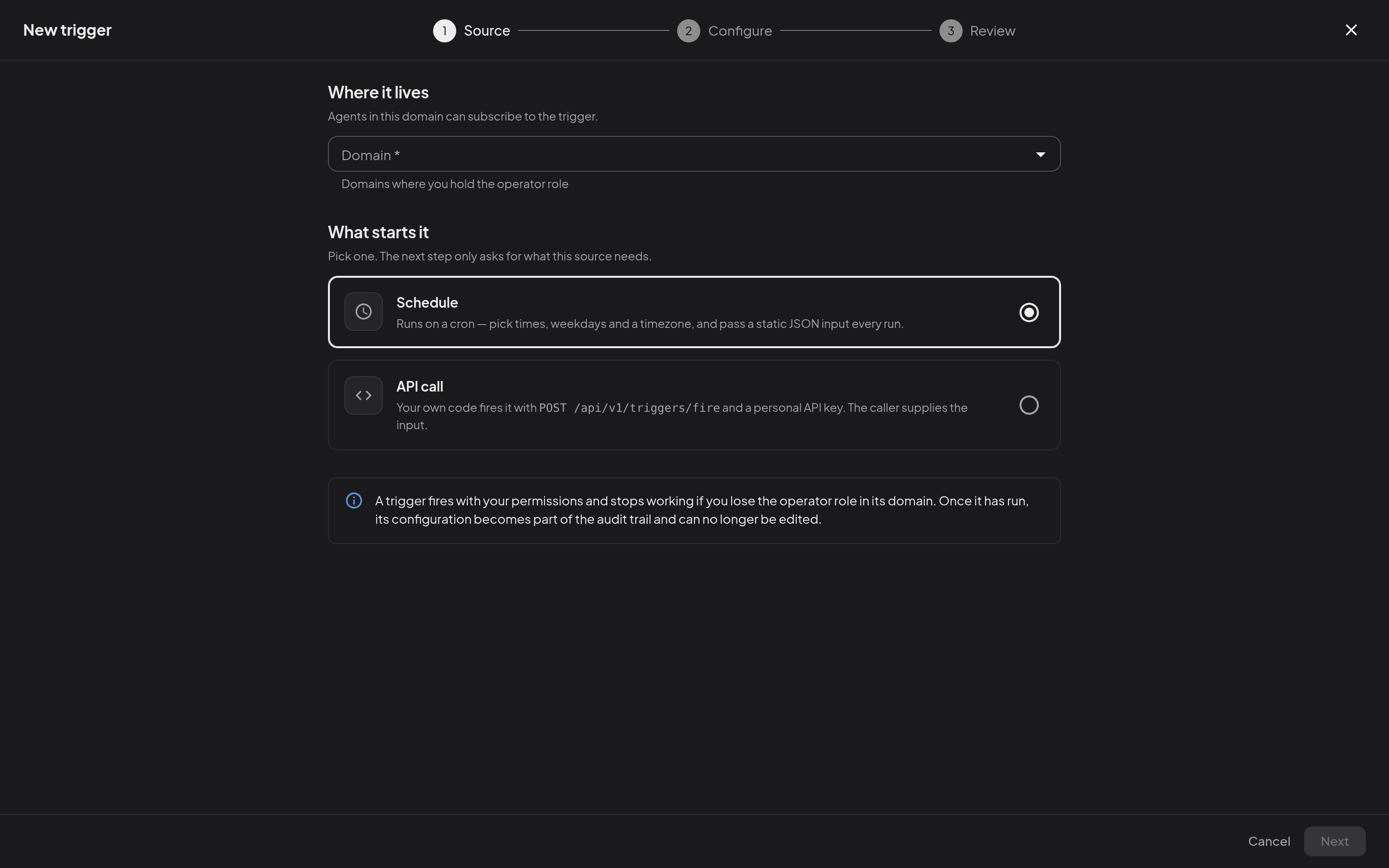
For a schedule, enter a five-field Cron expression. Saving a changed expression recomputes the next run immediately. The Schedule option is withheld once the workspace has reached its plan's ceiling on scheduled triggers - see Settings → Plan & usage. For an API trigger, create the trigger, then use Triggers → API keys → New key when an external system needs a key. Copy a new key when it is shown; the screen does not reveal it again.
For a Provider event, pick the source from the provider cards - each says whether a connected account exists in the domain; a source can be picked before it is connected, and the trigger stays disabled until setup is complete - then choose an Event type. Stripe, GitHub, Slack and Shopify ask for a Webhook endpoint secret, and Shopify also offers Register with Shopify automatically. Under Gate (optional) you may add one condition over the actor, the time it occurred or a declared payload field, using Equals, Not equals, Greater than, Less than, Contains or Is one of. The integration's Events tab opens this same stepper with the source, connection and event type preselected.
Which providers can push events
Eleven integrations can start work the moment something happens on their side. Everything else is a schedule or an API call. Provider events are enabled per workspace, on request - while they are off, Provider event is absent from the New trigger stepper and no integration shows an Events tab. Ask Yekar.AI to switch them on.
| Provider | Events you can trigger on |
|---|---|
| Stripe | payment_intent.succeeded, payment_intent.payment_failed, checkout.session.completed, charge.refunded, customer.created, invoice.paid, invoice.payment_failed |
| Shopify | Orders (orders/create, orders/paid, orders/cancelled, orders/updated, orders/fulfilled), refunds/create, fulfilments (fulfillments/create, fulfillments/update), products (products/create, products/update, products/delete), customers (customers/create, customers/update), inventory_levels/update and app/uninstalled |
| GitHub | pull_request.opened, issues.labeled, push, release.published, workflow_run.completed |
| Slack | app_mention, message.im, message.channels, message.groups, message.mpim, message_changed, message_deleted, reaction_added, member_joined_channel, member_left_channel, file_shared, channel_created |
| Telegram | message, edited_message, channel_post, callback_query |
| WhatsApp Business | Inbound messages, plus delivered / read / failed status updates |
| Gmail | message.new - a new message in the watched mailbox or label |
| Outlook | message.new - a new message in the connected mailbox |
| Microsoft Teams | channel.message.new - a post in a channel of a team the connected account belongs to; chat.message.new - a message in one of its chats. The account's own posts never fire |
| Twilio | message.received - an SMS or WhatsApp message to the connected number; message_status.sent, message_status.delivered, message_status.undelivered, message_status.failed, message_status.read |
email.received - mail sent to this trigger's own hosted address |
They do not all arrive the same way, and the difference decides what you have to set up:
- Webhook providers - Stripe, GitHub, Slack, Shopify, Telegram, WhatsApp Business and Twilio. The provider posts to the delivery address shown on the trigger's Overview, and an unsigned or wrongly-signed delivery is refused rather than processed. What you set up differs by provider. Stripe, GitHub and Slack: register that address in the provider's own webhook settings and paste the provider's signing secret into Webhook endpoint secret when you create the trigger. Shopify: tick Register with Shopify automatically or register it by hand, and enter the custom app's API secret key either way. Telegram: registered for you, with nothing to paste. WhatsApp Business: registered in Meta's dashboard against the app credentials an organization admin saves under Triggers → Event providers. Twilio: configured per phone number in the Twilio Console; each delivery is signed with the Auth Token the connection already holds, so there is no second secret to enter.
- Polling - Gmail, Outlook and Microsoft Teams. There is nothing to paste: once the account is connected, Yekar.AI checks it on a schedule and starts work on genuinely new mail or messages. Marking old mail read cannot re-run an agent, and the connected Teams account's own posts never fire.
- A hosted address - Email. The trigger is given its own address and the address is the route: mail sent to it fires that one trigger and nothing else. Because the address is effectively a credential, anyone holding it can fire the trigger - revoke it to replace a leaked address without deleting the trigger. This provider needs an inbound mail domain configured for the deployment; where there is none, Yekar.AI declines to mint addresses rather than hand out ones that could never receive.
Triggers → Event providers (organization admins only) holds the organization-level credentials a few providers need before their triggers can be enabled - Meta's app id, app secret and verify token for WhatsApp Business, and the Pub/Sub topic Gmail's mailbox watch publishes to. Every other provider is listed there as Configured per trigger: the trigger asks for what it needs when you create it. Delivery health is on the trigger's own Overview, under Why work didn't run - when an event last arrived and what happened to each arrival.
Subscribe an agent or flow
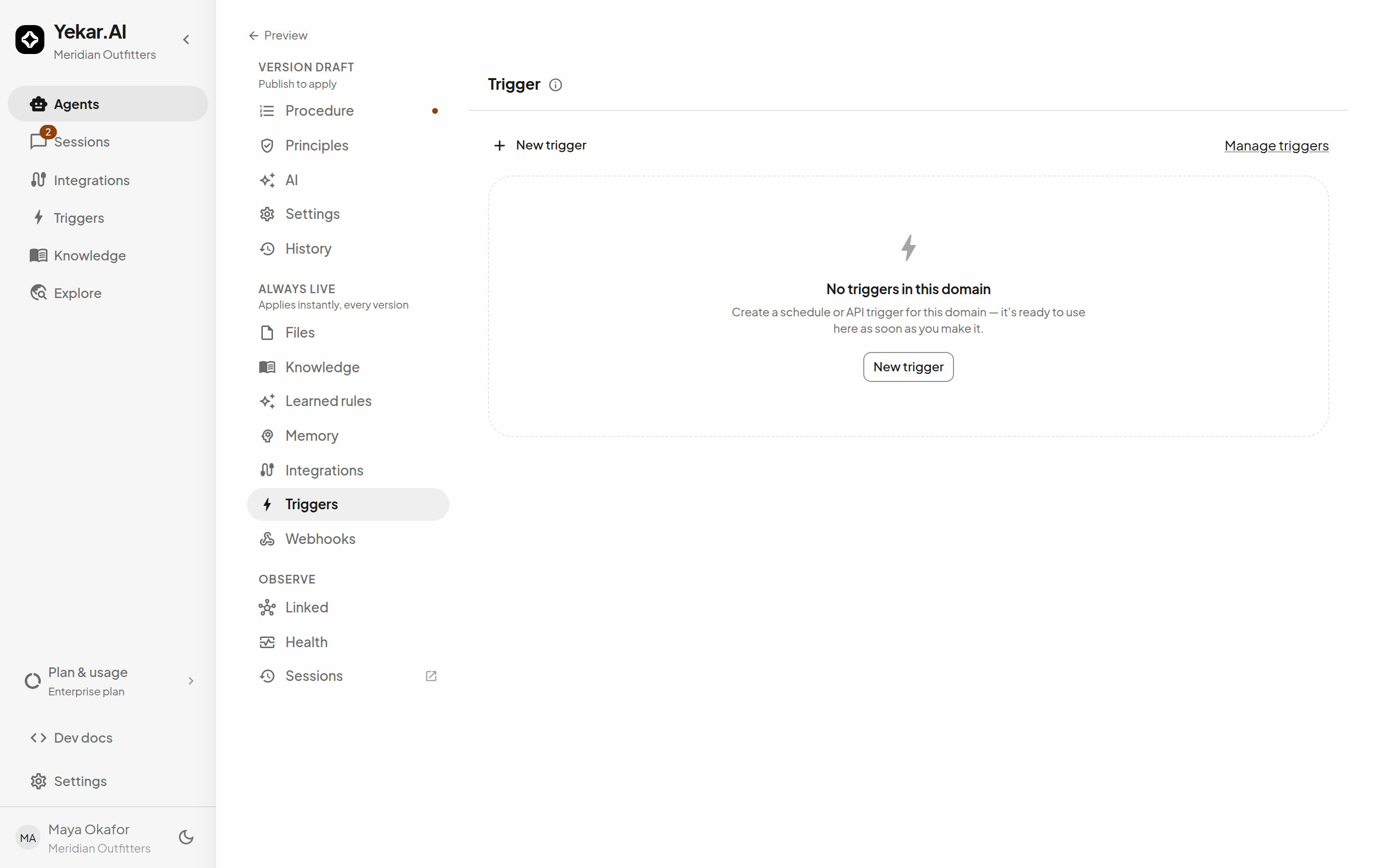
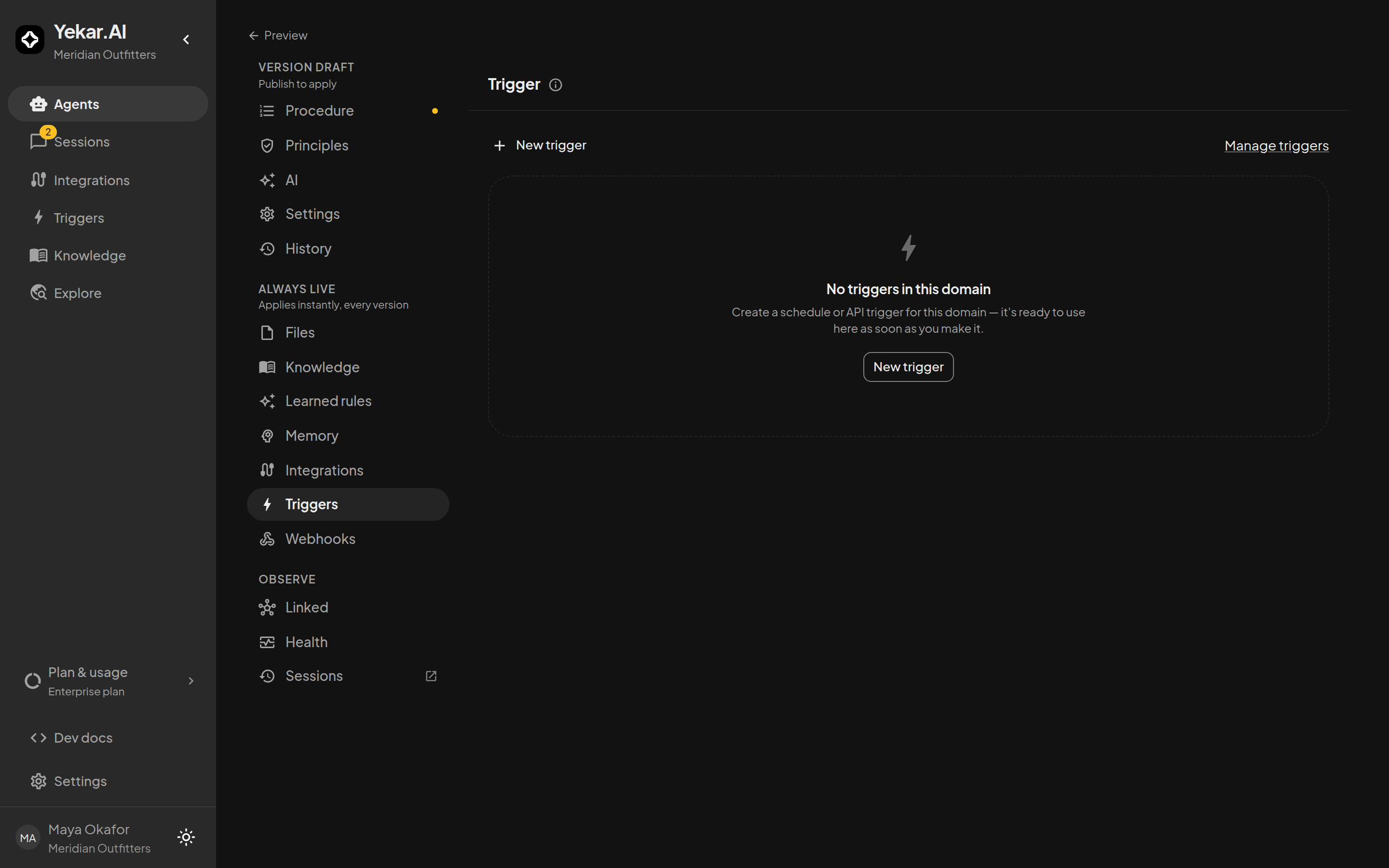
Open an Agent and select Triggers, or open a Flow and select its Trigger node. Select the trigger and save. You can also choose New trigger inside the Trigger drawer itself; its domain is already fixed.
Anything may subscribe; whether a firing can actually run it is decided at the firing, per integration, and recorded in the trigger's run history rather than refused when you save. Team-account and Platform connections are always safe unattended. Two identities are not, and each has its own recorded reason:
- An API caller binding set to Fail the run (credential required) - nobody is present to supply a token. Its firings are skipped as
integration_not_unattended. Set it to Fall back to the domain, or to the team account, and it fires normally. - A binding at The person using it - the firing runs as the person who created the trigger, so it is skipped as
person_unavailableonce they are no longer an active member, have not signed in, or the domain's door is shut. Anyone who manages the domain's triggers can create one, and it is that creator the agent then acts as - so create the trigger as the person whose account the work should run on.
See Identity.
For a Flow, declare its start fields under Inputs this flow needs to start. In the inline New trigger drawer, provide Input (JSON) to pass the same input on every firing.
Review or stop firing
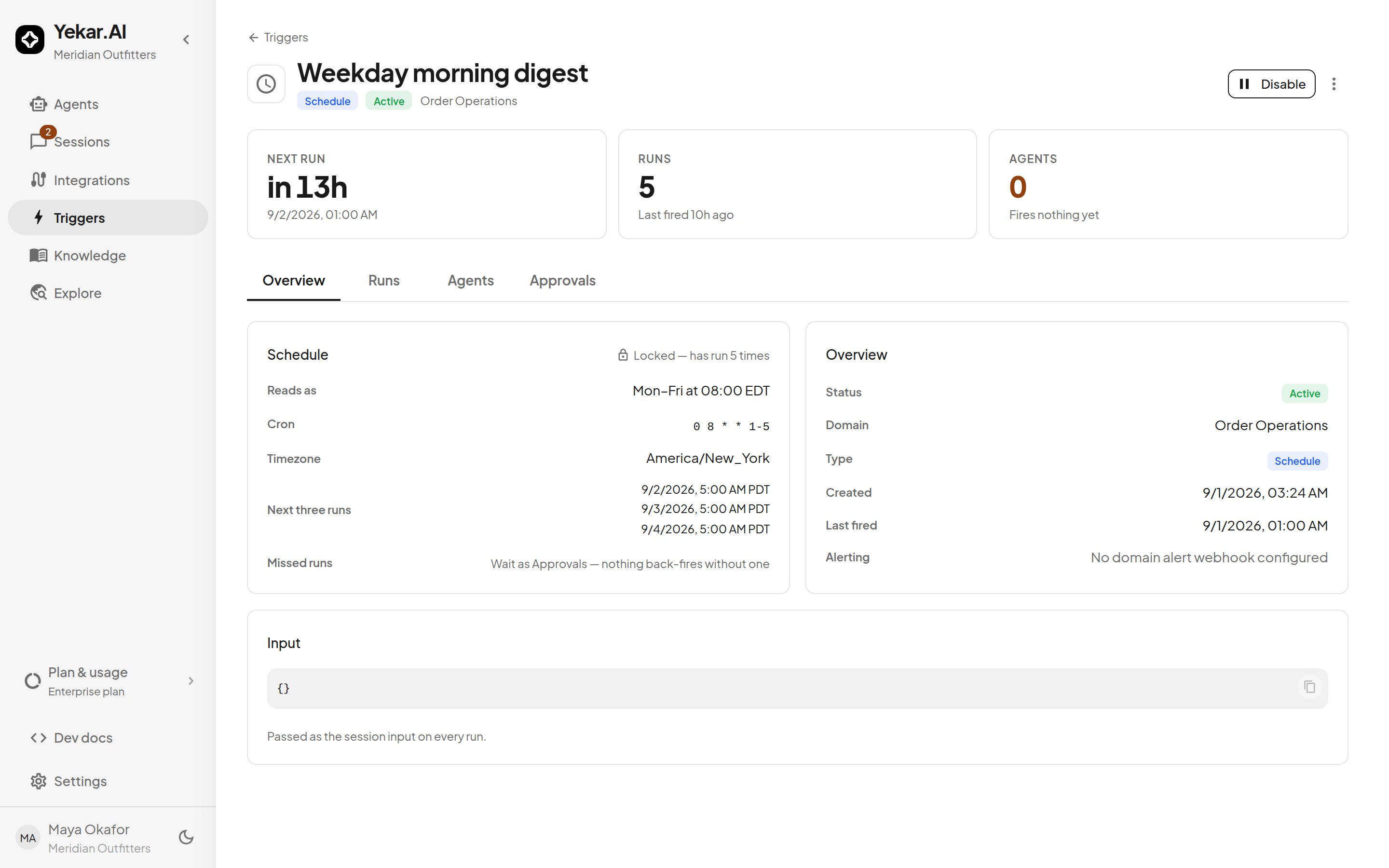
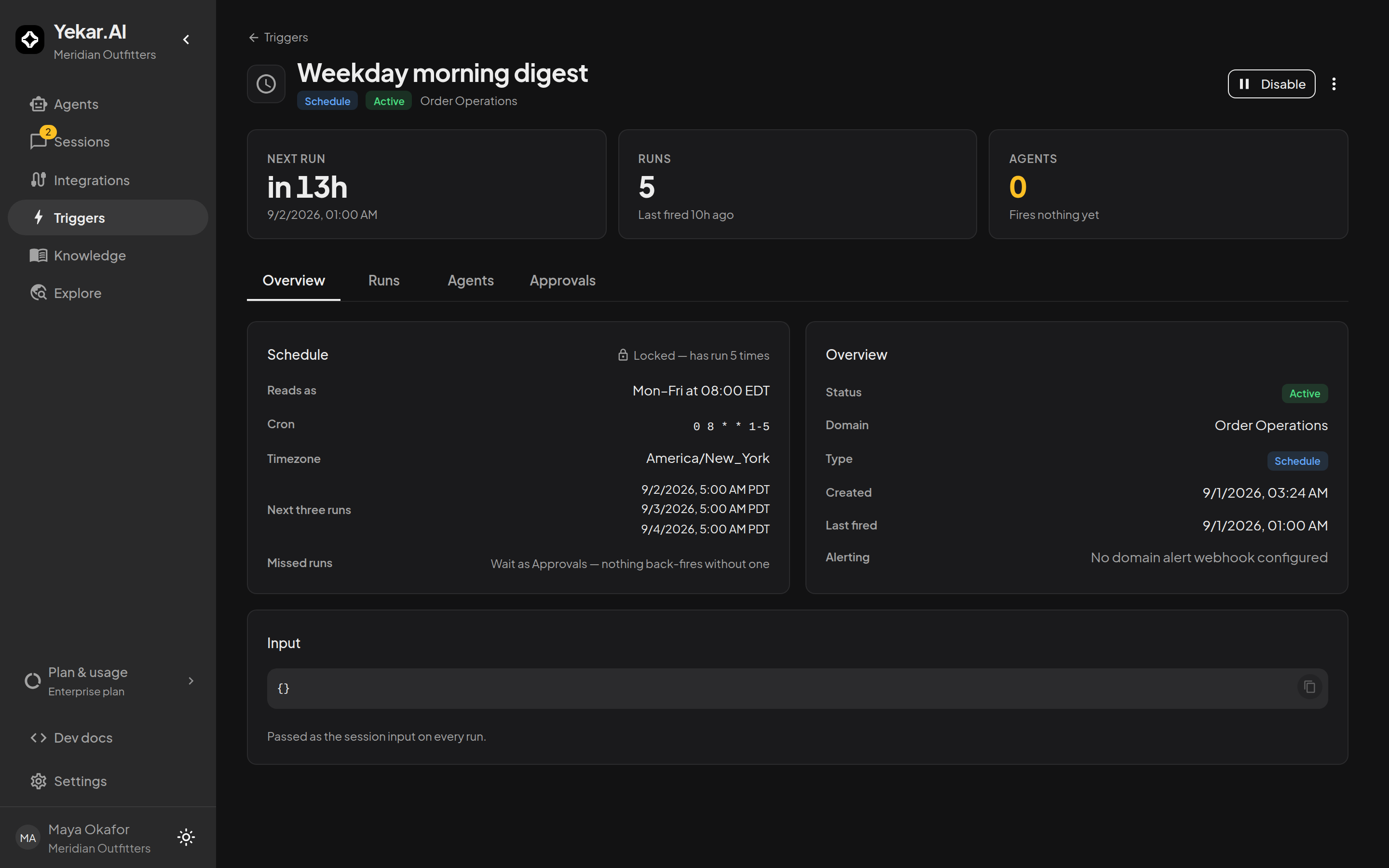
Open Triggers, choose a trigger, and inspect its firing history. Each result links to the session it started and shows the run outcome or recorded error. Use the trigger’s action menu to Disable or Enable it. A disabled trigger remains configured but does not fire.
Trigger Run history uses these statuses:
| Status | Meaning |
|---|---|
succeeded | Every subscribed agent and flow started. |
refused | The platform deliberately declined every start, for example because the subscriber was at capacity. This is not an agent or flow failure. |
failed | The firing could not start work: its acting user was no longer valid, or every subscriber start failed. |
partial | Subscribers produced more than one outcome: some started, were refused, or failed. |
skipped | Nothing was attempted: no subscribers, a scheduled firing belonging to a suspended organization, or every subscriber skipped for a recorded per-binding reason such as integration_not_unattended or person_unavailable. |
pending | The firing intent was recorded, but its outcome was never finalized. |
A schedule that could not fire on time - the platform was down, or a backlog ran past two minutes - parks its missed occurrences as a catch-up batch on the trigger's Approvals tab rather than firing them late on its own. Anyone who manages the domain's triggers approves all, a range or the first of them, or discards the rest; the trigger must be active. Re-enabling a disabled schedule never backfires missed runs. See How approvals are layered.
The interface presents a pending run older than one hour as Interrupted before completion. Interrupted is a presentation, not a status. The run's recorded status stays pending, and the API never returns interrupted.
API keys
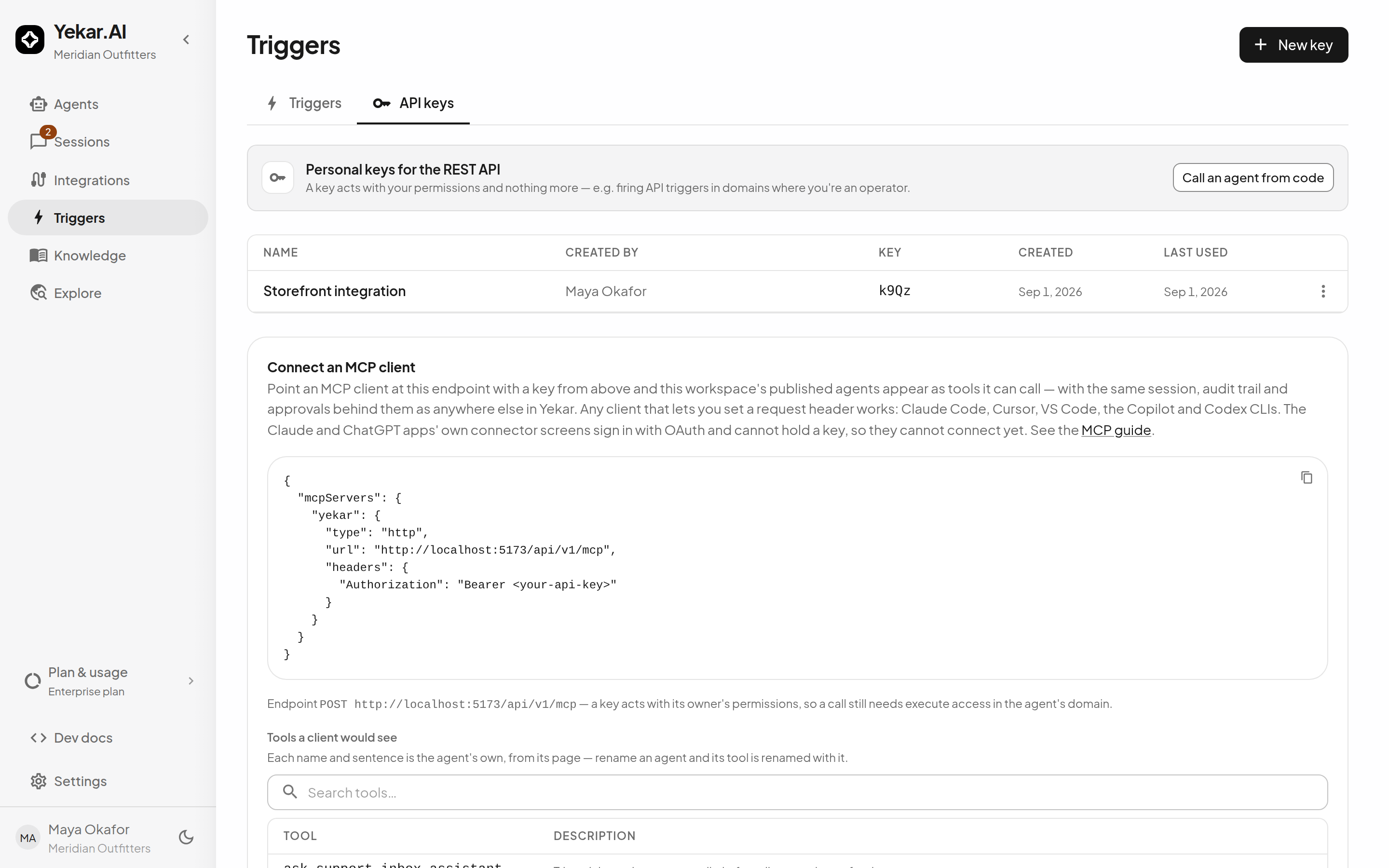
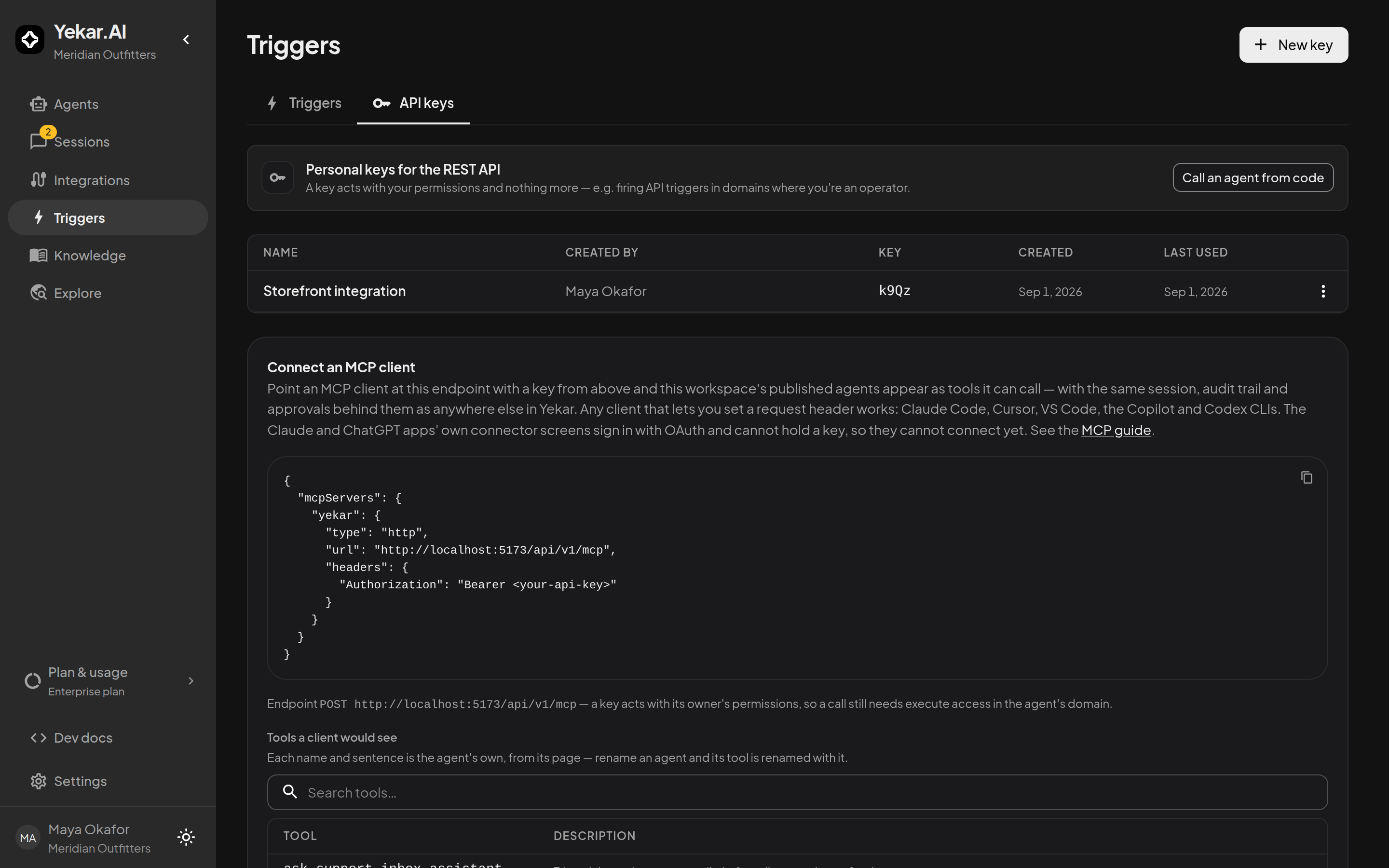
An API trigger needs a key before an outside system can fire it. Triggers → API keys is where you create, name, rotate and revoke them.
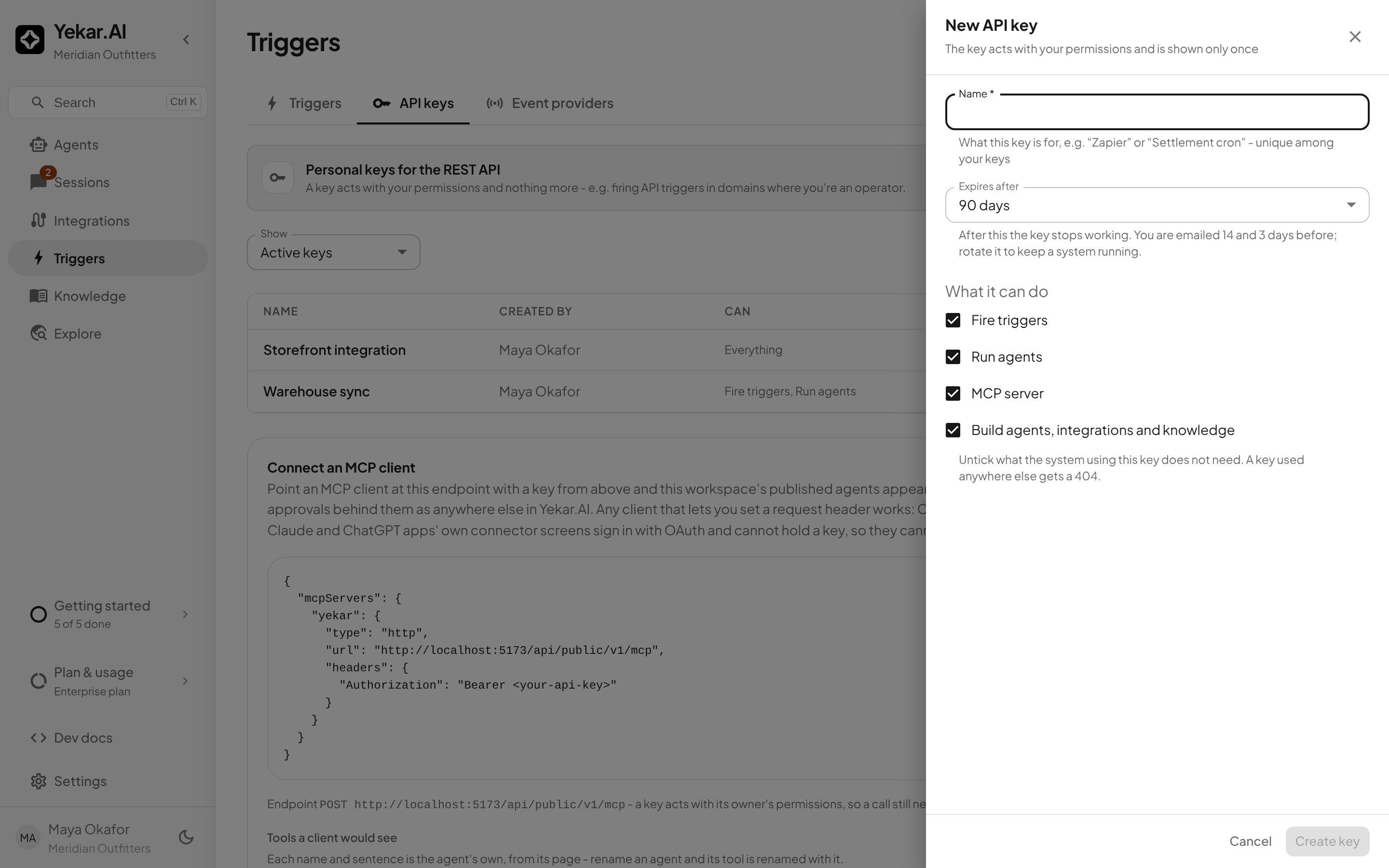
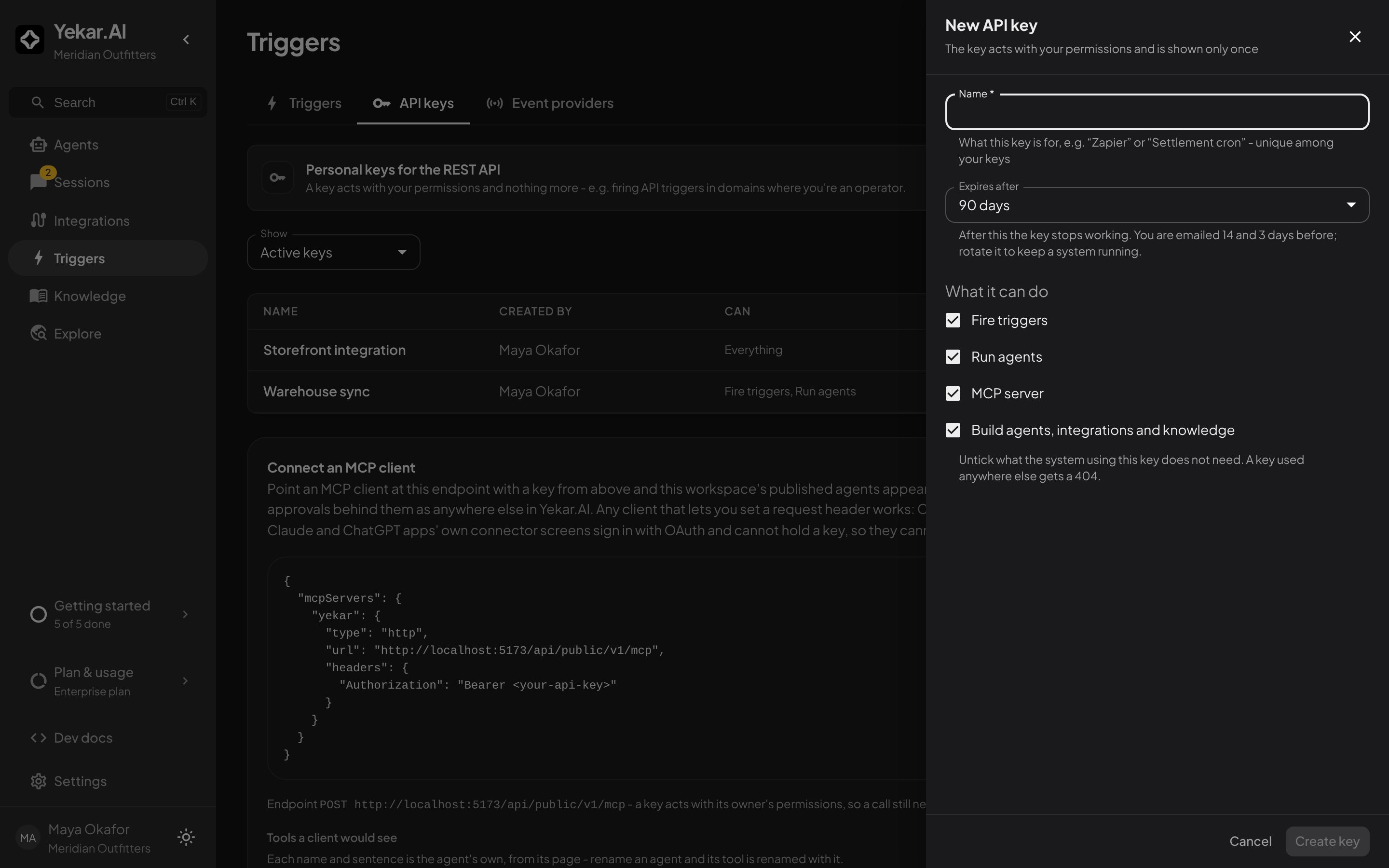
New key asks for three things:
- A name - what the key is for, unique among your keys.
- Expires after - 7, 30, 90, 180 days or 1 year; 90 days unless you change it. After that the key stops working, so rotate it before then to keep a system running. The list shows the date, flags Expires soon in the last week, and Expired after.
- What it can do - the scopes the key opens: Fire triggers, Run agents, MCP server, and Build agents, integrations and knowledge. All are ticked to start; untick what the system holding this key does not need. A request outside the key's scopes is answered with a 404, as if the route did not exist.
Copy a new key when it is shown - it is never displayed again. Rotate key, in a key's row menu, replaces the secret and keeps the name and scopes: the new key is shown once with its own expiry, and the old secret stops working at once, so move a system over by rotating rather than by creating a second key. Revoke key stops a key immediately; it stays listed under Revoked keys as the record of who revoked it and when. A key always acts with its owner's permissions, rechecked on each call, and deactivating a person retires every key they hold.
When calls carrying one of this workspace's keys were turned away before they reached any trigger - a key that exists but can no longer be used (its owner was deactivated, say), a request body that was not valid, or a trigger that does not exist here or is not an API trigger - a notice at the top of the page counts them over the last 7 days by reason, with when each was last seen. Callers received a 404 in every case, so this notice is often the first sign that a system is still pointed at a trigger that was deleted or a key whose owner has left. A call with no key, or with a key Yekar.AI does not recognise - including one that has expired - cannot be tied to any workspace and is not shown. A fire that reached a trigger but was refused there - because the trigger is disabled, or the key's owner lost access to its domain - is counted on that trigger's own page instead, with what to do about it.
The same page has Connect an MCP client. Point any MCP client that can send a request header - Claude Code, Cursor, VS Code, the Copilot and Codex CLIs - at the endpoint shown there with one of these keys, and this workspace's published agents appear as tools it can call, with the same sessions, audit trail and approvals behind them. The page lists the tools a client would see, one per published agent. The key must keep the MCP server scope, or the endpoint answers 404. A key acts with its owner's permissions, so a call still needs execute access in the agent's domain. See MCP.
Tips
If a firing was skipped rather than run, open the trigger's history and read the recorded reason - integration_not_unattended means a credential-required API caller binding, and person_unavailable means the trigger's creator can no longer act. Subscribing is never refused; the decision happens at the firing. If static input is rejected, enter a valid JSON object that matches the Flow’s declared inputs. If an API call fails, inspect the trigger’s firing history. See Troubleshooting.