Model, limits, and guardrails
Two panels in the Agent's Setup choose the model, bound its work, shape its output, and decide which writes need a human. Both are part of the Setup: they publish with it, and the published values are what runs.
- Setup → AI holds LLM models, Decision models, Response and Limits.
- Setup → Settings holds Memory & knowledge, Approvals & output and the Danger zone.
Old links to the former single Config tab still work - they land on whichever of the two now owns the setting.
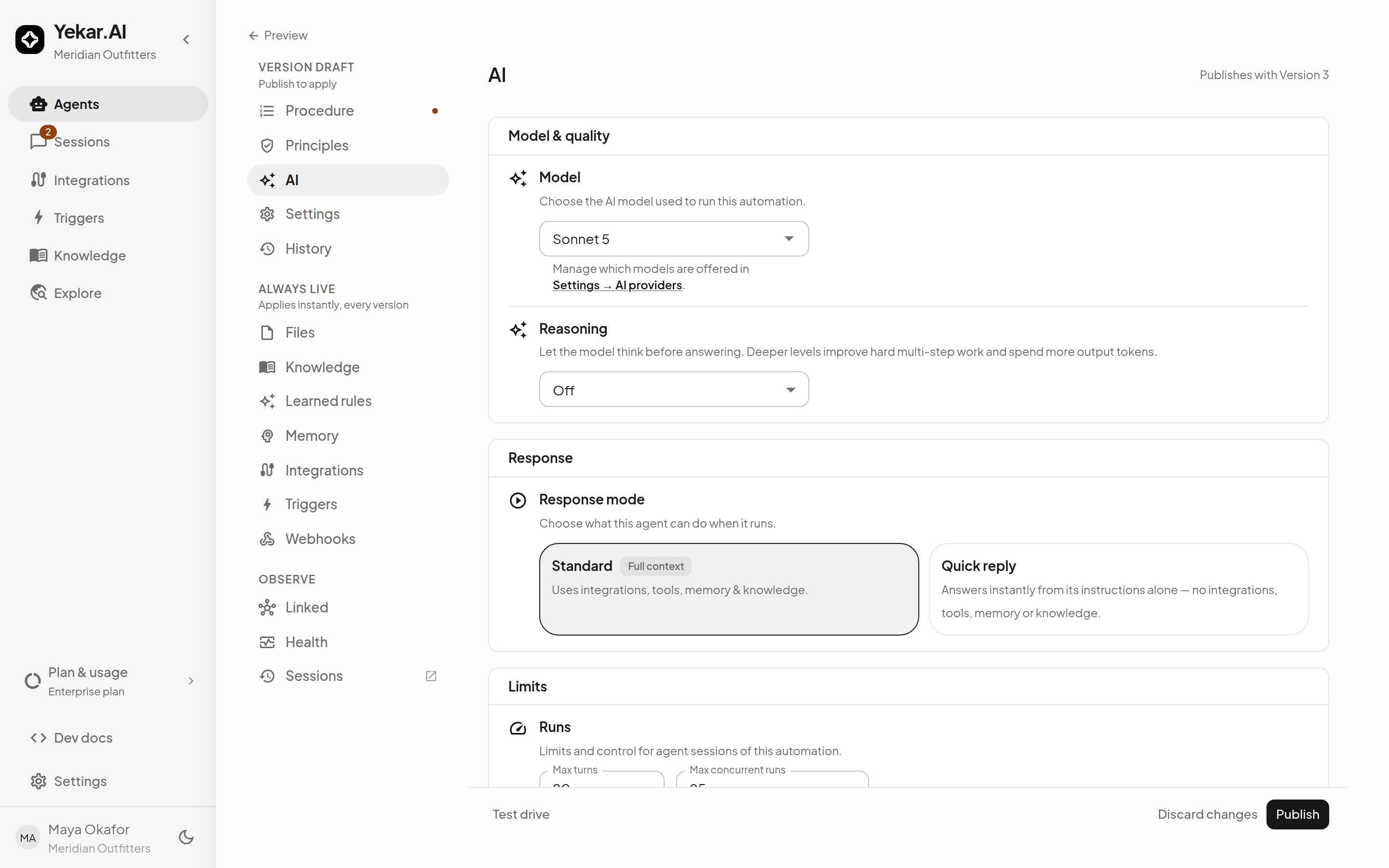
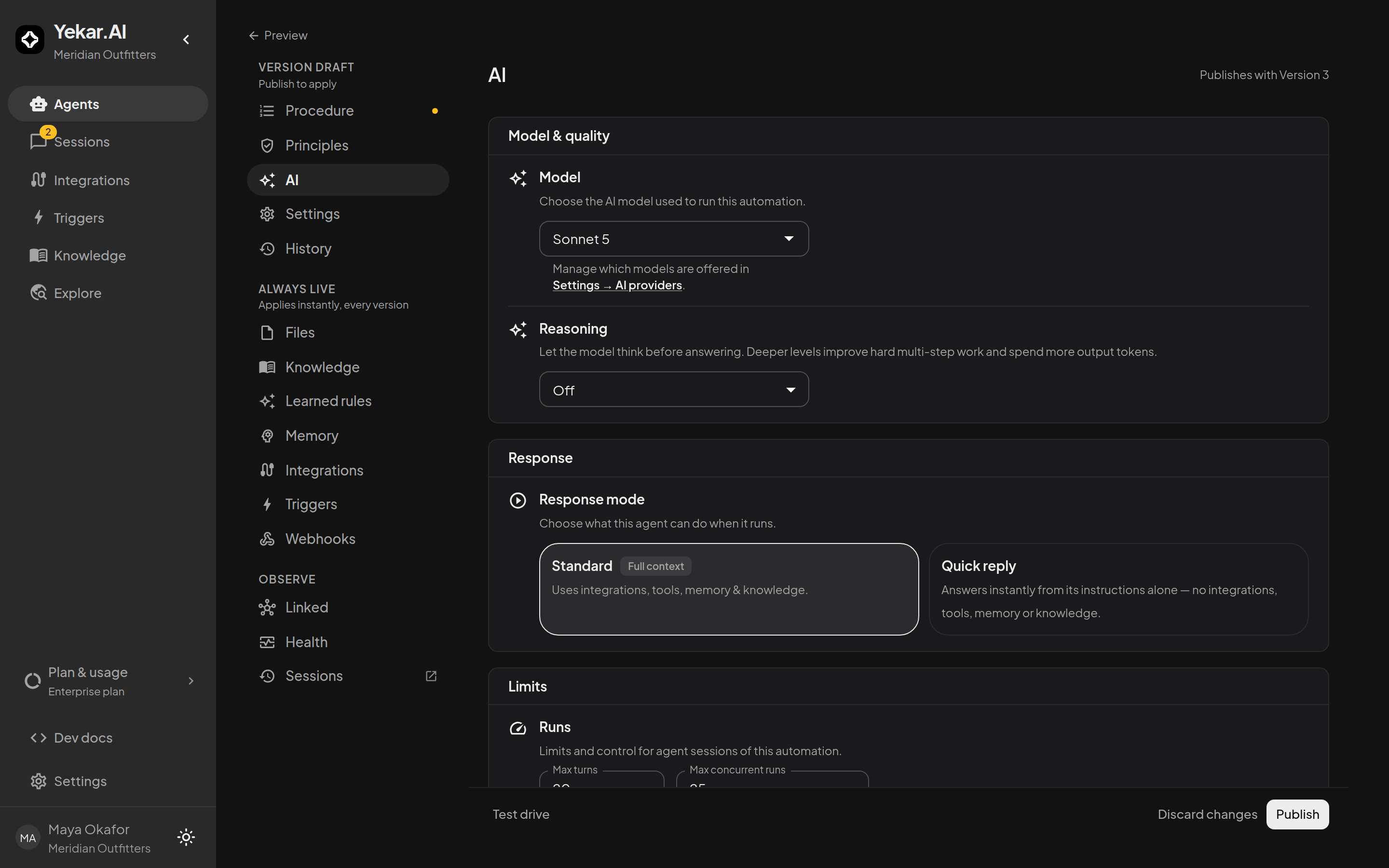
Setup → AI
LLM models
Under LLM models, choose the model the Agent's turns use; an Agent that never chose one runs your organization's Default model (Organization defaults). Only models your organization currently offers are listed - a provider that is off, or an individual model that has been turned off under Settings → AI settings → AI providers, does not appear. See AI providers for configuring keys.
If people will attach images in this Agent's sessions, pick a vision-capable model: on a model without image support, attached images are omitted from the turn and the conversation says so, naming the model - see Image input.
Model for unattended runs chooses a second model for turns nobody is watching: those a schedule or event trigger starts. Conversations, API calls and calls from other agents keep the main model. It is empty by default - Same as the main model - and only models your organization offers are listed, like the main picker. Pick a cheaper model here when the Agent's scheduled work is routine and its interactive answers are not; the unattended turns are billed at that model's rates and show it on the usage ledger. Eval replays test the main model.
Model for background tasks chooses the model for the small jobs around a conversation, separately from the model that answers: naming the conversation, summarizing older messages once a conversation grows long, rewording a short follow-up into a complete knowledge search, and reviewing past runs for learning. Left empty, these run on your organization's Default model for background tasks (Organization defaults); the picker shows which. They are billed at the chosen model's rates and show it on the usage ledger. The Agent's replies, its tool use and its procedure steps always use the main model.
Reasoning lets the model think before it answers. It lists only what the chosen model offers: Off on a model that answers without thinking unless asked, or Model default on one that thinks on its own (every Claude 5 model among them), then the depths - Low, Medium, High - that model keeps apart. Deeper thinking helps hard multi-step work and spends more output tokens. It publishes with the Setup like the model does. The setting appears only for models with an adjustable reasoning level - Claude, OpenAI's reasoning models and Gemini through their own providers, Claude on Amazon Bedrock, reasoning models through OpenRouter, and the models whose providers document one (DeepSeek, Kimi K3, GLM 5.3, Grok, Mistral Medium and Small, Groq's and Cerebras's open models, Qwen Max, Solar Pro 4 and Mini 4, Sarvam 105B). Choosing a model explains how the three levels map onto each vendor. Other models run at their provider's default, so the setting is hidden for them; if one was already set before you switched models, it stays visible with a note that it has no effect, so you can set it back to Off.
Decision models
Under Decision models, Use a decision model lets the Agent's Structured Procedure have decision steps, and Model chooses which decision model answers them. A decision model answers yes or no, choose one and score questions with probabilities; it never writes replies. The section appears when your organization offers a decision model, or when this Agent already has one.
Turning it off keeps the chosen model and shows the Agent's decision steps as conversation steps. A model your organization no longer offers stays selected and is flagged, so you can pick another. Like the LLM model, the decision model publishes with the Setup.
Response
Under Response, Response mode decides how much of the Agent is in play:
- Standard - full context: integrations, tools, memory, and knowledge are available.
- Quick reply - the Agent answers instantly from its instructions alone, with no integrations, tools, memory, or knowledge. Use it for pure-text assistants where a tool call would never be wanted.
Limits
Runs bounds what one conversation may do:
- Max turns bounds how many model rounds one conversation turn may take before it stops - 20 by default, and never more than 150. Raise it for Agents that chain many tool calls; lower it to cap what a single turn can spend.
- Max concurrent runs caps how many of this Agent's executions may be live at once - 25 by default, up to 200. Work beyond the cap is refused, not queued silently - the refusal is visible to the caller. The published value governs, even for a test drive; raising it in a draft takes effect when you publish.
Delegation → Questions per call bounds how many times an agent or flow this Agent calls may stop and ask it a question (default 3, up to 10; 0 means it takes no questions). Asking is how it avoids guessing when a task is genuinely ambiguous, but every exchange costs both sides a turn, so the budget stops two models talking to each other indefinitely. When the budget runs out the Agent is told so plainly rather than being cut off silently.
Media generation
When the organization allows media generation and the Procedure references the media tools, Limits gains a Media generation row. Quality tier - Draft, Standard (the default) or Premium - is the tier every generation from this Agent is charged at, with each tier's live per-unit prices and length limits shown beside it; the model never chooses it, because a tier the model could pick is a spend dial the model could turn. A tier with no price sheet reads Not priced yet and refuses at call time. Drop a tier rather than fail lets a generation step down one tier when the balance cannot cover the configured one, with Draft as the floor; the Agent is told which tier it fell back to so it can say so. Monthly media budget caps this Agent's successful, charged generations in the current calendar month, in USD - leave it empty for no limit. Video and audio are charged on the duration requested. See Cost & budgets.
Setup → Settings
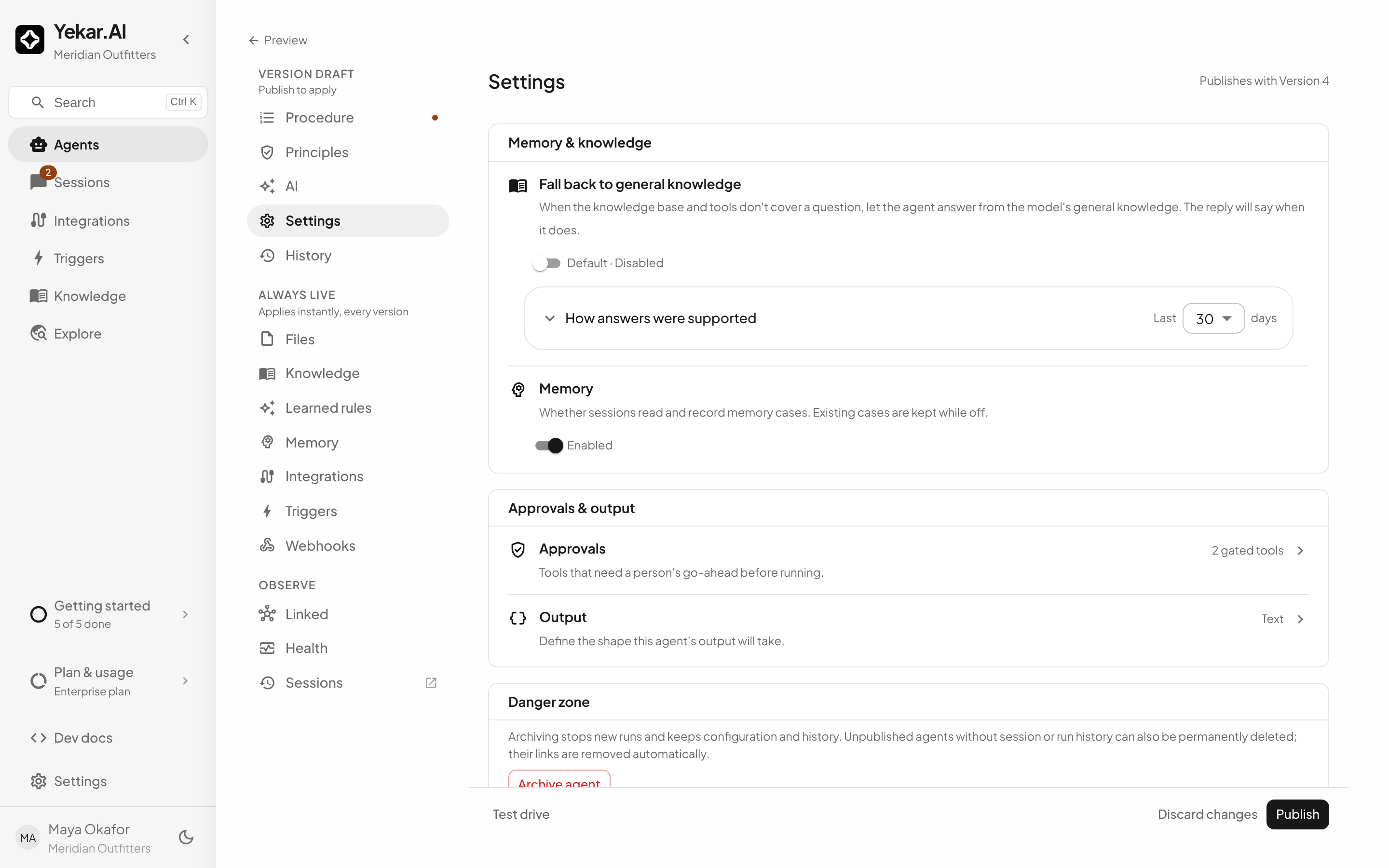
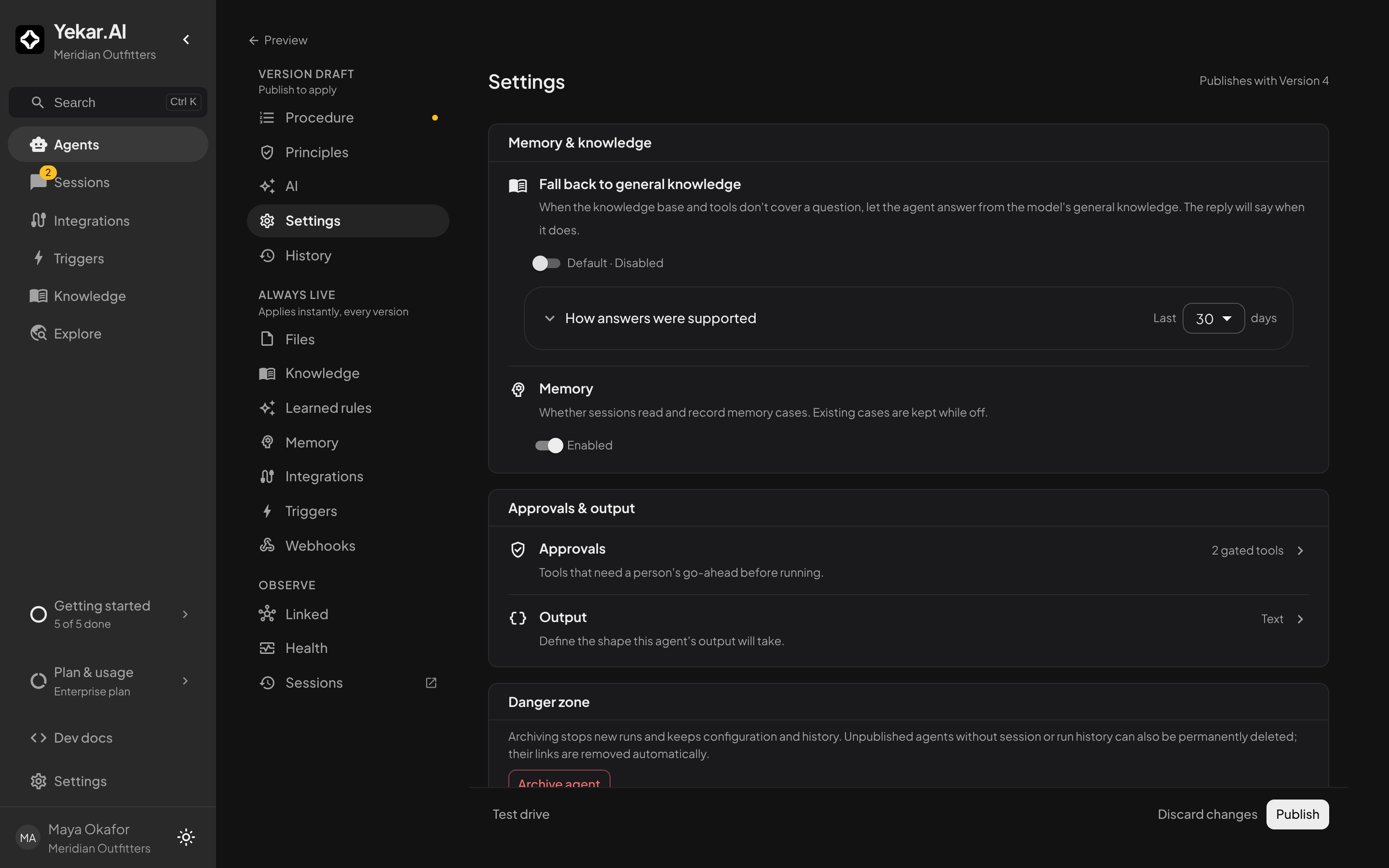
Memory & knowledge
Fall back to general knowledge lets the Agent answer from the model's own knowledge when its knowledge base and tools do not cover a question; the reply says when it does. Until you set it, the row reads Default and the default follows the Agent's knowledge: on for an Agent with no files or knowledge selection, off once it has some - so attaching knowledge is what makes the Agent decline rather than guess. Beneath the switch, How answers were supported counts the last 7, 30 or 90 days of answers by source - From knowledge, From tools, Not covered, General knowledge and Unsourced - alongside the guardrail nudges applied before an answer was returned and the searches that stopped because the matches were weak. The Health page files every settled production turn by a similar set of buckets, and compares repairs across published revisions.
The Memory switch decides whether sessions read and record memory cases. The switch is draft configuration and publishes with the Setup; the accumulated cases themselves live in the Memory drawer, and existing cases are kept while memory is off.
Approvals
Approvals and the output shape share one group, Approvals & output.
Approvals lists every tool the Agent reaches and lets you gate specific ones - for example Send message on Gmail, but not Create draft. A gated tool's calls pause the agent for a human decision before running. The row shows how many tools are currently gated.
Tools are grouped under the integration they come from; a collapsed group still says how many of its tools are gated. Reads and writes are both on offer, each row badged Read or Write. The badge is there because gating a read has one extra cost: that call no longer runs in parallel with its neighbours. To require approval for a tool in every Agent at once, an organization admin uses Tool approvals on the integration's page - tools required that way are shown above this list and gate regardless of what is selected here, and no Agent can remove them. The drawer also sets how long a pause waits for this Agent, and carries Receive approval notifications: off by default, it emails your approvers when one of this Agent's requests is pending or has expired. Tools your organization requires approval for are emailed regardless. How the three layers of approval fit together is in How approvals are layered.
A selected tool in an attended conversation asks its turn initiator for confirmation when it uses that person's own credentials or the domain's credentials. Only that person can answer, including a Viewer, and it stays in the conversation. Unattended work, work using another person's credentials, and organization-required gates instead create approvals in Sessions → Approvals, routed to the authorized deciders.
Under each gated tool, Skip the pause when a condition holds lets the Agent run some calls without asking: name one argument of the call (amount, or refund.amount for a nested one), a comparison - is less than, is at most, equals, is at least, is more than - and a value, and a call that meets it goes straight through, for example a refund under 200. A call that misses the condition, or whose argument is missing or not a number, pauses as usual, so a rule can only ever remove a pause you added yourself. The rule checks only the argument you name and ignores the call's others, and it checks a list only at the position you name - a rule on an email's first recipient (to.0) does not look at the other recipients, cc or bcc. If those matter, keep the pause. Every skipped pause is recorded in the audit log. A tool your organization requires approval for always pauses, whatever the rule says. The rule is part of the Setup, publishes with it, and appears in the publish diff as Auto-approve conditions.
The two deadlines are set separately, because the people waiting are different. In a chat defaults to 4 hours - the person was asked directly and is sitting there. With approvers defaults to 72 hours, which covers a weekend in a queue somebody visits. Each accepts a minute at the floor and thirty days at the ceiling. If nobody decides in time, the turn fails rather than executing the call without a decision.
Choose gates by blast radius: sending mail, moving money, and deleting records deserve a gate; ordinary searching and reading do not - a gate on every tool teaches approvers to rubber-stamp. A read earns one when the query itself is the risk, such as a search that could sweep up far more than the question needed.
Output shapes the answer: by default the Agent answers in natural language. Set it to JSON and supply an Output schema when a machine consumes the answer - a Flow step, or an API caller that needs fields rather than sentences.
Require passing tests to publish shows whether publishing is refused until a run of this Agent's tests has passed the exact changes being published. It is changed on the Evals Runs tab, which the row opens. See Evals.
When another agent or flow called this one
An Agent can be run by another agent or flow rather than by a person, and two settings only apply then. Both live with Approvals because both are about what a caller may do on this Agent's behalf.
An agent or flow that calls this agent may approve it too, shown under each gated tool, lets the CALLING agent or flow decide that gate as well as the people who could always decide it. It is an ADDITIONAL decider, never a replacement: the approval still appears in Sessions → Approvals, a person with rights can still act on it, and whoever decides first wins. Leave it off - the default - and gates go to people only, which is the right answer for anything you would want a human to justify.
Open a tool to callers when the calling agent or flow genuinely has the context to judge it and waiting for a person would strand routine work. Do not open one whose blast radius you would not want an agent or flow to accept unattended: the caller is a model, and it decides without anyone watching.
Danger zone
Archive agent is available for draft and active Agents, including Agents with runs, sessions, triggers, or callers. Archiving prevents new starts and keeps the Agent's configuration, sessions, and run history. Existing links are retained, but they cannot start the archived Agent.
Delete agent permanently removes an unpublished Agent without session or run history. Its trigger and automation links are removed automatically; shared triggers are kept. Archive Agents with history.
Tips
If the selected model is unavailable, open Settings → AI settings → AI providers to check the provider's state and key - LLM_NOT_CONFIGURED means no usable key for the selected provider. If runs are refused at capacity, raise Max concurrent runs and publish. See Troubleshooting.